
How to Export Markdown to Word, PDF, HTML, or PNG on Mac
Open a local Markdown file, check the preview, then export the right copy: Word for editing, PDF for fixed reading, HTML for the web, Markdown for portability, or PNG for a quick visual.
- LoveMarkDown
- August 18, 2026
- export Markdown to Word Mac
- Markdown to PDF Mac
- export Markdown PNG Mac
LoveMarkDown combines local Markdown editing with live preview, technical rendering, and portable export.
Jump to a section
Need to hand a Markdown document to someone who does not use Markdown? Keep the source file local, check the rendered result, then export the copy that matches the handoff: Word for editing, PDF for fixed reading, HTML for a browser, Markdown for portability, or PNG for a quick visual.
The important distinction is simple: Save keeps the source current. Export creates a separate copy for the recipient. That lets you continue working in Markdown without asking everyone else to adopt the same format or editor.
Quick answer: choose the copy your recipient needs
Word for comments and editing
Choose Word when the recipient needs to revise paragraphs, add comments, or continue the document in a familiar office workflow. Expect some reflow because Word applies its own fonts, spacing, page size, and document rules.
PDF for stable reading and printing
Choose PDF when the recipient mainly needs to read, review, print, or archive the document. PDF preserves a fixed page-oriented result better than an editable format, but the exact pagination still depends on fonts, page settings, and the available renderer.
HTML for a browser or web handoff
Choose HTML when the copy will be opened in a browser, moved into a web workflow, or inspected as portable markup. Check whether linked images and other local resources will remain available from the exported file’s new location.
Markdown for a portable source copy
Choose Markdown when the recipient already works with plain text or when you need a clean source copy for another repository, editor, or documentation workflow. Markdown retains the source structure rather than freezing the visual result.
PNG for a quick visual
Choose PNG when someone needs a fast visual reference in chat, a ticket, or a review thread. A PNG is easy to view but is not an editable document, and a long document may produce a very tall image.
1. Open the existing local Markdown file
Open the .md file you already use rather than recreating the document inside an export tool. Keeping the original file and its nearby assets together makes relative image paths easier to verify.
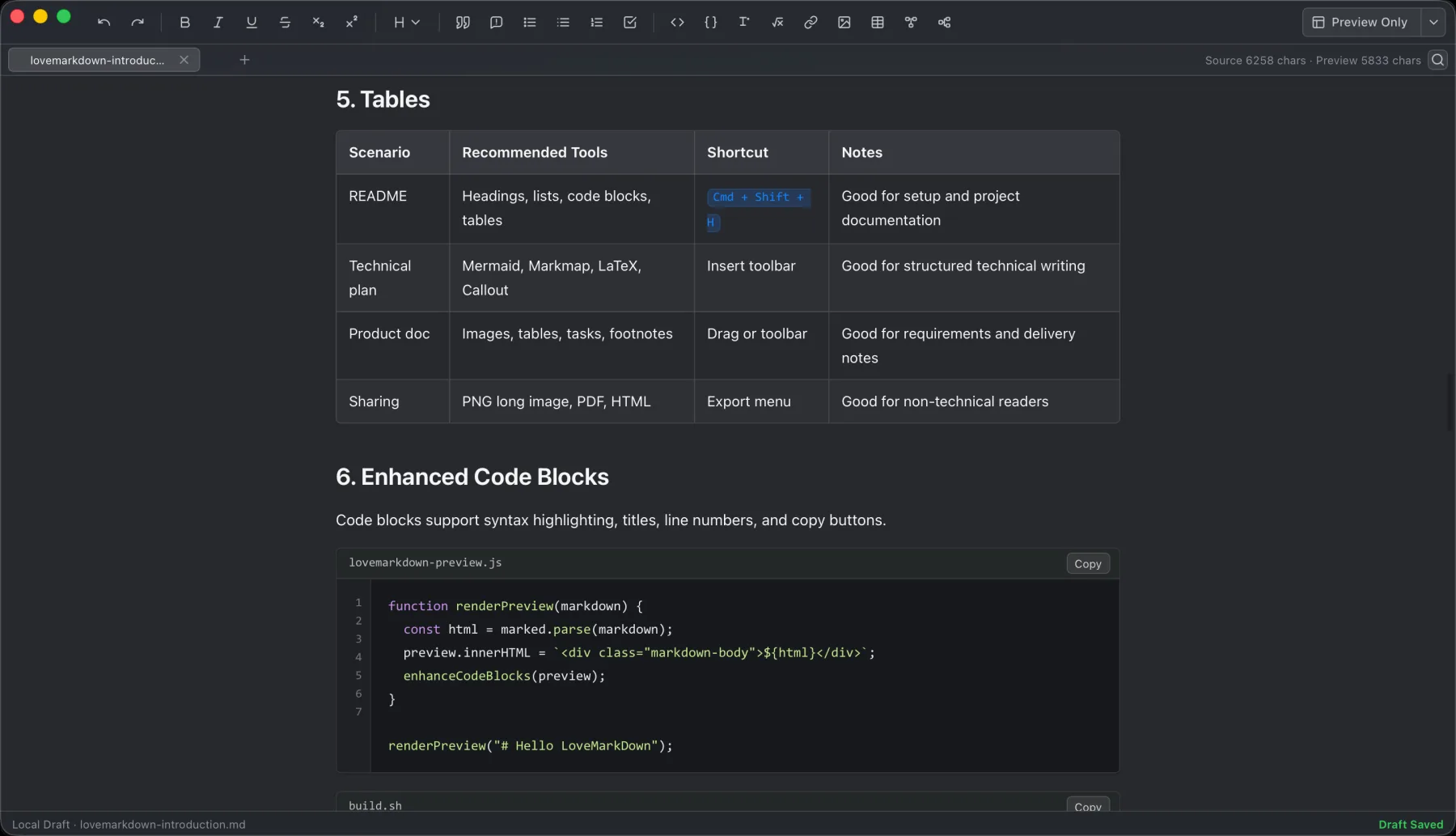
Before export, scan the document for the parts most likely to change between source and output:
- relative images such as
./images/example.png - tables and fenced code blocks
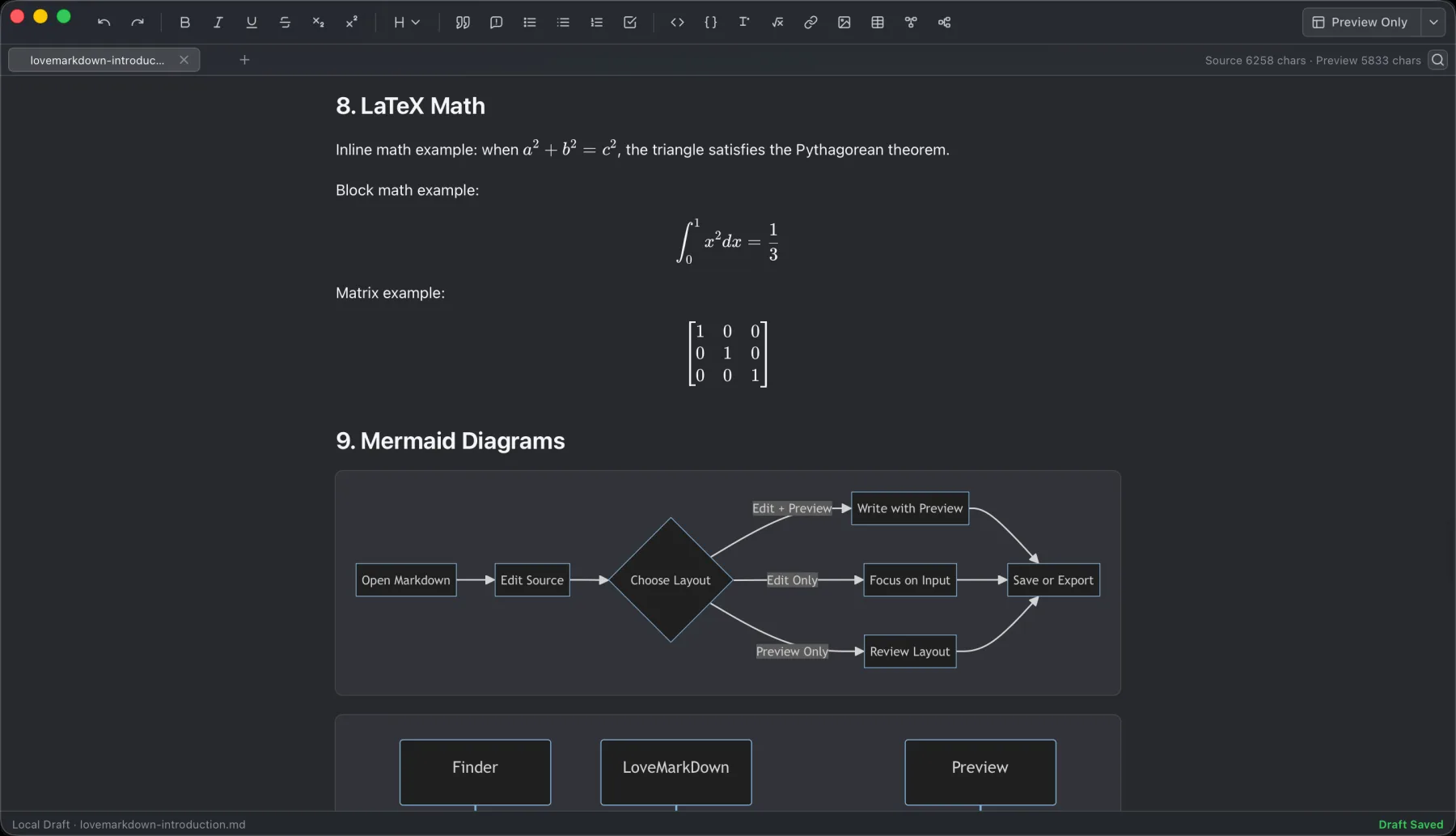
- Mermaid diagrams
- math expressions
- headings that should define the document structure
- long paragraphs or lists that may cross a page boundary
2. Check Preview before export
Preview is the fastest place to catch missing resources or unexpected structure before creating a recipient copy. Confirm that headings are in the intended order, images resolve, tables fit, code blocks remain readable, and diagrams or math render as expected.
This is a content check, not a promise that every destination format will look identical. Word, PDF, HTML, and PNG have different layout rules, so the preview is the reference point for detecting obvious issues rather than a pixel-perfect guarantee.
3. Save the source, then export the copy
Use Save when you want the latest edits written back to the current local Markdown document. Saving keeps the source file current.
Use Export when you want a separate Word, PDF, HTML, Markdown, or PNG copy for another person or destination. Exporting does not replace the source workflow: keep the .md file as the editable source, and treat each exported file as a handoff copy.
If the document has unsaved changes, save first. Then export, open the result, and check the exact file you plan to send.
4. Use a repeatable export workflow
- Open the existing local Markdown file with its related image folder available.
- Check the rendered preview for headings, images, tables, code, diagrams, and math.
- Save the Markdown source so the latest edits remain in the local file.
- Export one copy in the format that matches the recipient’s next action.
- Open the exported file in its normal viewer and inspect it before sending.
Troubleshoot the result before sending
An image is missing
Check the image path in the Markdown source and confirm that the file still exists relative to the document. Moving only the .md file while leaving its image folder behind can break a relative reference. For HTML or Markdown handoffs, include the required assets or update the references for the destination.
Fonts or line breaks changed
The recipient’s viewer may use different fonts or font metrics. This can change line wrapping, code width, and page count. Check the exported file in the app normally used to open that format, especially before printing or formal review.
PDF pages break in the wrong place
Long tables, code blocks, images, and headings near the bottom of a page can affect pagination. Shorten or reposition oversized content, then export again and inspect the surrounding pages. Do not rely on the editor preview alone for final page breaks.
A diagram or math block does not look right
First confirm that it renders in Preview. Then inspect the exported copy because each destination can handle complex rendered content differently. If the recipient only needs to see the result, PDF or PNG may be simpler than handing off source that depends on another renderer.
Export limits to keep in mind
No cross-format export should be described as pixel-identical or guaranteed in every viewer. Word is editable and may reflow. PDF is page-oriented but depends on fonts and page settings. HTML may depend on resource paths. Markdown preserves source rather than appearance. PNG captures a visual result but is not text-editable and can become tall for long documents.
The safest handoff is always the same: keep the Markdown source, export the recipient copy, then open and inspect that exported file before sending it.
Frequently asked questions
Does export change my original Markdown file?
Export creates a separate handoff copy. Save the current Markdown document first, keep it as the editable source, and inspect the exported result separately.
Which format should I use when the recipient needs to edit the document?
Word is the clearest choice for a recipient who expects office-style editing or comments. Send Markdown instead when the recipient wants the plain-text source and already has a compatible workflow.
Why are local images missing from an exported file?
The image reference may no longer point to an available file. Check the path relative to the Markdown document and make sure any assets required by HTML or Markdown remain available at the destination.
Will Word, PDF, HTML, and PNG look exactly like Preview?
Not necessarily. Each format and viewer applies different layout, font, pagination, and resource rules. Preview first, then inspect the actual exported file you plan to share.
What should I check when exporting Mermaid or math?
Confirm the block in Preview, export the intended format, and inspect the final copy. Complex rendered content may differ across destination formats, so the exported file is the final handoff check.