
Hand off a small launch. Keep the editable source.
You have a short launch note and someone else needs the finished document, not a new editor. Keep a Markdown master, prepare a readable copy, and check what you are actually sending.
- Start with
- One short local Markdown documentUse our public sample first, not a private project.
- Prepare for the reader
- A PDF, with a PNG reference if usefulKeep the Markdown master for later edits.
- Check before sending
- The actual exported filesEditor screenshots and archived outputs are separate evidence.
Start with the public sample
Open the editable Markdown sample in LoveMarkDown. It is our demonstration document, not a customer project. Its launch heading, deliverables table, checklist, quotation, and short code example give you specific things to compare at each step.
This is a small document handoff, not a collaboration or publishing service. Your recipient does not need LoveMarkDown to read the PDF. For other destinations, use the format-selection and export guide.
1. Check the document you intend to share
In Split view, compare the source and preview. Read the heading, each deliverable row, and the checked and unchecked tasks. Confirm the preview matches the message you want the recipient to receive before exporting.
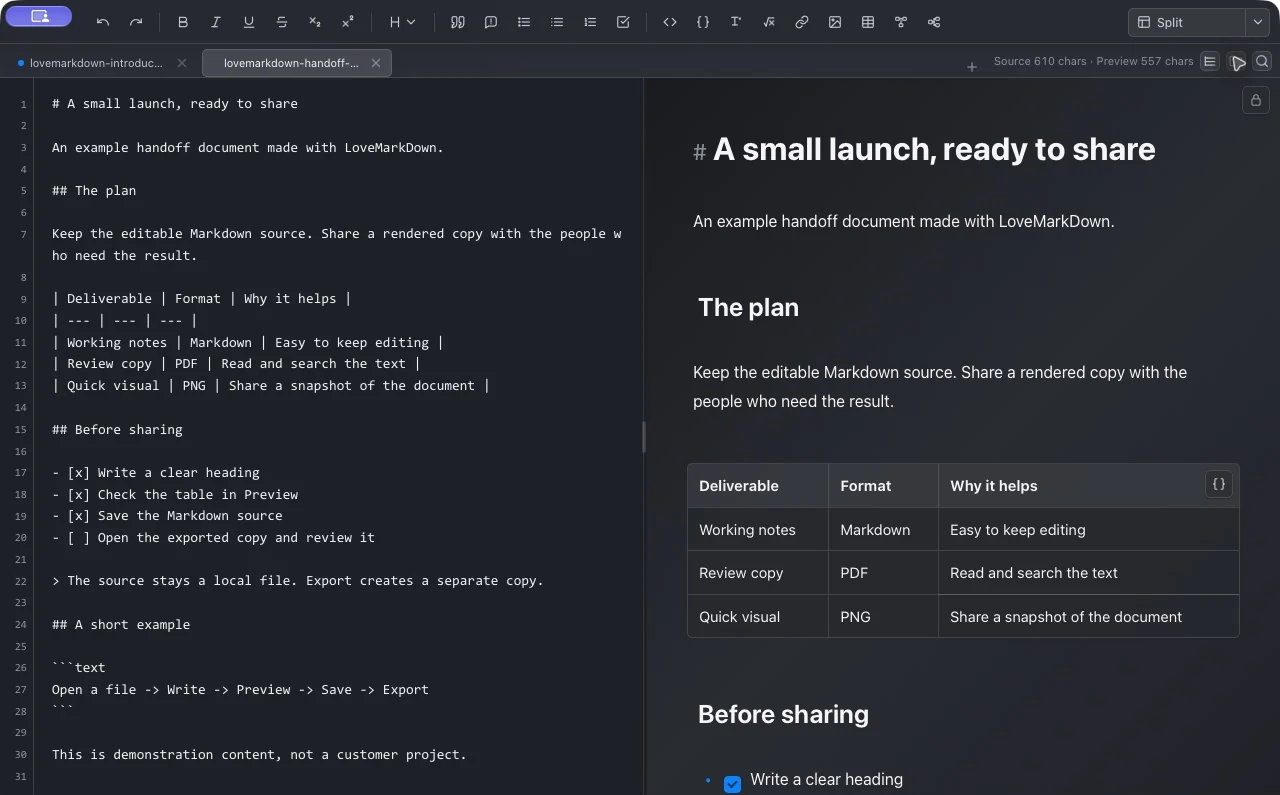
Ready to continue: the heading, table, and task states are correct in your document. Keep any local assets beside the source; this text-only sample does not test relative images.
2. Save the master, then prepare the reader’s copy
Save the Markdown document first. Use Export to create a separate PDF for the reader; add a PNG when a quick visual reference is useful in a message or ticket. Do not replace your editable master with the exported copy.
Ready to continue: the Markdown source and the separate reader copy are both available locally. If you need Word for editing or HTML for a browser, follow the export guide rather than treating this PDF example as proof of those formats.
3. Open the output, not just the editor
Open the PDF in a normal PDF viewer. Compare the launch heading and deliverables table, then inspect the checklist and page boundaries. Open the PNG separately if you plan to send it.
Our archived PDF is one page, but its checklist appears as a bullet list rather than preserving the checked and unchecked states. The public PNG is an excerpt, not the complete document. Those differences are reasons to inspect your actual output, not assume the preview guarantees the result.
Inspect a real source-to-export example
Our public handoff document has an editable Markdown source, a LoveMarkDown Split-view capture, an excerpt from its actual PNG export, and the complete PDF output. Download and compare the files instead of judging export quality from the editor alone.
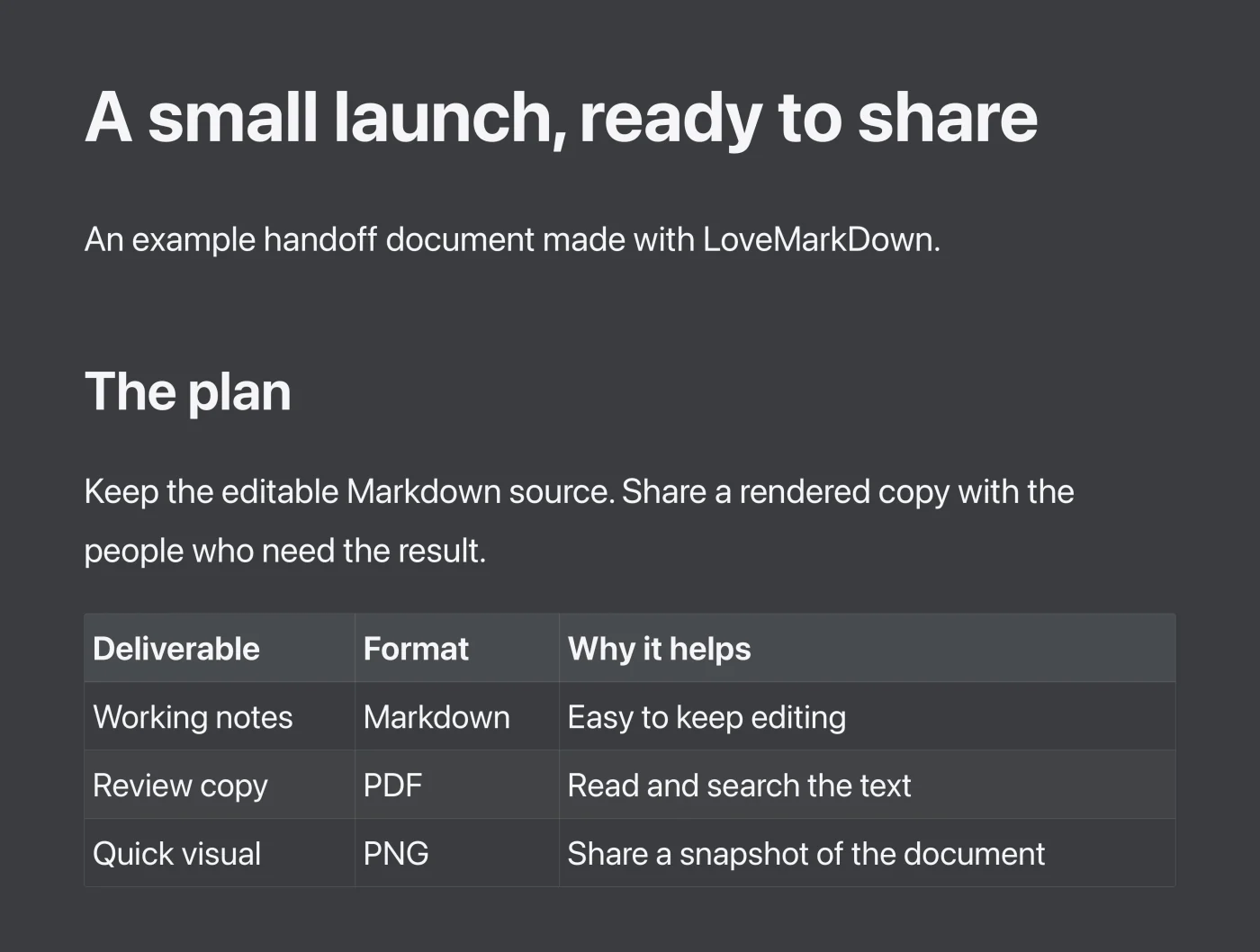
- The source and the PNG excerpt share the launch heading and deliverables table. The PNG shown here is an output excerpt, not a screenshot of a PDF viewer.
- The full PDF is a separate one-page output with text and embedded fonts. The editable source remains available separately.
- In this archived PDF, the task entries appear as a bullet list rather than displaying the Markdown checkbox states. Inspect task-list formatting in the file you plan to share.
Capture context and test coverage
- Product-page editor captures
- October 16, 2026; LoveMarkDown Direct 1.3.0; macOS 27.0.1 (26A434); Apple Silicon. Split and Visual show the public sample. Network access was denied during capture and the bottom path strip was cropped out. The linked older Split capture below is retained as historical evidence.
- Original PDF creation metadata
- 2026-09-22 at 13:07:06 UTC. This is the file's recorded creation time, not a new export test date.
- PDF producer metadata
- macOS Version 26.6.2 (Build 25G83), Quartz PDFContext. This identifies the PDF's recorded renderer, not a cross-version compatibility test.
- App version, build, and Mac architecture
- Not recorded with the original export. The example must not be attributed to the current LoveMarkDown release or to both Mac architectures.
- Document coverage
- Our own heading, paragraph, table, checklist, quotation, and short code example. No customer document or private image path is included.
- The new 1.3.0 editor screenshots do not re-date or re-verify the archived PNG or PDF exports. No new Word, HTML, PDF or PNG export was tested in this capture session.
- The PNG illustration is cropped; use the full PDF and source for the complete document. The editor screenshot and output are different captures, not a continuous recorded session.
- This example does not establish Word or HTML export fidelity, relative-image handling, Mermaid, math, or long-document pagination. Check those structures in your own exported format.
- File metadata and a demonstration document are not a signed benchmark or a guarantee of identical output in another viewer.
Example documentation reviewed 2026-10-16. This is not a new device or export test date.
The source notes above distinguish the October 16 editor capture from the archived exports. The original export’s app version was not recorded; these files are not new 1.3.0 export results, a cross-platform benchmark, or a guarantee for another document.
4. Send the reader copy and retain the source
- Send the checked PDF when the recipient needs to read or review the note.
- Add a PNG only as a visual reference; do not use the cropped sample as the full handoff.
- Keep the Markdown master so you can revise the launch note later. Share it separately when someone needs the editable source.
- If task states matter, confirm how they appear in the reader copy before sending it.
Finished: the reader receives a copy you inspected, while the editable source remains available for the next revision. This example does not demonstrate shared editing, cloud synchronization, Word/HTML fidelity, Mermaid, math, or long-document pagination.
If your result differs
For missing assets, changed line breaks, or page-break problems, use the export troubleshooting checks. For opening and saving, use LoveMarkDown Support.
If you send feedback, remove private document text, filenames, and local paths. You do not need to upload your document to follow this workflow. Read the privacy policy for the product’s data boundaries.
Try the same handoff with your document.
Choose the current Mac download, or return to the product overview. If you already have LoveMarkDown, start with the public sample above.