
Help for local Markdown writing, preview, export, and feedback.
Start here for opening and saving Markdown, default-editor setup, Finder Open With, document outlines, relative images, export, Direct updates, Web-to-Markdown, or feedback.
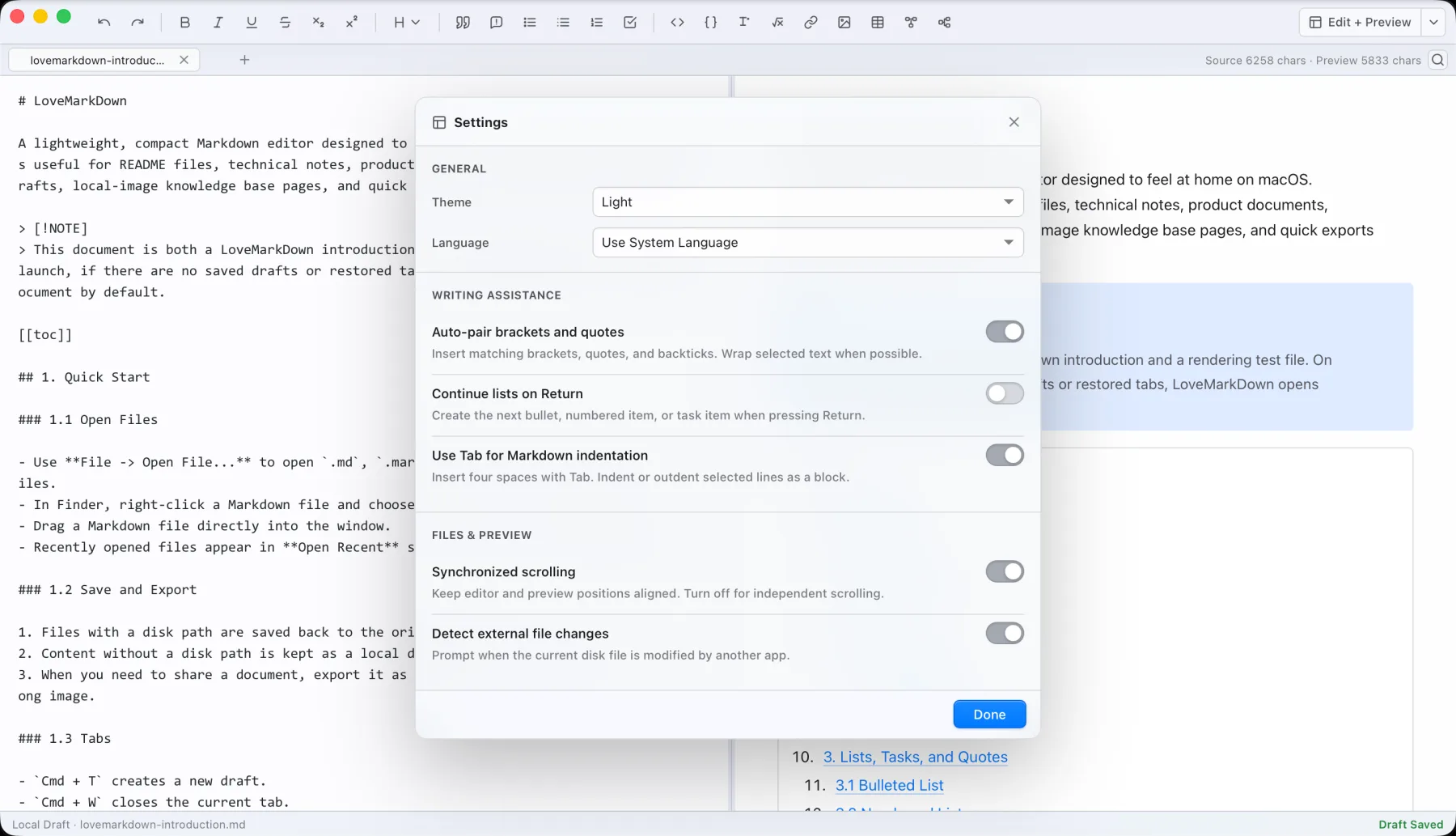
Start with a private, fixed-choice setup path.
Check the installed channel, supported extension, and Finder state without entering a filename, path, or document.
Check export-sensitive Markdown before troubleshooting the output.
Run a private browser scan first, then use the findings to inspect Preview and the actual Word, PDF, or PNG file.
Common support lanes
Start with these checks before sending feedback.
- 01
Default Markdown editor and Finder Open With
In current App Store 1.2.5 or Direct 1.2.5, use the App menu or Settings to request LoveMarkDown as the default editor, then confirm in macOS. Finder Open With registration covers .md, .markdown, .mdown, and .mkd.
- 02
Open or save Markdown
Use File -> Open File or drag a local document into the app. For a new untitled document, Save opens the native destination picker. For an opened local file, Save writes back to that file; export creates a separate portable copy.
- 03
Find and replace
Press Cmd+F to open Find, Cmd+R to replace the current match, or Cmd+Shift+R to replace all matches. The result count, previous and next navigation, and synchronized Edit and Preview highlights stay in the document context.
- 04
H1-H6 document outline
Open the outline from the workspace or press Command-Shift-O. If a heading is missing, confirm that the source uses a valid H1-H6 Markdown heading and reload the document from disk.
- 05
Tab and Finder actions
Path-dependent actions are available only for saved documents. Untitled tabs keep them disabled, and reloading a modified document asks for confirmation before replacing editor content.
- 06
Compact path bar in version 1.2.5
Use the toolbar button to show or hide the path bar. Click an ancestor folder to list nearby Markdown files, then open one in a tab. Readable folders appear directly; if access is denied, select the folder in the macOS dialog. The app cannot bypass protected or revoked locations.
- 07
Relative local image preview
Use relative Markdown image paths such as ./images/example.png or images/example.png. Version 1.1.4 handles files whose extension differs from their actual image format and applies safe Pandoc width, height, class, and ID attributes without exposing attribute text.
- 08
Mermaid, math, tables, and code blocks
If a technical block does not render as expected, reduce the example to a small Markdown snippet and send that snippet only if you are comfortable sharing it.
- 09
Export to Markdown, HTML, Word, PDF, or PNG
Choose export for the output format you need. Version 1.1.4 keeps PDF text searchable through the primary native path and produces sharper PDF and PNG output without the previous image double-compression.
- 10
Signed updates for Direct downloads
The Direct build can check a signed release and installs only after you choose to proceed. Mac App Store builds do not use the Direct update feed and continue to update through Apple.
- 11
Web-to-Markdown conversion
Web-to-Markdown performs a network request only for the URL you enter. The app does not use this path during ordinary local editing.
- 12
Feedback from Help
Use Help -> Send Feedback when you want to report a bug, request a feature, or describe a workflow issue. Contact information is optional, and document content is not attached automatically.
First setup checklist
Use this checklist before assuming the app or file is broken.
- 01 Step 1
Open one local Markdown file
Start with a simple .md, .markdown, or .txt file from a user-selected folder.
- 02 Step 2
Check the outline and live preview
Open the H1-H6 outline, then confirm basic headings, lists, tables, code blocks, Mermaid, math, or images using one small example at a time.
- 03 Step 3
Save or export intentionally
Use Save for the opened local file, the native destination picker for a new untitled document, and Export for Markdown, HTML, Word, PDF, or PNG copies.
- 04 Step 4
Send focused feedback
If something still fails, send the smallest safe example and avoid private document content unless you intentionally choose to share it.
Related NgSense guidance
LoveMarkDown support is separate from ScopeDock camera support, but the same local-first privacy principle applies across NgSense products.
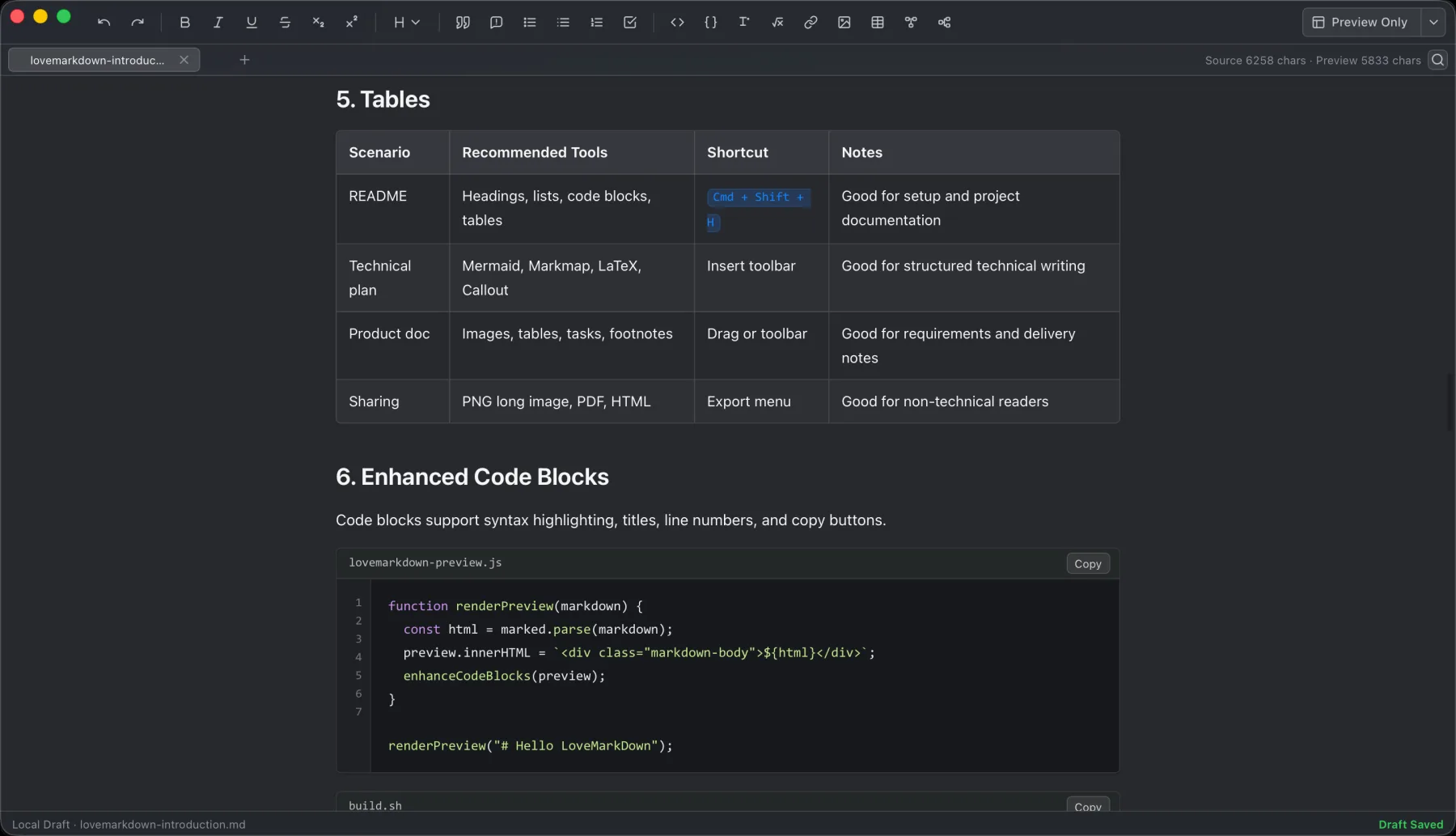
LoveMarkDown 1.2.5: Browse Nearby Markdown from the Path Bar
LoveMarkDown 1.2.5 adds a compact path bar, nearby Markdown browsing, and clearer file actions. Choose the universal Direct download or the public Mac App Store release.
Read article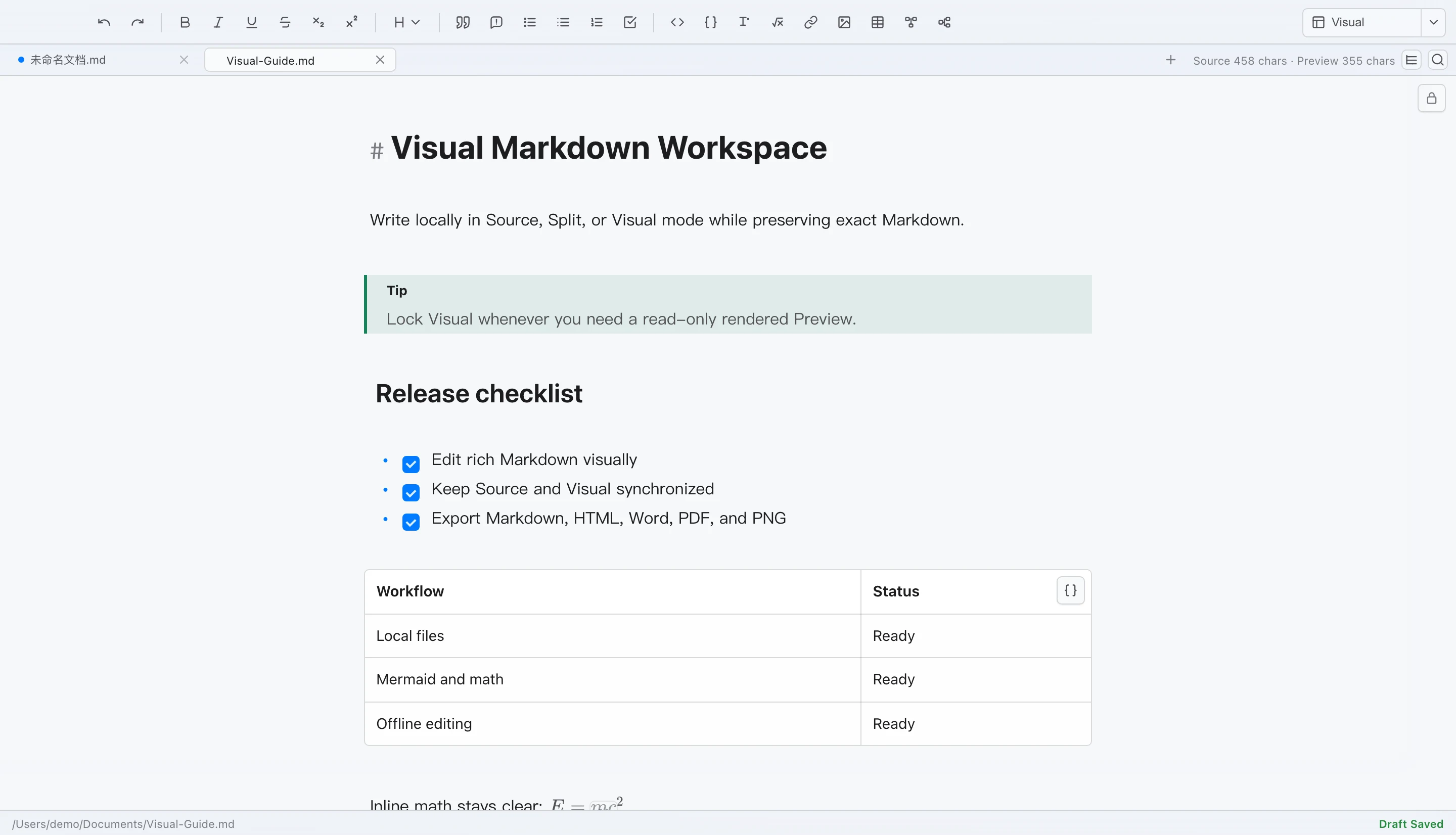
LoveMarkDown 1.2: Visual Markdown Editing for Local Mac Files
LoveMarkDown 1.2 adds editable Visual Markdown, Source and Split modes, rich technical content, synchronized workflows, and safer local file saving on Mac.
Read article
Why structured feedback should stay separate from anonymous analytics
Structured feedback and anonymous analytics answer different questions. Keeping them separate makes the product easier to trust and makes support workflows easier to reason about.
Read articleLoveMarkDown essentials
Straight answers for common setup, file, preview, export, network, and feedback questions.
Which LoveMarkDown download should I choose?
Choose the signed Direct 1.2.5 universal DMG for either an M-series or Intel Mac. There is no processor-specific Direct installer choice. The Mac App Store offers 1.2.5 with Apple-managed installation and updates; Direct uses the signed NgSense updater after you confirm installation.
Which LoveMarkDown version is on the Mac App Store?
LoveMarkDown 1.2.5 is the current public Mac App Store release. It includes the compact path bar, updated file actions, and an explicit, user-controlled default-editor request. Direct 1.2.5 is a separate universal download; each channel has its own installation and update path. Version 1.2.2 introduced the default-editor request and remains part of the release history.
Does LoveMarkDown upload my Markdown files?
No. LoveMarkDown does not automatically upload Markdown document content, file names, or full local file paths.
What file types can I open?
LoveMarkDown is positioned for local Markdown and text files opened from the File menu or by drag and drop. The Finder Open With registration introduced in 1.2.2 remains available in current 1.2.5 builds for .md, .markdown, .mdown, and .mkd files.
How do I make LoveMarkDown the default Markdown editor?
This option is included in current App Store 1.2.5 and Direct 1.2.5 builds. Start the request from the App menu or Settings, then confirm the default-app change in macOS. LoveMarkDown never changes the default automatically. Finder Open With registration covers .md, .markdown, .mdown, and .mkd files.
How do Find and Replace work in LoveMarkDown?
Press Cmd+F to open Find, Cmd+R to replace the current match, or Cmd+Shift+R to replace all matches. The result count, previous and next navigation, and matched highlights stay synchronized between Edit and Preview.
How do I save a new untitled document?
For a new untitled document, Save or Cmd+S opens the native destination picker. For an opened local file, Save writes back to that file. Draft autosave is for recovery and does not replace choosing a destination.
How do relative images work?
Relative image preview works when the Markdown document references nearby local image files, such as images stored next to the document or inside a relative folder. Version 1.1.4 also handles files whose extension does not match their actual image format and applies safe Pandoc width, height, class, and ID attributes without showing the attribute text in Preview or exports.
Which export formats are supported?
LoveMarkDown supports export to Markdown, HTML, Word, PDF, and PNG. Direct version 1.1.4 keeps PDF text searchable through the primary native path and produces sharper PDF and PNG output.
When does Web-to-Markdown use the network?
Web-to-Markdown uses the network only when the user enters a URL and asks LoveMarkDown to convert that page. Ordinary local editing does not require this network request.
How are LoveMarkDown updates installed?
Direct-download builds can check for a signed NgSense update and install it only after you choose to proceed. Mac App Store installations do not use the Direct update feed and continue to update through Apple.
What is sent when I use Help -> Send Feedback?
Feedback is sent only when the user submits it. Contact information is optional, and LoveMarkDown does not automatically attach Markdown content, file names, full paths, or screenshots.
Still need help with LoveMarkDown?
Choose the correct LoveMarkDown installer, use in-app Help -> Send Feedback when possible, or contact NgSense if the app path is unavailable.