
01
Know exactly where the cursor lands
Display numbers identify the destination before or after a keyboard jump, while a short locator pulse makes the pointer easy to follow.
Real screenshot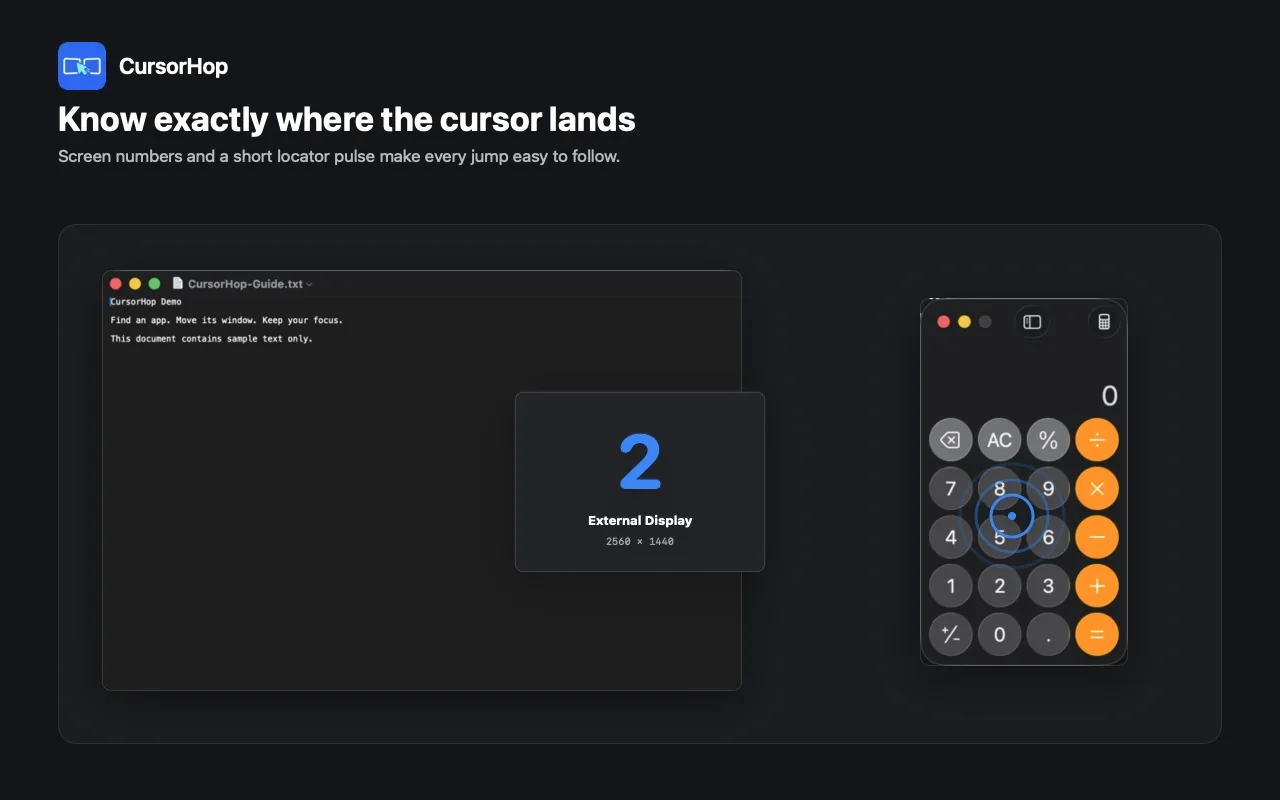
 Multi-display utility for macOS
 Move across displays, find the right app, and keep your work in focus.
CursorHop is a focused macOS menu-bar utility for developers, operators, designers, and anyone working across more than one display. It replaces long pointer travel with configurable global shortcuts, then uses Screen Overlay, Find Cursor, and App Finder to make the destination obvious.
CursorHop does not replace macOS display management. It removes repeated cursor dragging, cursor hunting, and app hunting from a large desktop while leaving the underlying monitor arrangement under macOS control.
Free remains available permanently with every feature in the selected edition and manages up to two displays. Pro includes a one-month free trial, keeps the same feature set, and raises the managed display limit to eight. App Store and Direct are installation choices, not four separate products.
Start with the moment that interrupts you now. Each action has a visible result, so you always know where the cursor, app, or active window went.
Use a global shortcut to move the pointer directly to Screen 1-N, or move left, right, up, or down according to the physical display arrangement.
Shortcut Control + Command + number or arrow key by default
The cursor enters the target display and a Find Cursor pulse confirms its new position.
Open App Finder with an app initial. Use a pinyin initial for a Chinese app name, then repeat the letter or use the arrow keys when several running apps match.
Shortcut Control + Option + Command + initial by default
CursorHop wakes the selected app, brings its main window forward, and tries its default focus; otherwise it places the cursor at the active window center.
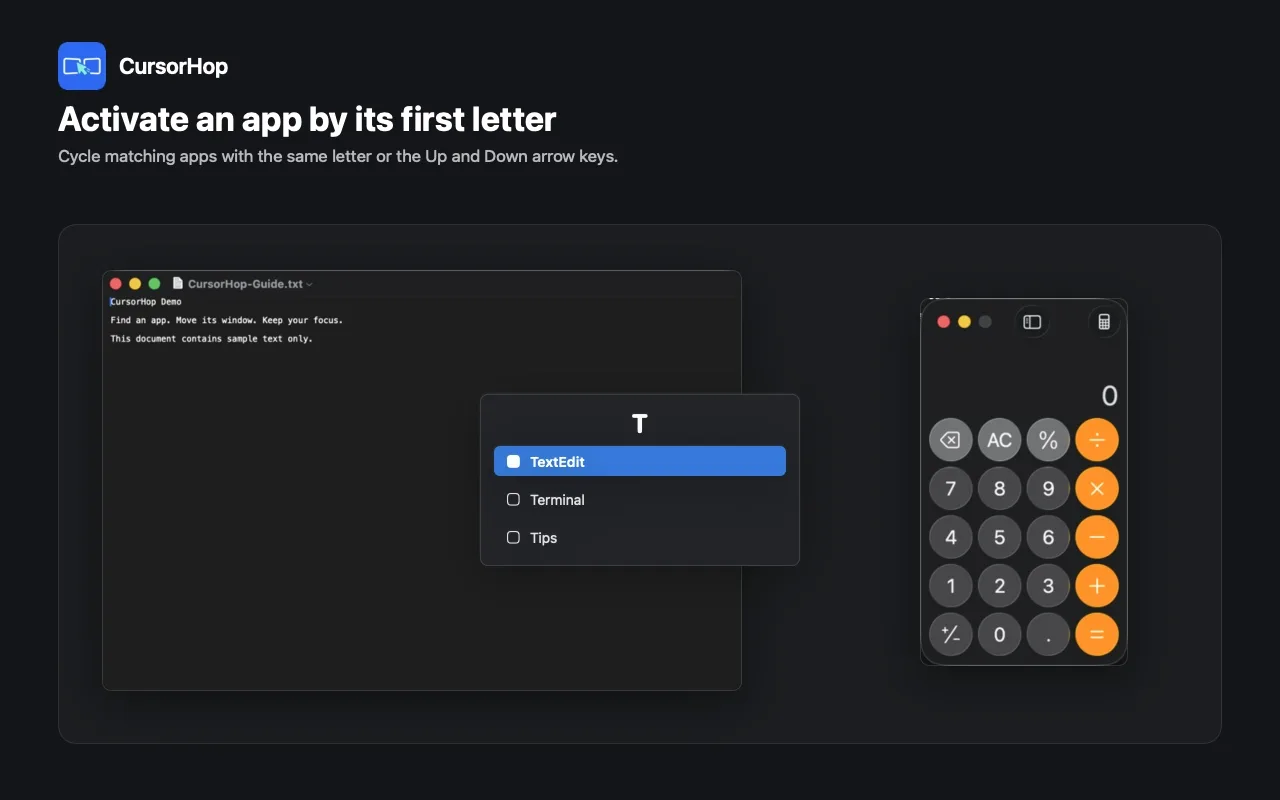
App Store users follow the in-app guide to configure native macOS App Shortcuts. Direct users can grant Accessibility for direct active-window moves and half-screen layouts.
Shortcut Direct defaults use Control + Option + Command with a number or arrow
The supported active window moves to the requested display or layout, then the pointer follows the active work context.
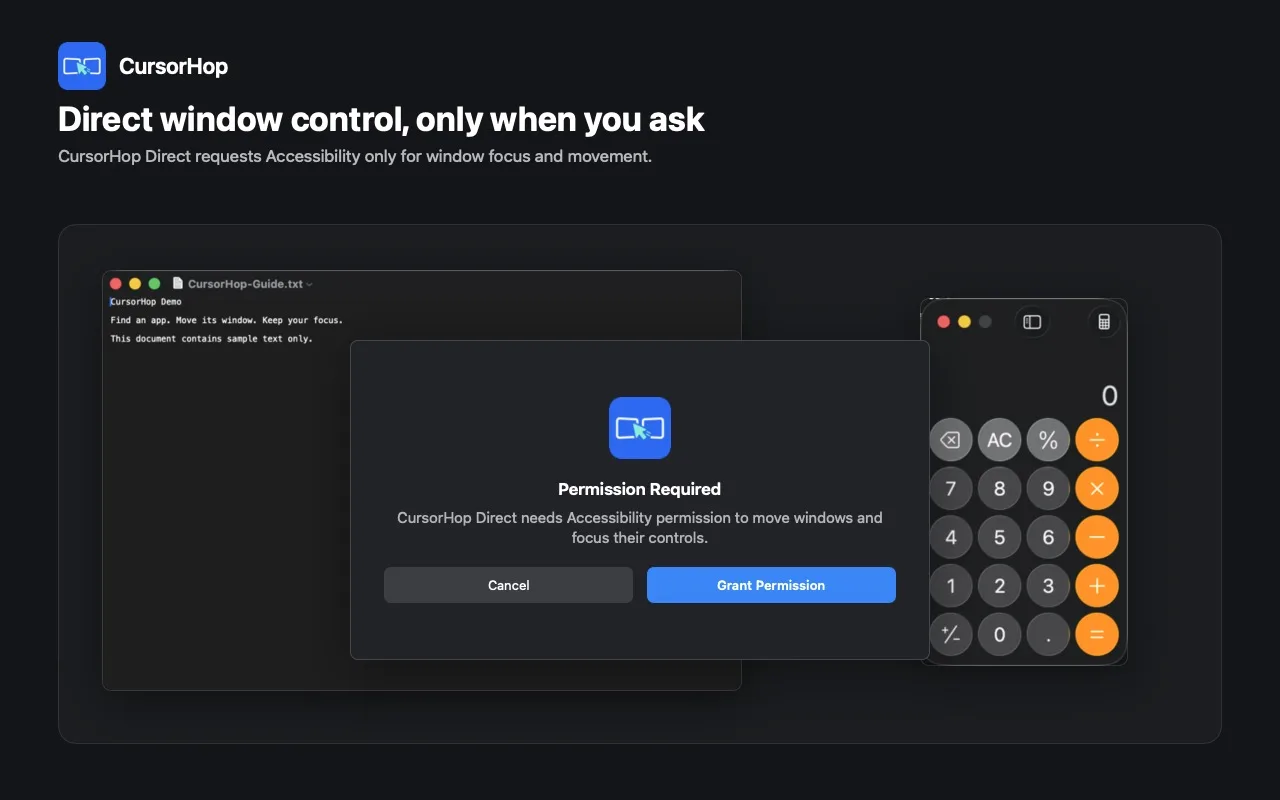
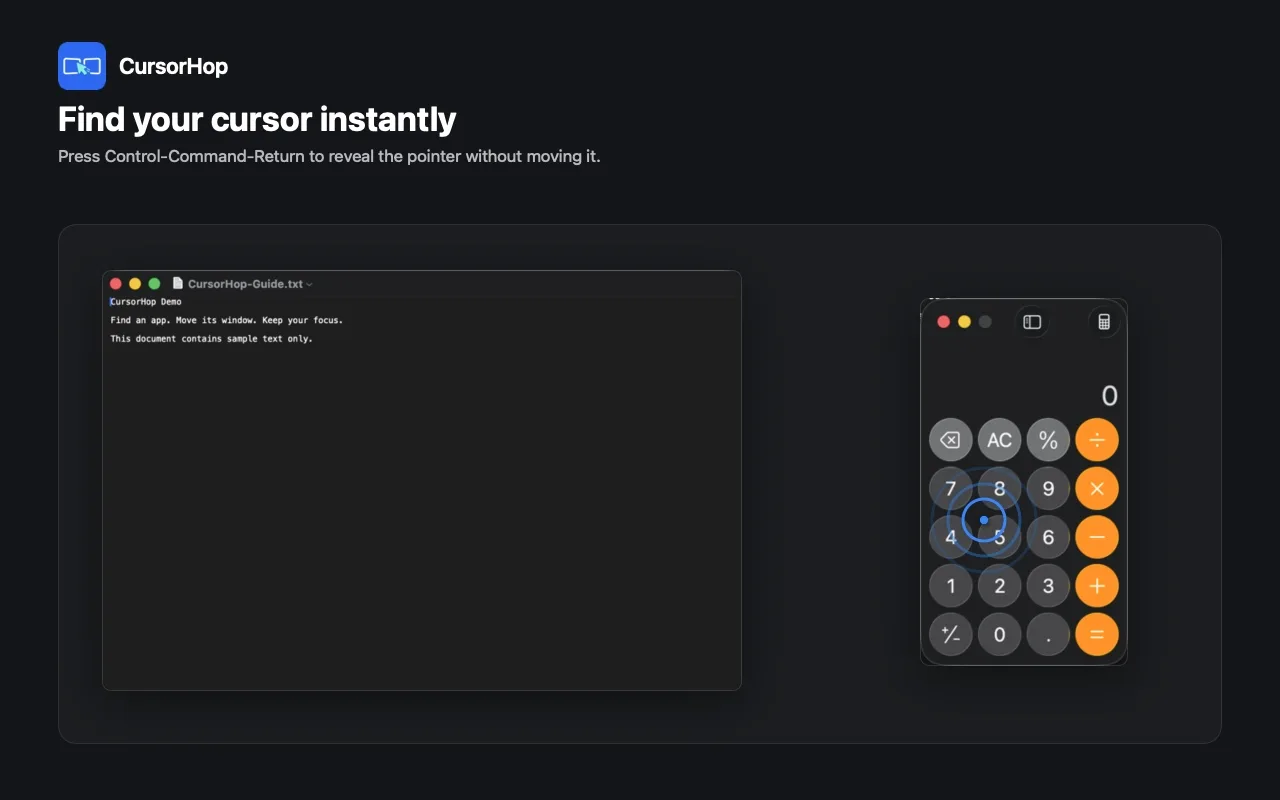
Show Screen Overlay to reveal the current number on every connected display, or trigger Find Cursor for a lightweight pulse without moving the pointer.
Shortcut Control + Command + Space or Return by default
Display numbers or the locator pulse make the current destination visible, including at an outer display where no further directional move is possible.
Every image below comes from the real macOS product using privacy-safe system apps and sample content.
Display numbers identify the destination before or after a keyboard jump, while a short locator pulse makes the pointer easy to follow.
Real screenshot Trigger the lightweight visual pulse when a large desktop makes the pointer difficult to locate.
Real screenshot App Finder lists matching running apps, supports pinyin initials, cycles same-letter candidates, and restores minimized windows.
Real screenshot The Direct edition asks for Accessibility only when active-window movement and layout controls are used.
Real screenshot CursorHop reduces pointer travel and search time without replacing macOS display management or pretending every installation channel has the same permissions.
CursorHop dynamically lists the displays macOS currently recognizes, so Screen 1-N follows the hardware that is actually connected.
Jump to any currently connected Screen 1-N or navigate by physical direction across side-by-side, stacked, and mixed arrangements.
Briefly show a number on every display or pulse the pointer. Find Cursor still confirms location when the pointer is already at a boundary display.
Find and activate a running app by its initial, including pinyin initials for Chinese app names, without searching the Dock or every screen.
Repeat an initial or use arrow keys to cycle same-letter apps and windows. Recently used targets come first, and minimized windows can be restored.
With Accessibility granted when needed, move or focus the active window across displays, to half-screen layouts, maximum, or minimum.
The sandboxed App Store channel does not request Accessibility. A setup guide helps macOS App Shortcuts perform window commands.
After app activation or a supported move, CursorHop tries the default focus; otherwise it places the cursor at the active window center.
Direct window commands explain why Accessibility is needed and provide a Grant Permission action instead of silently failing. Pointer and App Finder actions continue without it.
Keep the learnable number, direction, Overlay, and Find Cursor rules while changing modifier layers. Settings shows a yellow warning when macOS or another app owns a combination.
Keep the menu-bar utility ready after sign-in when CursorHop is part of the everyday desk setup.
Free and Pro use the same CursorHop app for the chosen installation channel. They are not separate downloads.
All features in the current installation channel, forever free and unlimited in use.
The same features with a higher managed display limit and a one-month free trial.
Free and Pro use the same feature set. Upgrade only when you need CursorHop to manage more than two displays.
Choose how you install based on the window-control model you prefer. Free and Pro remain plans inside either edition.
Install through Apple with no Accessibility permission required. CursorHop can jump the pointer, show Overlay, find the cursor, and run App Finder. It does not directly control other apps' windows; the in-app guide helps you configure native macOS App Shortcuts for window movement.
Download on the Mac App StoreInstall from NgSense with the same core navigation and App Finder features, then grant Accessibility only when you want direct active-window movement, half-screen layouts, and Active Window Focus.
Download DirectBoth editions support modern Intel and Apple Silicon Macs and work with displays already recognized by macOS.
CursorHop supports macOS 14+ on Apple Silicon and Intel Macs.
The app manages displays reported by macOS, including a one-display setup. Numbering follows the current arrangement and may change after reconnecting hardware.
Direct builds request Accessibility only when active-window movement or focus features need it.
The sandboxed App Store build does not request Accessibility and uses a Native Window Shortcuts setup guide instead.
Straight answers about Accessibility, display limits, shortcuts, and choosing App Store or Direct.
CursorHop follows the displays and physical arrangement currently reported by macOS. Number shortcuts target the connected Screen 1-N, while direction shortcuts choose a display to the left, right, above, or below. This supports side-by-side, stacked, and mixed layouts without requiring a fixed monitor count.
Yes. Find Cursor, App Finder, Launch at Login, and supported window-layout actions remain useful on one display. A screen jump has nowhere else to go, but Find Cursor still pulses at the current pointer position so the command provides clear orientation instead of failing silently.
CursorHop dynamically follows the displays macOS currently reports rather than assigning permanent numbers to disconnected hardware. Docking, reconnecting, or changing a DisplayLink topology can therefore change Screen 1-N. Use Screen Overlay after the desk setup changes to confirm the current numbers.
No permission is required for pointer jumps, Screen Overlay, Find Cursor, or App Finder. The App Store edition never requests Accessibility. The Direct edition shows an explanation and Grant Permission action only when direct active-window movement, layout, or focus controls need it; those controls do not upload window content.
Repeat the initial or use the Up and Down arrow keys to cycle matching running apps and windows. Recently used targets come first, CursorHop remembers the latest choice for that initial, and it can restore a minimized main window when that app is selected.
Yes. App Finder can match a Chinese application name by its pinyin initial. If several running apps or windows share that initial, repeat it or use the Up and Down arrow keys to cycle the candidates.
They are two ways to install one product. Both include pointer navigation, Overlay, Find Cursor, and the full App Finder. The App Store edition does not request Accessibility and does not directly control other apps’ windows; its guide helps you configure native macOS App Shortcuts. Direct can request Accessibility for direct active-window movement and layouts. Free or Pro remains the plan inside either edition.
Free is permanently available, includes every feature in the selected installation channel, and manages up to two displays. Pro has the same features, includes a one-month free trial, and manages up to eight displays.
In the App Store edition, follow CursorHop’s setup guide to create native macOS App Shortcuts for the relevant window menu commands; CursorHop does not directly control those windows. In the Direct edition, choose Grant Permission when prompted, then use the configured direct window shortcut. Accessibility is required only for that Direct control path.
Yes. Modifier layers are configurable in Settings while the number, direction, Overlay, and Find Cursor patterns stay consistent. Current defaults include Control + Command for cursor actions and Control + Option + Command for App Finder. A yellow warning identifies combinations already owned by macOS or another app.
CursorHop supports macOS 14 or later on Apple Silicon and Intel Macs. It works with displays recognized by macOS, including common DisplayLink setups, but it does not install display drivers or create virtual displays.
Install CursorHop from the Mac App Store or choose Direct for optional Accessibility-powered window control.