
Cursor layer
Control + Command
Combine with a screen number or configured direction command.
Start with display numbering and pointer movement, then add App Finder and the window workflow that matches your installation channel.
Modifier layers can be changed in Settings when they conflict with macOS or another app.
Cursor layer
Combine with a screen number or configured direction command.
App Finder
Add an app initial; repeat or use arrows to cycle candidates.
Orientation
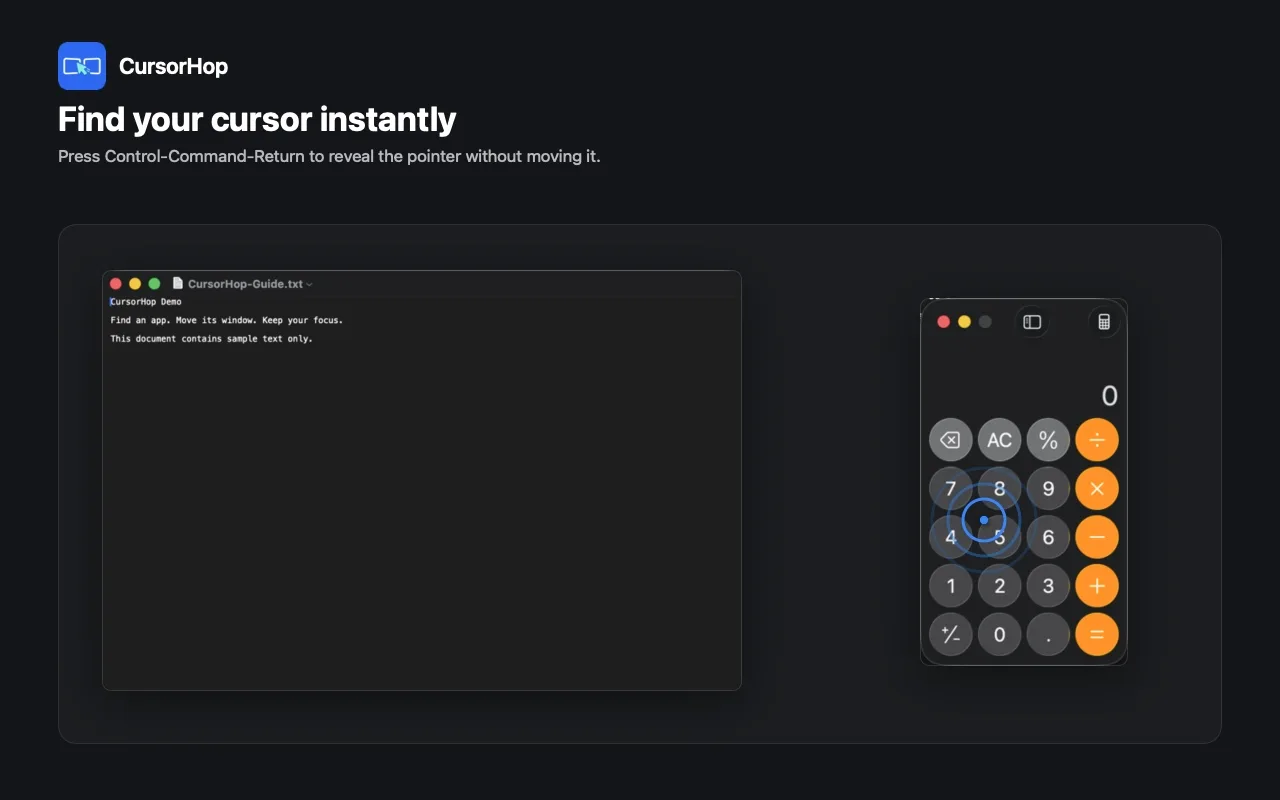
Control + Command + Space opens Overlay; Control + Command + Return finds the cursor by default.
You can learn cursor and app navigation without granting Accessibility. Add a window workflow only after the first three actions feel predictable.
Open CursorHop and use Screen Overlay to compare Screen 1-N with the current macOS arrangement. Recheck after docking, reconnecting, or changing DisplayLink hardware.
Shortcut Control + Command + Space by default
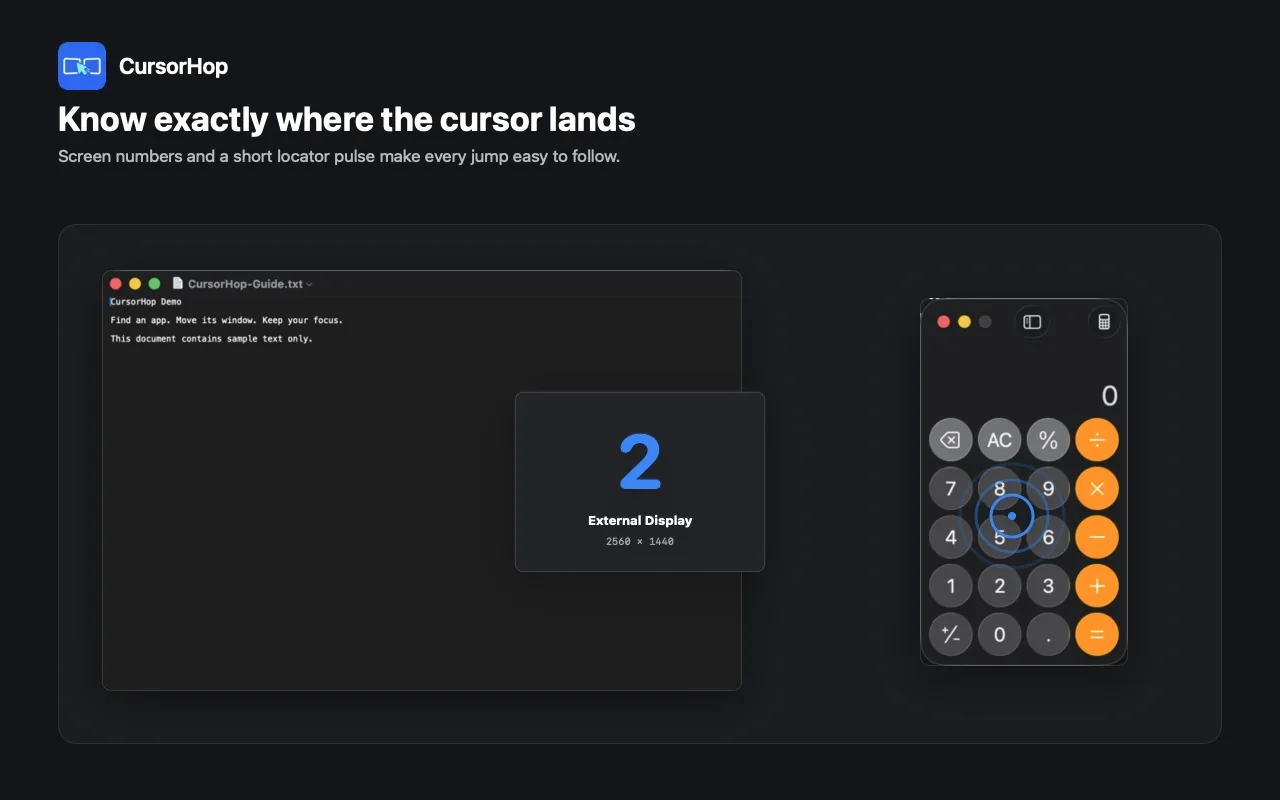
Every connected display briefly shows its current number, so you know which destination shortcut to use.
Use the configured cursor modifier with a display number, or move by the physical left, right, up, or down arrangement. Find Cursor also works when you cannot move farther at a boundary screen.
Shortcut Control + Command + number or arrow; Return finds the cursor
The pointer enters the target display and a pulse confirms exactly where it landed.
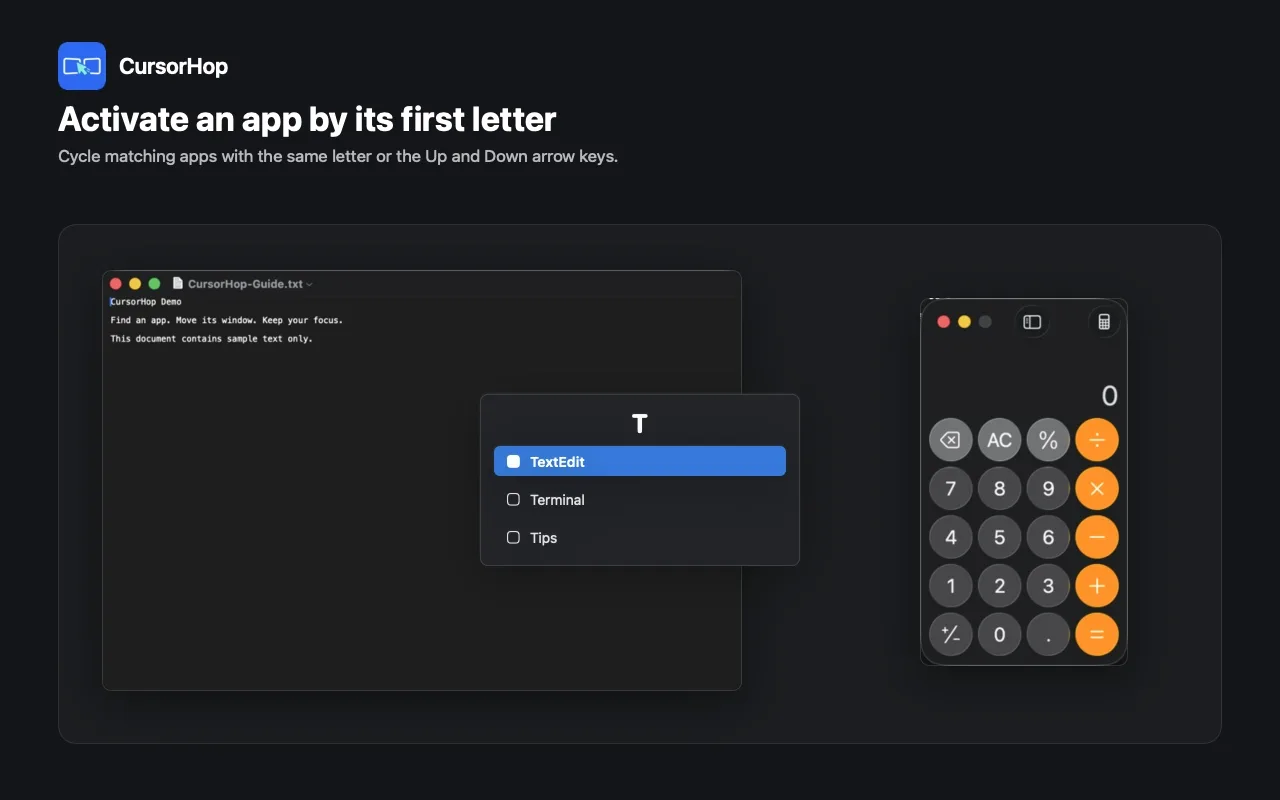
Hold the App Finder modifier and press an initial. Chinese app names can use pinyin initials; repeat the letter or use the arrow keys for same-letter candidates.
Shortcut Control + Option + Command + initial by default
CursorHop restores the selected running app if needed, brings its main window forward, and tries the default focus; otherwise it places the cursor at the active window center.
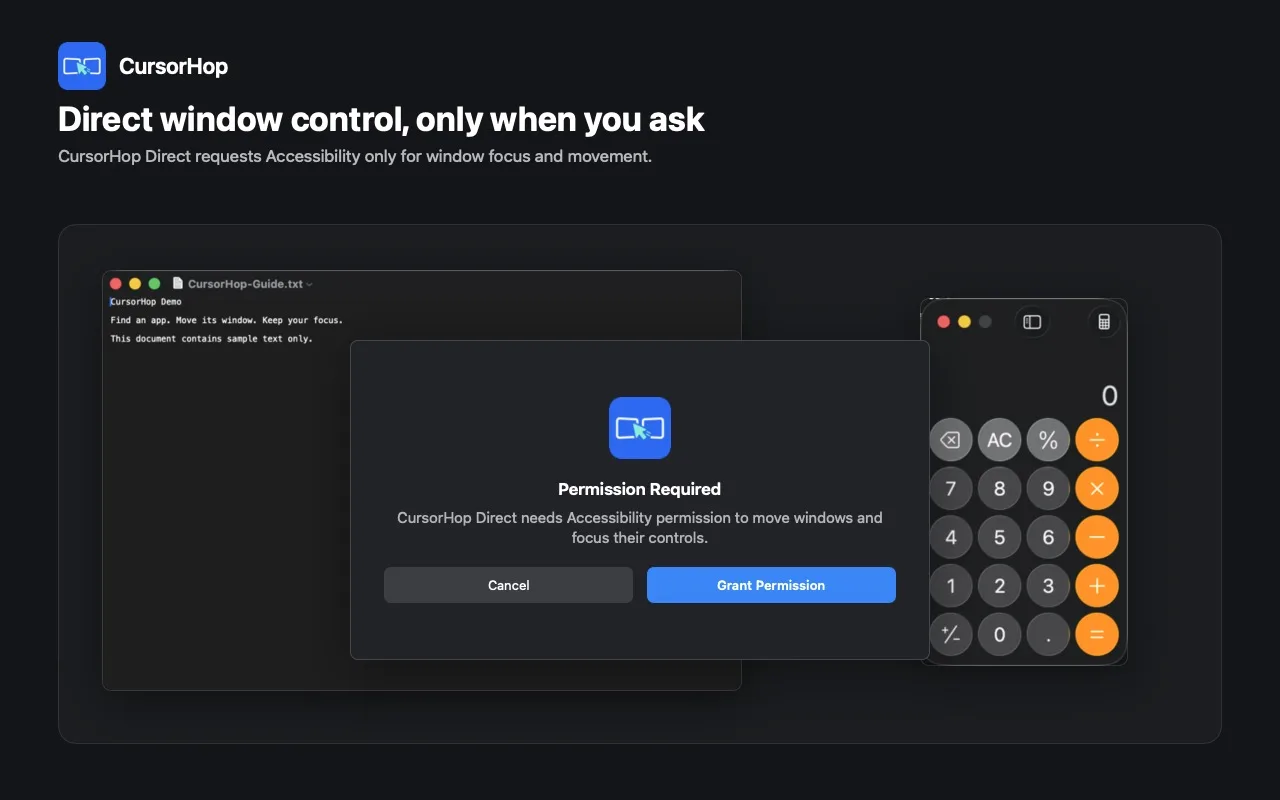
Direct users select Grant Permission when they want direct active-window moves or layouts. App Store users follow the in-app guide to configure native macOS App Shortcuts; the App Store edition does not directly control other apps' windows.
Shortcut Direct uses Control + Option + Command with a display number or direction
A supported window moves through the channel-specific path, and CursorHop keeps the pointer with the active work context.
These are the current defaults. Modifier keys can be changed in Settings, and actual availability depends on shortcuts already owned by macOS or another app.
Jump to a connected Screen 1-N or move according to the physical display direction.
Briefly show the current number on every connected display.
Show a lightweight pulse at the current pointer position without moving it.
Direct edition only. Requires Accessibility and moves the active window to a display or in a physical direction.
Direct edition only. Requires Accessibility and applies a supported half-screen window layout.
Only privacy-safe macOS system apps are shown in public support imagery.
App Finder activates a running app by its initial, cycles same-letter candidates, remembers the last choice, and can restore minimized apps.
Cycle candidates when several running apps share the same initial.
Chinese application names can participate through their pinyin initial.
Most issues come from changed display numbering, shortcut ownership, missing channel setup, or an app window that does not support the requested layout.
Open the display map again. macOS may change screen numbering after reconnecting a monitor, docking, or changing a DisplayLink topology.
Check the yellow conflict warning in Settings. If macOS or another utility owns the same combination, choose a different modifier layer.
Repeat the initial or use arrow keys to cycle candidates. CursorHop remembers the most recently selected candidate for that initial.
Try the App Finder command again and verify the app is still running. The normal workflow restores minimized candidates.
Pointer jumps and App Finder continue without Accessibility. Use the visible Grant Permission action only if active-window move, layout, or focus commands are needed, then relaunch if macOS requests it.
The App Store build does not request Accessibility. Complete the Native Window Shortcuts guide and verify the configured macOS menu command names.
Some utility panels and app-specific windows do not support half-screen, maximize, or cross-display placement. CursorHop falls back without reading or uploading window content.
Active Window Focus tries the window's default focus. If no suitable focus is available, CursorHop places the pointer at the active window center.
These settings help CursorHop stay predictable as the desktop, language, and startup workflow change.
Enable startup only if CursorHop should be ready after every sign-in. Disable it when using the app only with a docked desk setup.
Change the available app language in Settings. Shortcut behavior and display limits do not change with the interface language.
CursorHop works with displays macOS recognizes. Reconfirm numbering when a DisplayLink dock or adapter changes the reported arrangement.
Direct and App Store builds reach similar user goals through different permission models. Follow only the instructions for the installed channel.
Answers for display limits, installation channels, permissions, shortcuts, and App Finder.
CursorHop follows the displays and physical arrangement currently reported by macOS. Number shortcuts target the connected Screen 1-N, while direction shortcuts choose a display to the left, right, above, or below. This supports side-by-side, stacked, and mixed layouts without requiring a fixed monitor count.
Yes. Find Cursor, App Finder, Launch at Login, and supported window-layout actions remain useful on one display. A screen jump has nowhere else to go, but Find Cursor still pulses at the current pointer position so the command provides clear orientation instead of failing silently.
CursorHop dynamically follows the displays macOS currently reports rather than assigning permanent numbers to disconnected hardware. Docking, reconnecting, or changing a DisplayLink topology can therefore change Screen 1-N. Use Screen Overlay after the desk setup changes to confirm the current numbers.
No permission is required for pointer jumps, Screen Overlay, Find Cursor, or App Finder. The App Store edition never requests Accessibility. The Direct edition shows an explanation and Grant Permission action only when direct active-window movement, layout, or focus controls need it; those controls do not upload window content.
Repeat the initial or use the Up and Down arrow keys to cycle matching running apps and windows. Recently used targets come first, CursorHop remembers the latest choice for that initial, and it can restore a minimized main window when that app is selected.
Yes. App Finder can match a Chinese application name by its pinyin initial. If several running apps or windows share that initial, repeat it or use the Up and Down arrow keys to cycle the candidates.
They are two ways to install one product. Both include pointer navigation, Overlay, Find Cursor, and the full App Finder. The App Store edition does not request Accessibility and does not directly control other apps’ windows; its guide helps you configure native macOS App Shortcuts. Direct can request Accessibility for direct active-window movement and layouts. Free or Pro remains the plan inside either edition.
Free is permanently available, includes every feature in the selected installation channel, and manages up to two displays. Pro has the same features, includes a one-month free trial, and manages up to eight displays.
In the App Store edition, follow CursorHop’s setup guide to create native macOS App Shortcuts for the relevant window menu commands; CursorHop does not directly control those windows. In the Direct edition, choose Grant Permission when prompted, then use the configured direct window shortcut. Accessibility is required only for that Direct control path.
Yes. Modifier layers are configurable in Settings while the number, direction, Overlay, and Find Cursor patterns stay consistent. Current defaults include Control + Command for cursor actions and Control + Option + Command for App Finder. A yellow warning identifies combinations already owned by macOS or another app.
CursorHop supports macOS 14 or later on Apple Silicon and Intel Macs. It works with displays recognized by macOS, including common DisplayLink setups, but it does not install display drivers or create virtual displays.
Send feedback with the CursorHop channel, macOS version, display count, and the command you expected to work. Do not attach private desktop content unless it is necessary and safe.