
01
Open a local document directly
Start from Finder, the File menu, or a dragged Markdown document without creating an app-specific workspace first.
Start writing without creating an account or importing a vault.
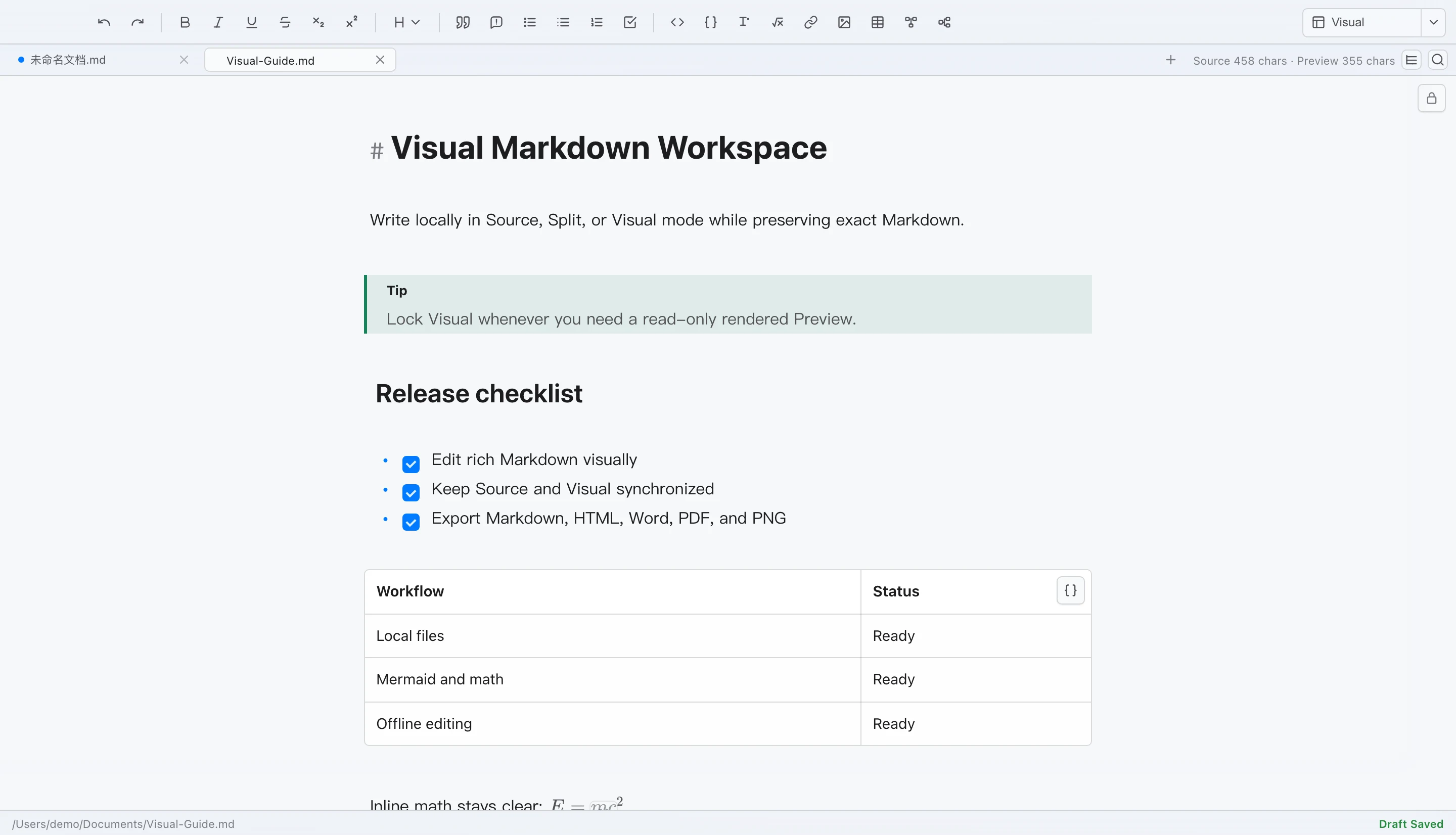
Open your document, shape it with live preview, and share a clear PDF, Word file, or image. Your Markdown stays a local file, not a workspace you have to import.
Keep the editable source and its nearby assets together. Export a separate copy when it is ready.
Start from Finder, the File menu, or a dragged Markdown document without creating an app-specific workspace first.
Start writing without creating an account or importing a vault.
Edit Markdown while checking rendered structure, code, tables, diagrams, math, and images, then jump through long documents from the H1-H6 outline.
Check the rendered structure before sharing.
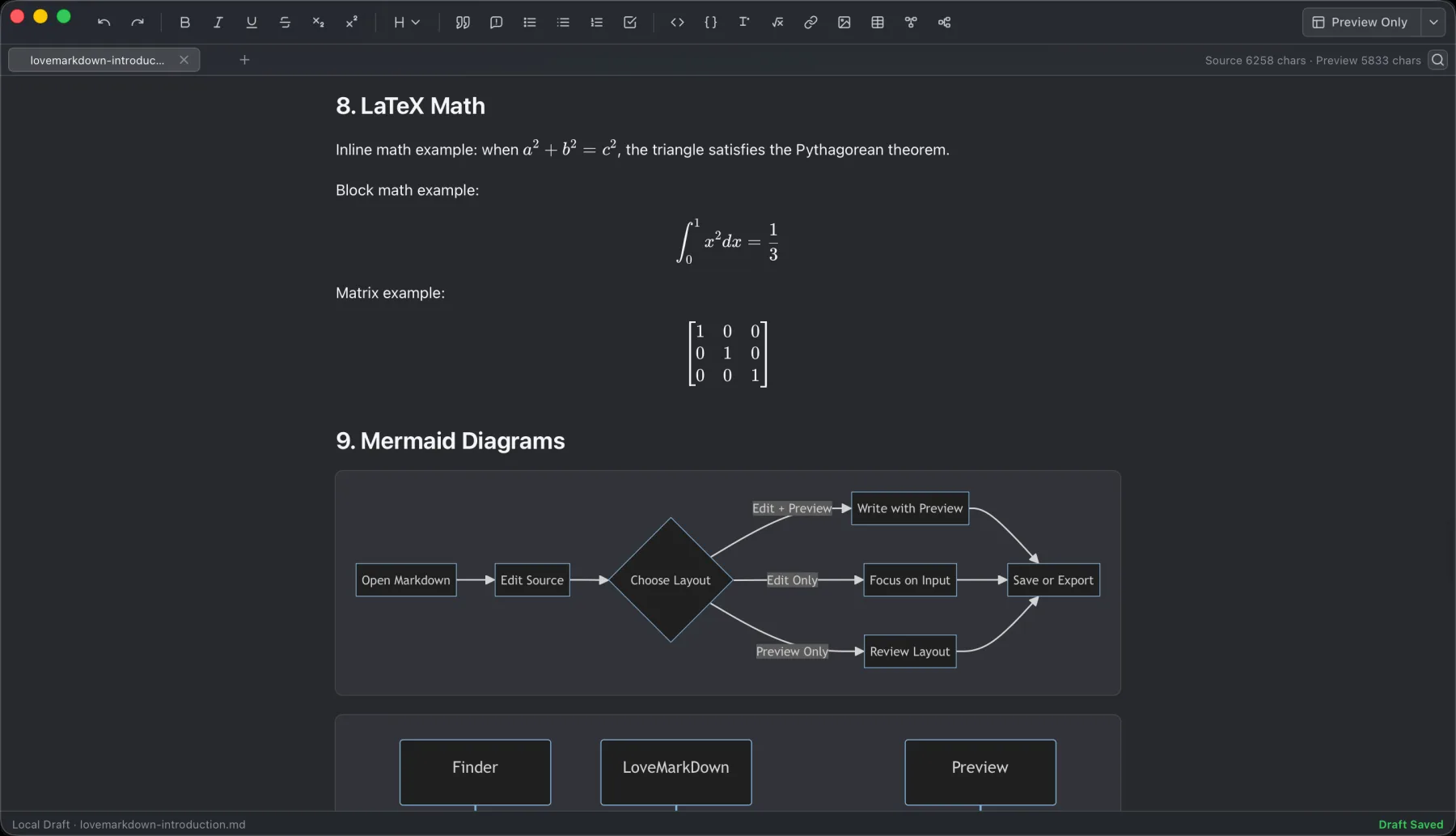
Save to the opened file, choose a native destination for a new untitled document, or export a portable copy in the format needed for review or sharing.
Keep Markdown as the source. Check the exported file separately, especially images, diagrams, tables, and page breaks.
Explore this workflowFind image, table, code, math, Mermaid, and other markers worth reviewing. Your Markdown stays in the browser.
Use fixed local choices to plan default-editor setup in the current App Store or Direct build. No document, filename, or local path is collected.
Version 1.2.5 adds a compact path bar and better file actions to the local-first Visual Markdown workflow.
Open, edit, save, and revisit local Markdown files without binding them to an app-specific repository, workspace, vault, or cloud account.
Click an ancestor folder below the tabs, list adjacent Markdown files, and open one in a tab. Show or hide the bar without changing tab height.
Preview common Markdown blocks, tables, task lists, code blocks, Mermaid diagrams, math, links, and document structure.
Resolve nearby image assets more reliably, including safe Pandoc image attributes and files whose extension does not match the actual image format.
Keep PDF text searchable through the primary native path and generate sharper PDF and PNG output without the previous image double-compression.
Check the current Mac, file, Markdown, and network boundaries before installing.
One universal Direct installer supports Apple Silicon and Intel Macs running macOS 12.0 or later. Windows, mobile, and browser versions are not available.
The app works with user-selected Markdown documents and nearby relative image assets. Current App Store and Direct builds support explicit default-editor setup for .md, .markdown, .mdown, and .mkd.
Preview support includes common Markdown content plus Mermaid diagrams and math in the shipped editor workflow.
Web-to-Markdown requests the network only when the user enters a URL for conversion.
LoveMarkDown starts with a document instead of asking you to adopt a document system. That keeps one-off notes, README files, and handoffs quick to open and easy to leave portable.
Open the document you need without importing a folder or creating a repository, workspace, or vault first.
The core workflow uses user-selected local files and does not require sign-in, automatic upload, or an NgSense account.
LoveMarkDown concentrates on writing, preview, local assets, and export rather than hosted publishing or team collaboration.
Ordinary writing stays centered on user-selected local files, while network behavior remains limited and explicit.
LoveMarkDown does not automatically upload Markdown content, file names, or full local file paths.
Anonymous Matomo analytics use predefined product events and coarse attributes, not document text or source URLs.
Help -> Send Feedback sends only what the user chooses to submit, with optional contact information.
These answers keep Direct download, App Store, support, and privacy expectations aligned with the current macOS releases.
Choose the signed Direct 1.2.5 universal DMG for either an M-series or Intel Mac. There is no processor-specific Direct installer choice. The Mac App Store offers 1.2.5 with Apple-managed installation and updates; Direct uses the signed NgSense updater after you confirm installation.
LoveMarkDown 1.2.5 is the current public Mac App Store release. It includes the compact path bar, updated file actions, and an explicit, user-controlled default-editor request. Direct 1.2.5 is a separate universal download; each channel has its own installation and update path. Version 1.2.2 introduced the default-editor request and remains part of the release history.
No. LoveMarkDown does not automatically upload Markdown document content, file names, or full local file paths.
LoveMarkDown is positioned for local Markdown and text files opened from the File menu or by drag and drop. The Finder Open With registration introduced in 1.2.2 remains available in current 1.2.5 builds for .md, .markdown, .mdown, and .mkd files.
This option is included in current App Store 1.2.5 and Direct 1.2.5 builds. Start the request from the App menu or Settings, then confirm the default-app change in macOS. LoveMarkDown never changes the default automatically. Finder Open With registration covers .md, .markdown, .mdown, and .mkd files.
Press Cmd+F to open Find, Cmd+R to replace the current match, or Cmd+Shift+R to replace all matches. The result count, previous and next navigation, and matched highlights stay synchronized between Edit and Preview.
For a new untitled document, Save or Cmd+S opens the native destination picker. For an opened local file, Save writes back to that file. Draft autosave is for recovery and does not replace choosing a destination.
Relative image preview works when the Markdown document references nearby local image files, such as images stored next to the document or inside a relative folder. Version 1.1.4 also handles files whose extension does not match their actual image format and applies safe Pandoc width, height, class, and ID attributes without showing the attribute text in Preview or exports.
LoveMarkDown supports export to Markdown, HTML, Word, PDF, and PNG. Direct version 1.1.4 keeps PDF text searchable through the primary native path and produces sharper PDF and PNG output.
Web-to-Markdown uses the network only when the user enters a URL and asks LoveMarkDown to convert that page. Ordinary local editing does not require this network request.
Direct-download builds can check for a signed NgSense update and install it only after you choose to proceed. Mac App Store installations do not use the Direct update feed and continue to update through Apple.
Feedback is sent only when the user submits it. Contact information is optional, and LoveMarkDown does not automatically attach Markdown content, file names, full paths, or screenshots.
Get LoveMarkDown 1.2.5 through the universal Direct download or the Mac App Store. The features match; installation and updates follow the channel you choose.