
Camera setup and troubleshooting.
Start with the failure you can observe: device detection, macOS camera permission, RTSP connection, ONVIF discovery, or local file handling.
Turn the source you have into an ordered first-connection plan.
The browser planner separates USB UVC, manual RTSP, and ONVIF discovery prerequisites without collecting camera details.
Bring structured evidence to troubleshooting.
Use a print-ready report skeleton that keeps camera details and connection secrets off the website.
Get to your first preview
Test one source first. If it still fails, send a short description of what happened.
- 01 Step 1
Re-check compatibility
Confirm platform scope, protocol coverage, and known limits before assuming the product should match every camera path.
- 02 Step 2
Identify the source type
Decide whether you are troubleshooting USB UVC, USB microscope, endoscope, RTSP preview or recording, ONVIF discovery, or local file and capture behavior.
- 03 Step 3
Review permissions and storage
Camera permissions, local storage, and network reachability are common root causes in early evaluation workflows.
- 04 Step 4
Choose the feedback type before sending
Use compatibility issue for device detection or protocol behavior, setup issue for macOS permission or first-preview blockers, and feature request when the current workflow works but needs a new capability.
- 05 Step 5
Escalate with context
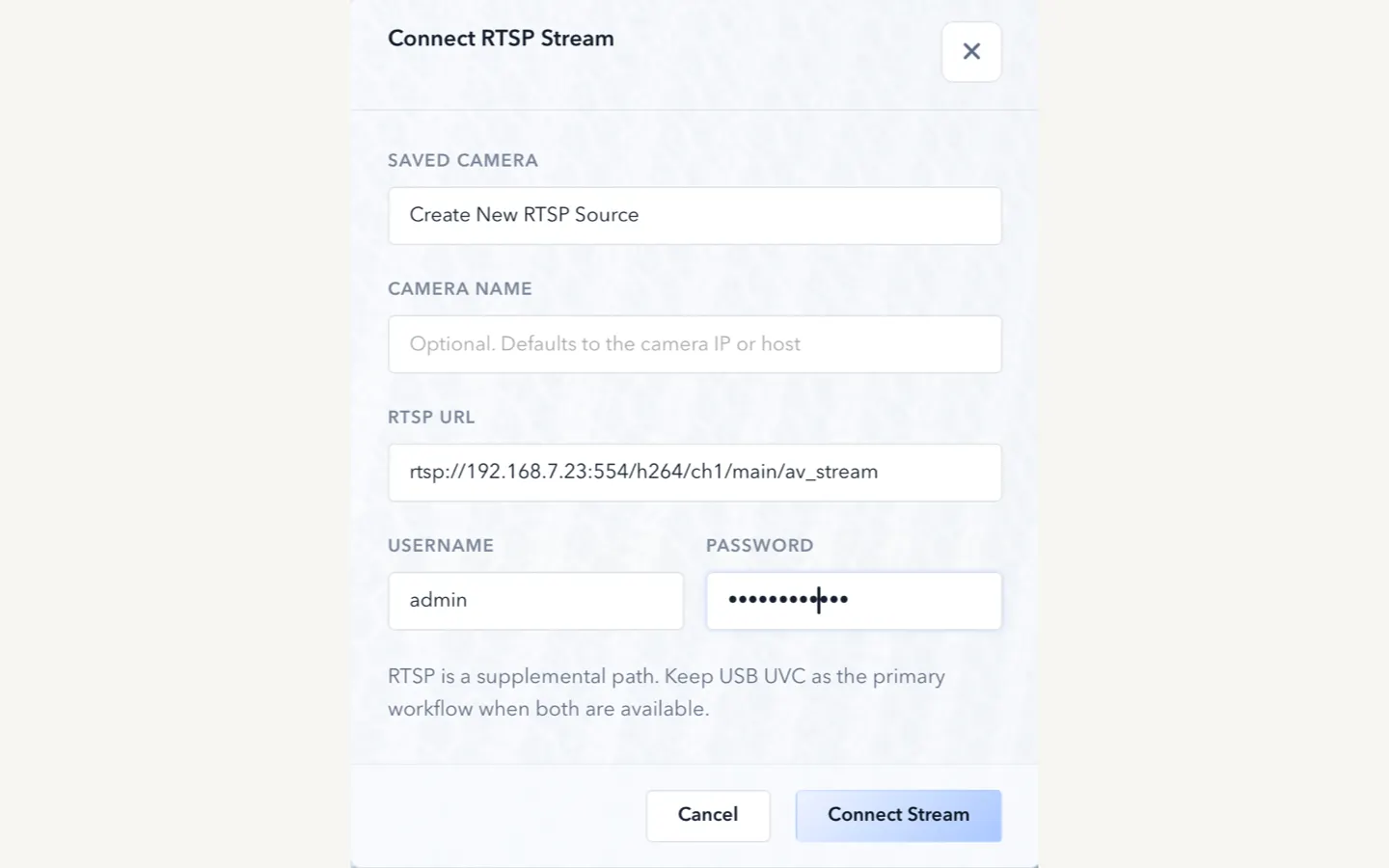
If the guides do not resolve the issue, use Contact and include camera type, protocol, Mac model or chip, macOS version, ScopeDock version, expected behavior, and actual behavior. Do not send passwords, private LAN details, or full RTSP URLs.
Common troubleshooting lanes
Use the lane that matches the failure first. If the documented path still does not match your device, send compatibility feedback with symptoms and source type, not private credentials.
- 01
USB camera does not open
Confirm the device is attached directly or through a reliable adapter, appears to macOS as a USB UVC camera, and is not locked by another app. This is the right lane for USB microscopes, endoscopes, otoscope-style cameras, and inspection cameras. If the vendor requires a private driver-only app, ScopeDock compatibility may be limited.
- 02
Camera permission blocks preview
Check macOS camera permission for ScopeDock, then quit and reopen the app before testing one source again. Permission problems are setup issues, not proof that every USB microscope, endoscope, or UVC camera is unsupported.
- 03
RTSP URL, authentication, or timeout fails
Confirm the full RTSP URL format, username and password if required, local network reachability from the Mac, and whether the device actually exposes a standard RTSP stream. Do not send full private URLs or passwords in feedback.
- 04
ONVIF discovery does not find the camera
ONVIF discovery depends on device support and local network visibility. If discovery fails, manual RTSP can still be the correct path when you already know the stream URL.
- 05
Snapshots, recordings, or local files feel unclear
Check local storage assumptions, file handling expectations, and whether the workflow needs more product guidance rather than protocol debugging.
- 06
Platform expectation mismatch
Confirm whether the question is really about current platform availability, especially if you need Windows or Linux.
- 07
Compatibility feedback
Send feedback when a USB microscope, endoscope, UVC camera, RTSP camera, or ONVIF device behaves differently from the documented path after these checks. Include source type, Mac model or chip, macOS version, ScopeDock version, expected behavior, and actual behavior; remove private credentials and internal addresses.
- 08
Feature request
Use Contact when the current path works but you need a different capture, layout, onboarding, or device workflow. Keep feature requests separate from compatibility feedback so follow-up stays clearer.
Guides that solve common setup questions
Step-by-step help for camera access and network discovery.
ScopeDock 1.1.1 adds Apple Silicon and Intel direct downloads
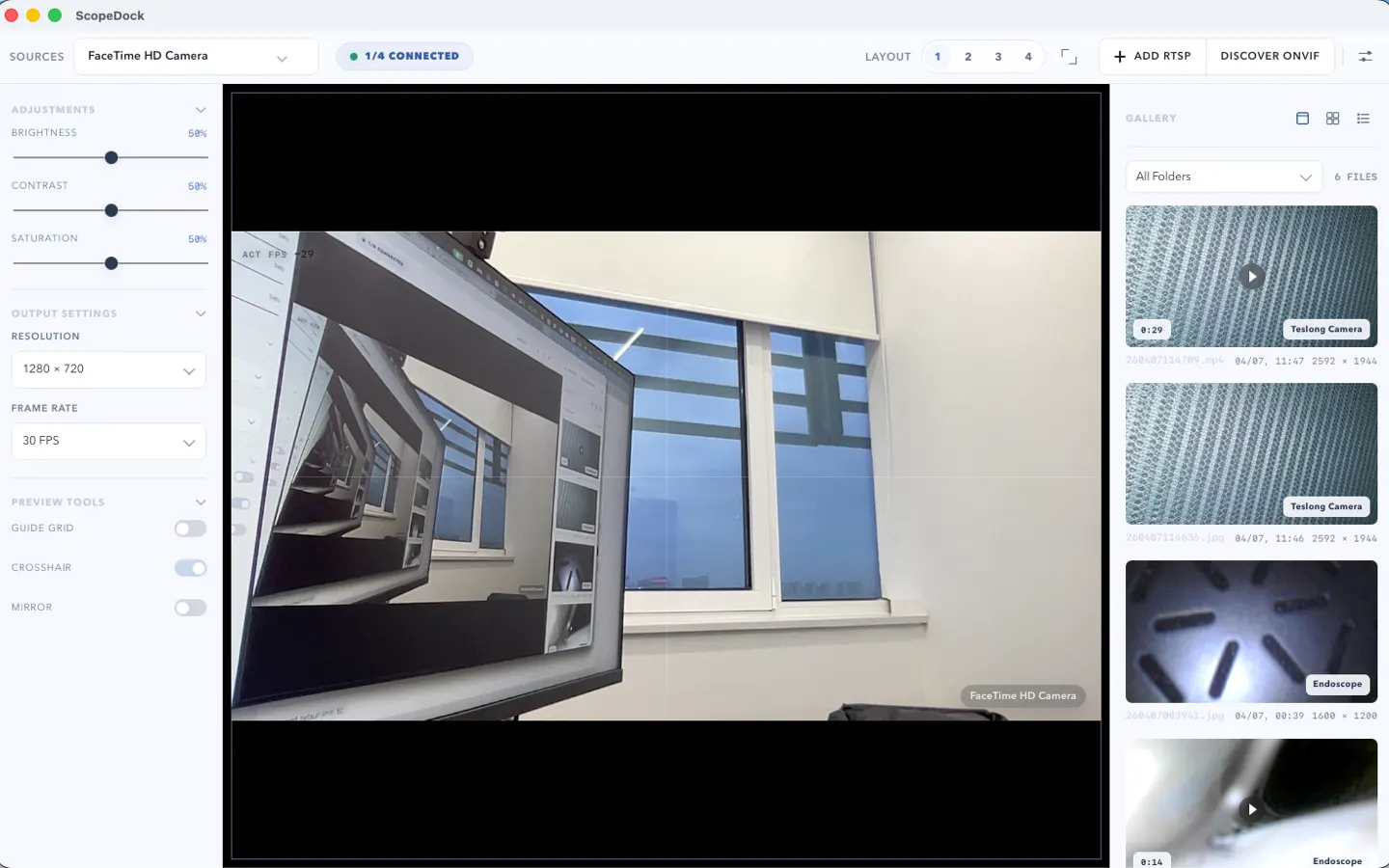
ScopeDock 1.1.1 provides separate direct-download builds for Apple Silicon and Intel Macs while keeping the 1.1 series RTSP preview, snapshot, and recording improvements.
Read article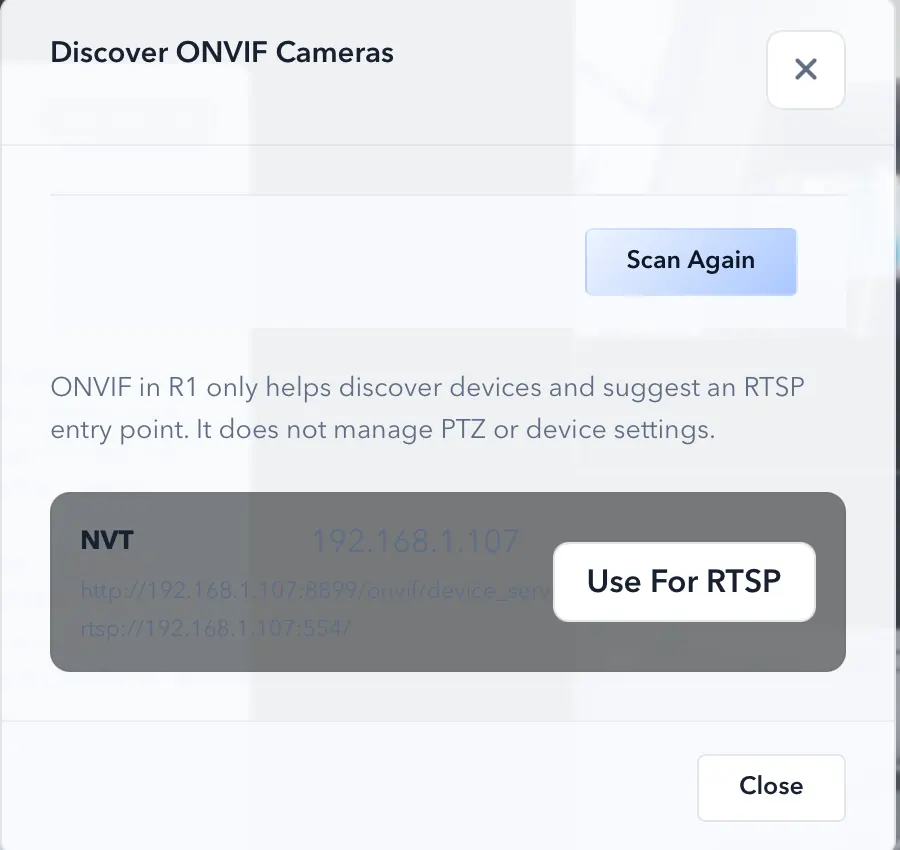
How ONVIF discovery differs from manual RTSP in ScopeDock
ONVIF discovery and manual RTSP solve different setup problems. ONVIF can make camera onboarding lighter, while RTSP is the direct path when you already know the stream endpoint.
Read article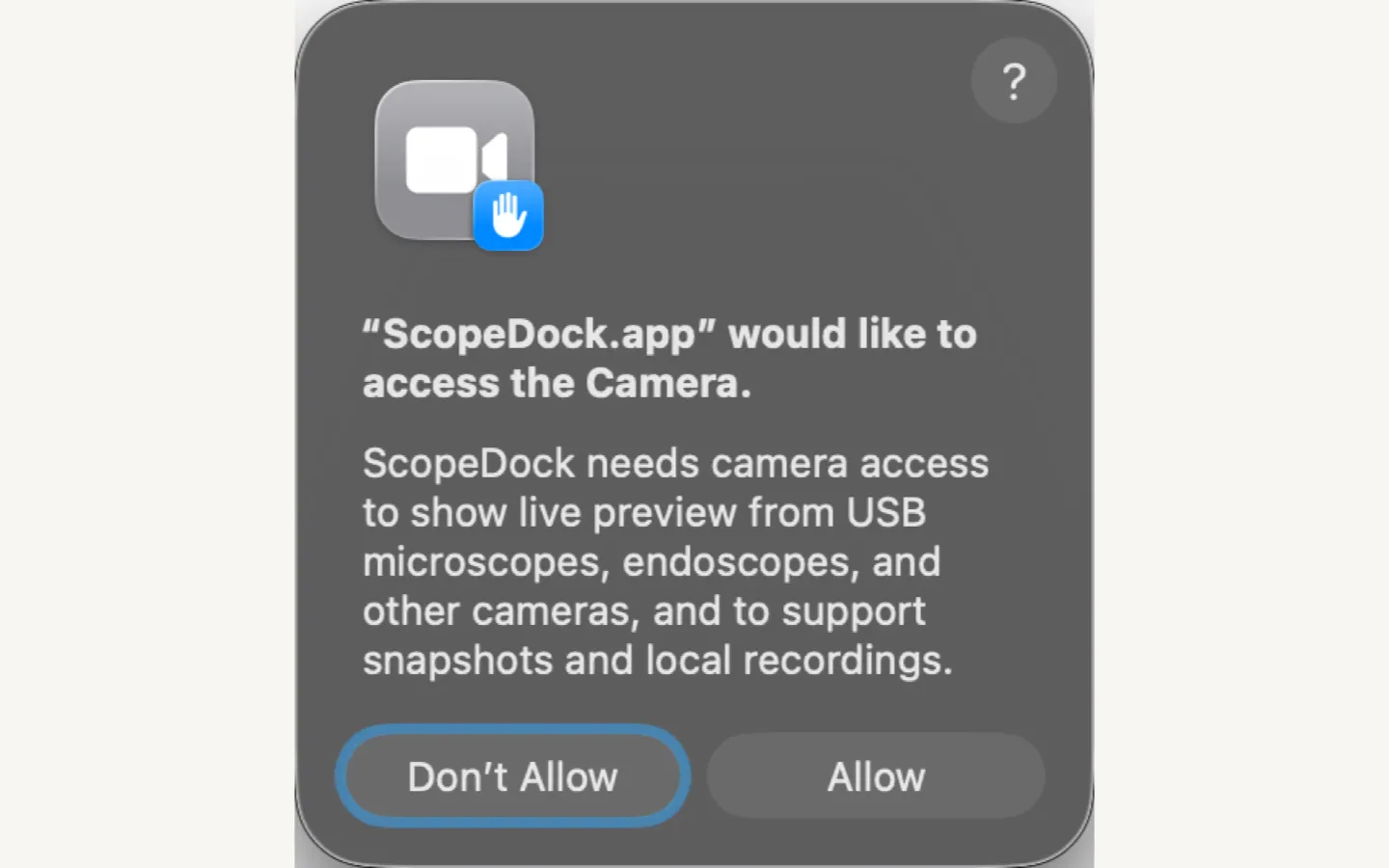
macOS camera support: permissions, USB microscopes, endoscopes, and UVC cameras
Need macOS camera support for a USB microscope, endoscope, or UVC camera? Start with camera permission, source type, device protocol, and whether macOS exposes the device as a standard camera before assuming ScopeDock or the device is unsupported.
Read articleScopeDock essentials
Answers about camera sources, captures, and privacy.
Does ScopeDock upload my video by default?
No default cloud upload flow is part of the product positioning. ScopeDock is presented as a local-first tool. It does not automatically upload videos, images, full RTSP URLs, LAN IP addresses, or media paths, and the website keeps feedback separate from anonymous usage measurement.
What cameras are supported?
The current site explains support around USB UVC devices, improved RTSP manual input, and ONVIF discovery workflows. Exact compatibility can still vary by device implementation, especially for network cameras.
Does ScopeDock support RTSP?
Yes. ScopeDock 1.1.1 continues to include the 1.1 series RTSP preview and recording improvements, including continuous video stream preview, preview resolution and frame rate choices after connection, improved RTSP recording save behavior, better thumbnails, and clearer connection, authentication, and timeout error messages. Network camera compatibility can still vary by device implementation.
How many sources can I connect at once?
The website currently describes ScopeDock as supporting up to four sources in a lightweight multi-source layout. That limit is part of keeping the product focused on practical inspection work rather than dense surveillance-style grids.
Is ScopeDock available on Windows?
Not yet. ScopeDock is currently available on macOS, and Windows availability will be published when it is ready.
Still blocked?
Tell us which ScopeDock version and camera source you are using, what you expected, and what happened. Remove passwords, private URLs, local paths, and sensitive content before sending.