
Check your Mac and camera
Compare Apple Silicon and Intel downloads, macOS requirements, and USB, RTSP, or ONVIF source support.
Good USB microscope software for macOS, Mac USB microscope workflows, and endoscope camera software for Mac should start with UVC compatibility, fast preview, local snapshots, short recordings, and clear file handling.
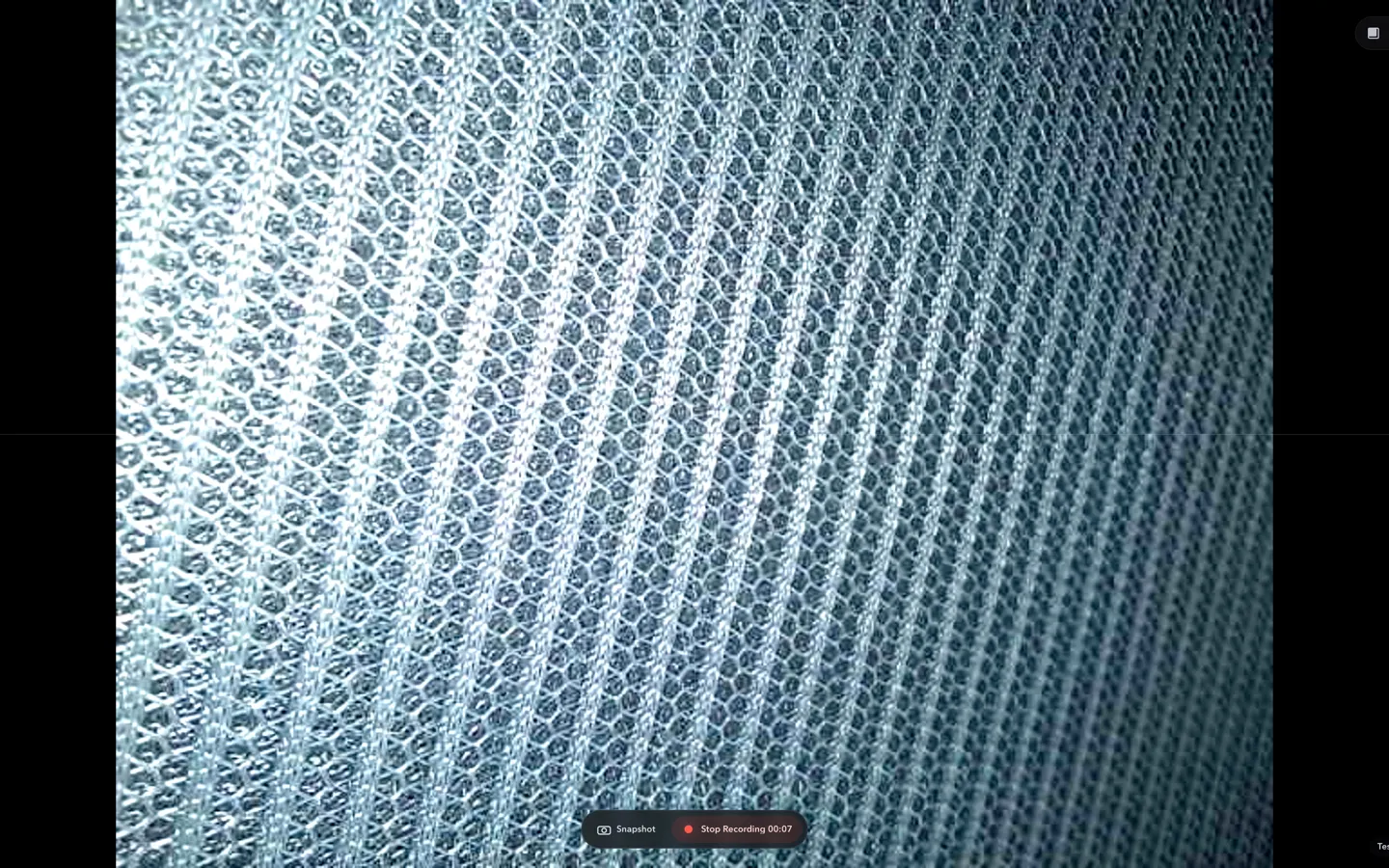
ScopeDock keeps camera preview, snapshots, and short recordings in a focused Mac workspace.
Good USB microscope software for macOS should do more than detect the camera. If you are using a Mac USB microscope, USB endoscope, or otoscope-style camera, the first question is whether macOS sees it as a standard USB UVC camera. After that, the software should help you preview the image quickly, inspect clearly, capture snapshots or short recordings, and keep files local and easy to find.
For ScopeDock, the best fit is a USB microscope or endoscope-style camera that behaves like a standard USB UVC camera. If your device only works through a vendor-specific app or driver stack, compatibility may depend on whether it exposes a normal camera source to macOS.
| What you have | Mac workflow fit | What to check |
|---|---|---|
| USB UVC microscope | Usually the best fit | macOS camera permission and source selection |
| USB endoscope or otoscope-style camera | Possible fit | Whether the device appears as a standard UVC camera source, and whether your use is viewing/capture rather than diagnosis |
| USB capture device or camera module | Possible fit | Whether macOS exposes it as a usable camera source |
| RTSP microscope bridge or network camera | Possible fit | RTSP URL, credentials, and local network reachability |
| Vendor-only microscope software | Uncertain | Whether the device exposes a standard USB camera path |
If you already know your device presents as a standard camera, review the download and compatibility page before installing. If detection is unclear, start with Support and check whether the device exposes a USB UVC path.
If you want an ordered pre-download check, use the Mac Camera Setup Planner. Choose USB UVC and answer only whether macOS exposes the device as a camera source; the planner does not ask for a device name, serial number, local path, or other identifier.
For branded USB microscopes or endoscopes, treat the brand name as a device-specific clue, not a compatibility guarantee. ScopeDock should be evaluated through the camera path macOS exposes, not through assumptions about a particular vendor app.
For the first session, keep the setup deliberately small:
If the camera does not appear, do not assume the app or device is broken immediately. Re-check the cable, adapter, macOS camera permission, whether another app is already using the camera, and whether the device requires a vendor-only driver instead of exposing a standard UVC path. The download page explains architecture and distribution choices; Support is the right path when the source still does not appear after these checks.
Many USB microscope decisions go wrong because the evaluation starts at raw device recognition and stops there. That matters, but it is only the first question. The better question is whether the software helps you move through preview, inspection, capture, and file handling without friction.
For microscope work, local-first tools often reduce complexity. You can stay focused on the device, the sample, and the capture task instead of on account flows, remote storage defaults, or operational UI that does not help your bench workflow.
ScopeDock is positioned as a local-first camera workspace, so the website aims to answer these practical questions quickly before download. The product is a better fit when your USB microscope workflow is about local preview, observation, snapshots, short recordings, and practical file handling.
ScopeDock is probably not the right category if you need medical diagnosis, lab information management, cloud collaboration by default, or a vendor-specific microscope control panel that depends on proprietary device features.
Choose a lightweight local-first tool when:
Choose a more specialized vendor tool when:
Use the ScopeDock product page to decide whether the workflow fits. Use the download page to check macOS, Apple Silicon / Intel download choices, USB UVC, RTSP, and ONVIF expectations. Use Support if the microscope is not detected or the source path is unclear.
The best choice depends on the workflow. If you need local preview, snapshots, short recordings, and simple file handling, a lightweight inspection viewer is usually a better match than livestreaming or surveillance software.
No app can honestly promise every device. ScopeDock is the strongest fit when the microscope exposes a standard USB UVC camera path that macOS can access.
Yes, if the device appears to macOS as a standard camera source and you grant camera permission. Use the Apple Silicon direct download for M-series MacBooks and the Intel direct download for older Intel MacBooks, or choose the Mac App Store path if you prefer store distribution.
The usual causes are macOS camera permission, a loose cable or adapter, another app holding the camera, or a device that does not expose a standard USB UVC source. Start with one camera, grant permission, then check Support if the device still does not appear.
It can fit a viewing and local-capture workflow when the endoscope behaves like a standard USB UVC camera or another supported camera source. ScopeDock is not a medical diagnosis tool and should not be used for clinical interpretation.
ScopeDock should not be treated as official support for a specific third-party brand unless that support is explicitly documented. For Teslong or other branded devices, check whether the device appears as a standard UVC camera on macOS, review the vendor documentation, and use Support if the source path is unclear.
USB Video Class, or UVC, is the common camera path macOS can expose without a special vendor app. ScopeDock is the best fit when a microscope, endoscope, or inspection camera appears through that standard camera path.
Check whether the microscope appears as a camera source on macOS, whether camera permission can be granted, whether you need Apple Silicon or Intel direct download, and whether your workflow is local inspection rather than specialized measurement or diagnosis.
ScopeDock is designed around local preview, snapshots, and recordings. Keep enough local storage available before recording longer sessions.
No. ScopeDock is for local camera preview, capture, and inspection-style documentation. It does not provide medical diagnosis, clinical interpretation, or lab-specific decision support.
Choose the product, support, compatibility, or privacy path that matches what you need next.
Compare Apple Silicon and Intel downloads, macOS requirements, and USB, RTSP, or ONVIF source support.
Follow permission, USB camera, RTSP URL, authentication, and timeout checks before sending feedback.
Review the product workflow, real screenshots, local capture behavior, and current product boundaries.
More NgSense release notes, setup guides, and local-first workflow articles.
Check whether a USB endoscope exposes standard UVC video to macOS, depends on a vendor-only driver, or is limited to a phone app before choosing Mac camera software.
Read article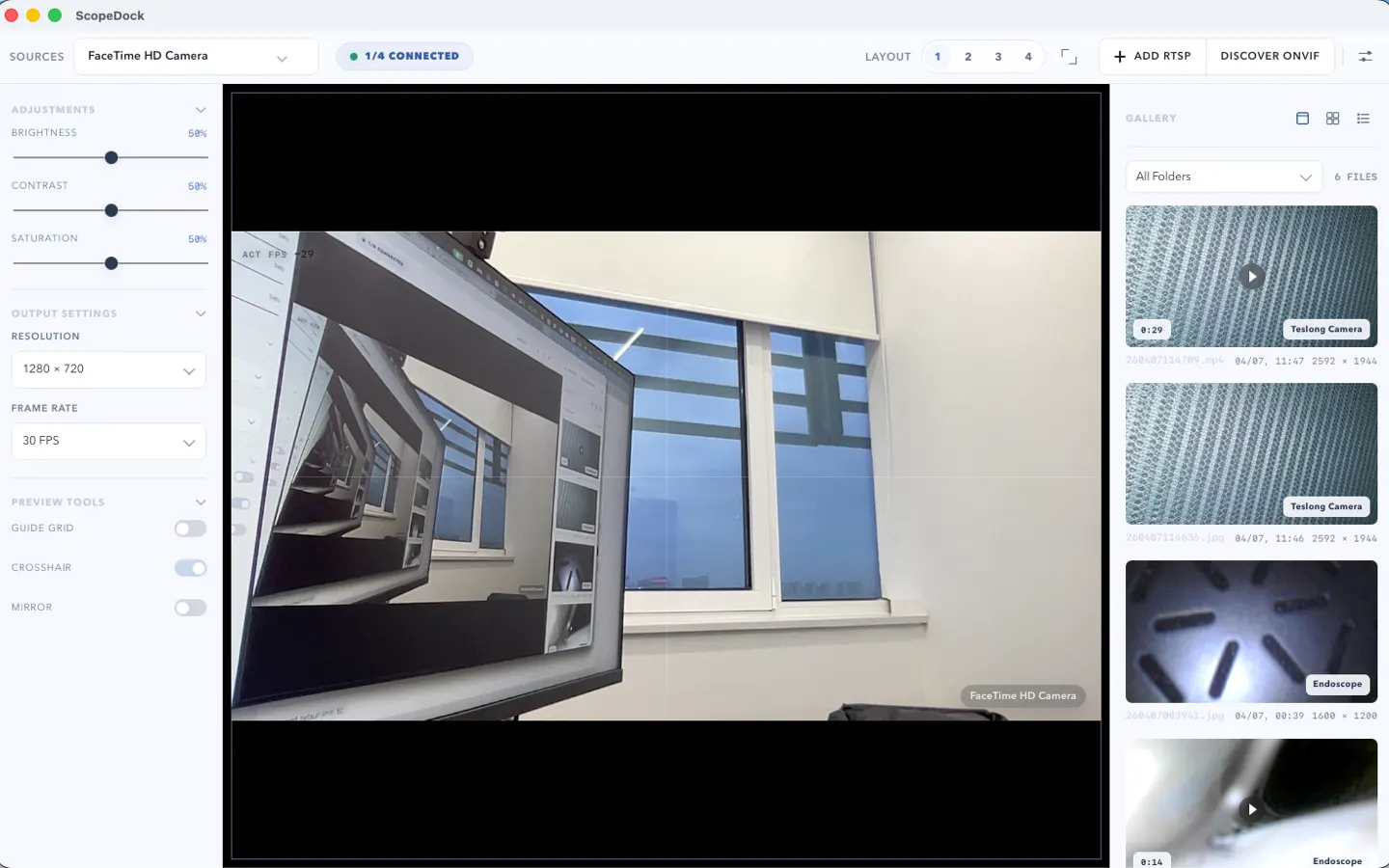
ScopeDock 1.1.1 provides separate direct-download builds for Apple Silicon and Intel Macs while keeping the 1.1 series RTSP preview, snapshot, and recording improvements.
Read article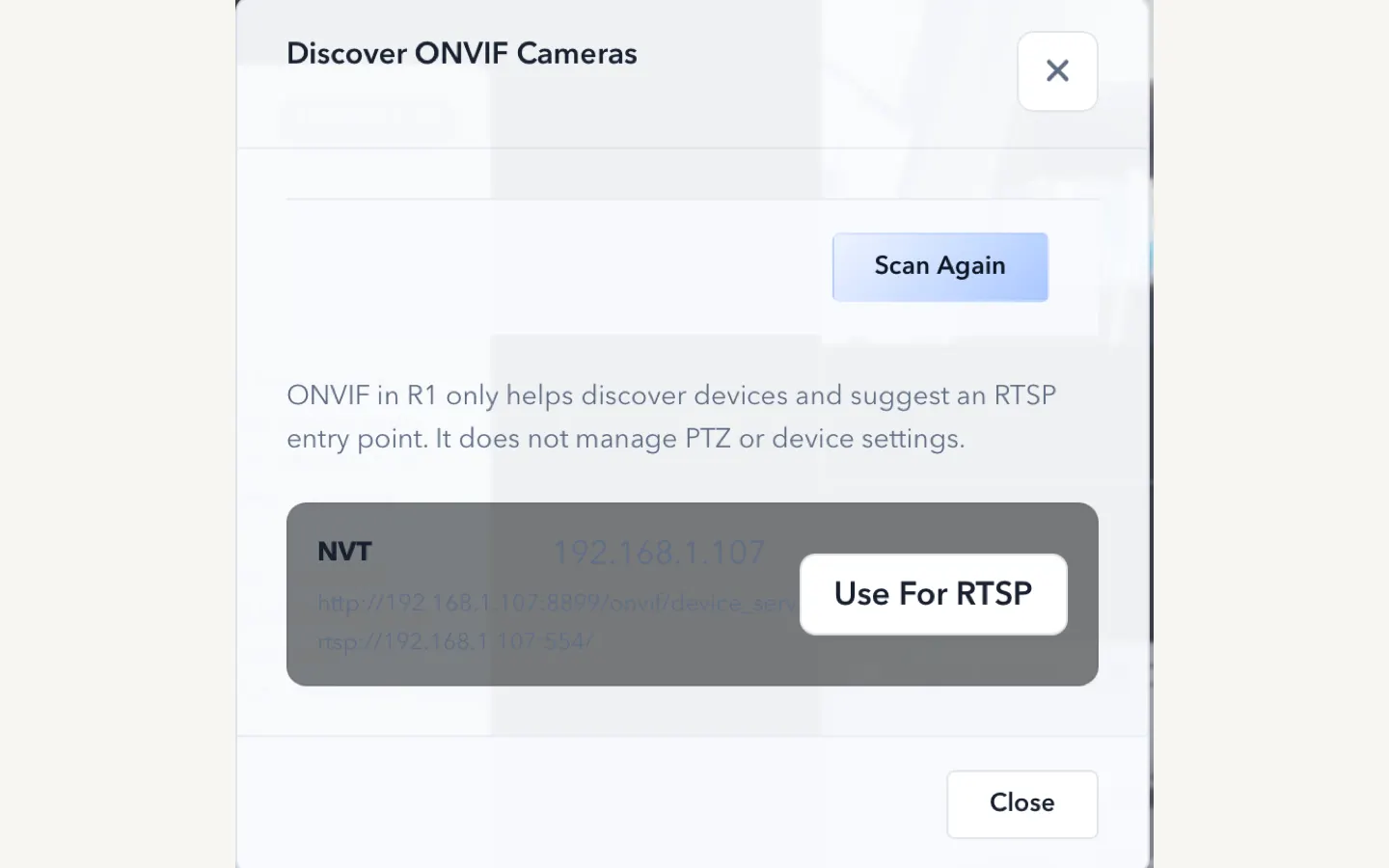
ScopeDock 1.1.0 improves RTSP continuous preview, preview resolution and frame rate choices, recording save reliability, thumbnails, and connection error messages.
Read articleChoose the correct direct download for your Mac, use the Mac App Store, or check compatibility first.