The best RTSP viewer for Mac is not simply the one with the longest feature list. It is the one that matches the job you actually need to do. If your real workflow is local inspection, quick review, capture, and short recordings, the right RTSP viewer usually looks very different from a surveillance platform or a livestream tool.
That distinction matters because many users search for “best RTSP viewer for Mac” when the real question is much narrower:
- I already have an IP camera or RTSP stream
- I want to open it quickly on Mac
- I need a simple local workflow
- I may want snapshots, short recordings, or a small multi-camera layout
- I do not want to adopt a full monitoring stack
Start with the real workflow, not the protocol name
RTSP tells you how the video stream is delivered. It does not tell you what category of software will fit your workflow best.
For example, these are very different needs:
- a single inspection camera on a bench
- two to four local cameras for review or comparison
- a large monitoring wall
- a remote security operation workflow
- a livestreaming setup
All of them may involve RTSP, but they should not automatically lead you to the same kind of app.
What inspection users usually care about
If the workflow is inspection-oriented, the viewer should do a few things well:
- Open the stream without unnecessary setup friction
- Keep the preview readable and central
- Stay local-first by default
- Make snapshots and recordings easy to reach
- Avoid pulling the user into a surveillance or broadcast mental model
That is where a lightweight inspection viewer has an advantage. It does not try to become a giant monitoring suite. It focuses on the workflow from connection to review to local capture.
What makes a surveillance-oriented RTSP viewer feel wrong
A lot of RTSP tools are shaped by surveillance use cases. That often means:
- camera-wall-first layouts
- operator-heavy controls
- system concepts designed for always-on monitoring
- a lot of setup surface before the first useful preview
Those capabilities are not bad. They just solve a different problem.
If your workflow is microscope review, endoscope viewing, repair inspection, product QA, or lightweight documentation, that kind of tool can feel bigger and heavier than necessary.
Where ScopeDock fits
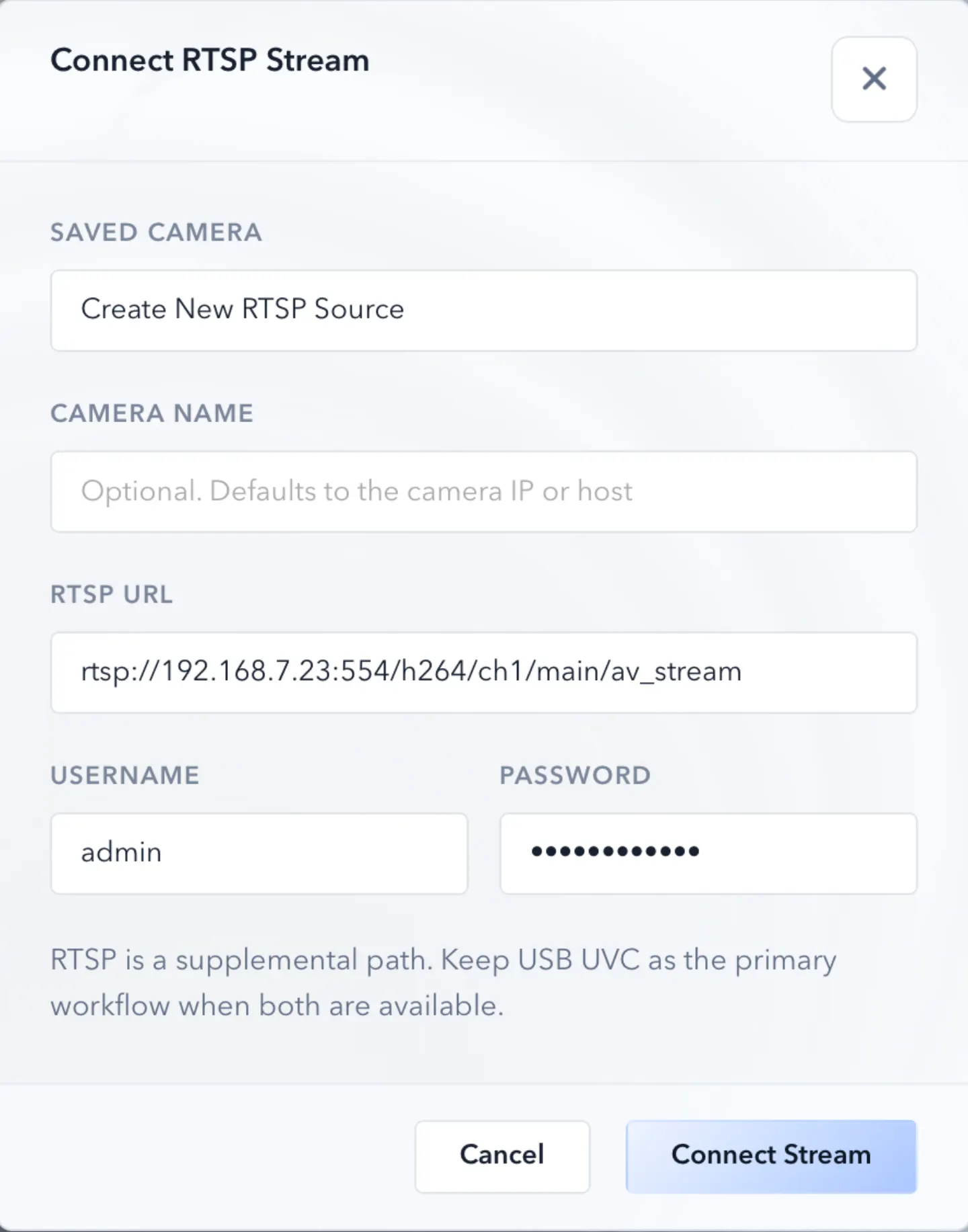
ScopeDock fits when the RTSP stream is part of a local-first inspection workflow. The idea is simple:
- connect the source
- preview it quickly
- use a focused workspace
- capture snapshots or local recordings when needed
- keep the workflow practical instead of platform-heavy
That is why ScopeDock is a better fit for users who want to inspect, compare, or document rather than run a full monitoring system.
If you want to evaluate that fit directly, start with the ScopeDock product page and then use the download page to check platform scope and setup expectations.
What ScopeDock is not trying to be
ScopeDock is not positioned as:
- a surveillance management platform
- a large NVR replacement
- a broadcast or livestream suite
- a general-purpose media production tool
This is an important boundary. The best product page and blog content should explain not only when the app fits, but also when it does not.
A better decision rule for Mac RTSP viewers
Instead of asking “Which RTSP viewer has the most features?”, ask:
1. Do I need inspection or monitoring?
If the answer is inspection, review, focus checking, documentation, or short recordings, a lighter inspection-oriented viewer is usually the better category.
2. Do I need one source, a few sources, or a wall?
A one-to-four source workflow is very different from a large camera-wall requirement. Many users only need a small layout, not an operations console.
3. Do I need local recording or remote management?
If the priority is local capture and predictable files on your Mac, the best tool should make that path obvious. If the priority is remote system management, your needs are already outside the lightweight category.
4. Do I need discovery help?
If you already know the RTSP path, manual RTSP input may be enough. If you are still identifying compatible devices, ONVIF discovery support can reduce setup friction.
When ScopeDock is the better category match
ScopeDock is the better category match when:
- you already know you need a Mac app, not a web dashboard
- RTSP is part of an inspection workflow
- local preview and recording matter more than operator-heavy controls
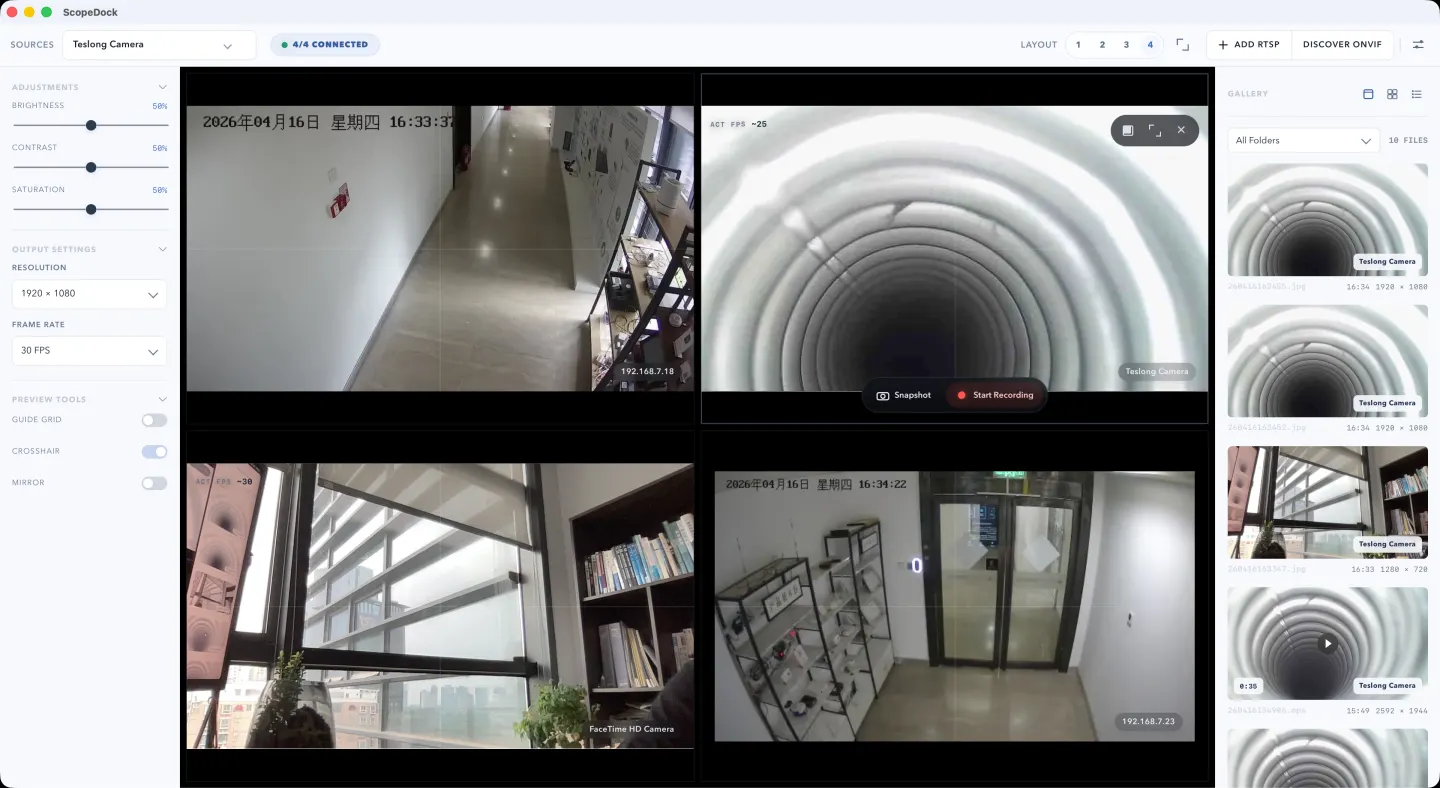
- you want a product that stays readable with one to four sources
- you care about local-first behavior and a short path to saved media
Another tool is probably a better fit when:
- you need persistent surveillance operations
- you need advanced remote monitoring concepts
- you need a large camera wall
- you need stream production rather than technical review
- your workflow depends on features outside a focused inspection workspace
That is not a weakness in ScopeDock. It is just the boundary of the product.
The practical next step
If your use case sounds inspection-oriented, the next step is not to compare dozens of RTSP checkbox lists. It is to verify three things:
- Whether your stream path is supported
- Whether the local-first workflow matches your review process
- Whether download, compatibility, and support documentation answer your setup questions clearly
That will usually tell you more than a generic “top RTSP viewer” list.
Use these pages together:
FAQ
Yes. If your goal is lightweight local preview and capture, you do not need a full monitoring platform just to open an RTSP source.
Is ScopeDock meant for surveillance teams?
No. ScopeDock is positioned for local-first inspection, review, and capture workflows, not large surveillance operations.
Does ScopeDock support ONVIF too?
Yes, but ONVIF discovery and manual RTSP solve different setup problems. Discovery helps when the device supports it; manual RTSP is the direct path when you already know the stream details.
Can I use more than one RTSP source at the same time?
ScopeDock supports lightweight multi-source workflows, which is useful when you need comparison or review across a small number of cameras rather than a full camera wall.
Where should I go after reading this?
Use the product page to decide fit, the download page to check compatibility and platform scope, and the support page if your device behavior is still unclear.