
Check your Mac and camera
Compare Apple Silicon and Intel downloads, macOS requirements, and USB, RTSP, or ONVIF source support.
Need macOS camera support for a USB microscope, endoscope, or UVC camera? Start with camera permission, source type, device protocol, and whether macOS exposes the device as a standard camera before assuming ScopeDock or the device is unsupported.
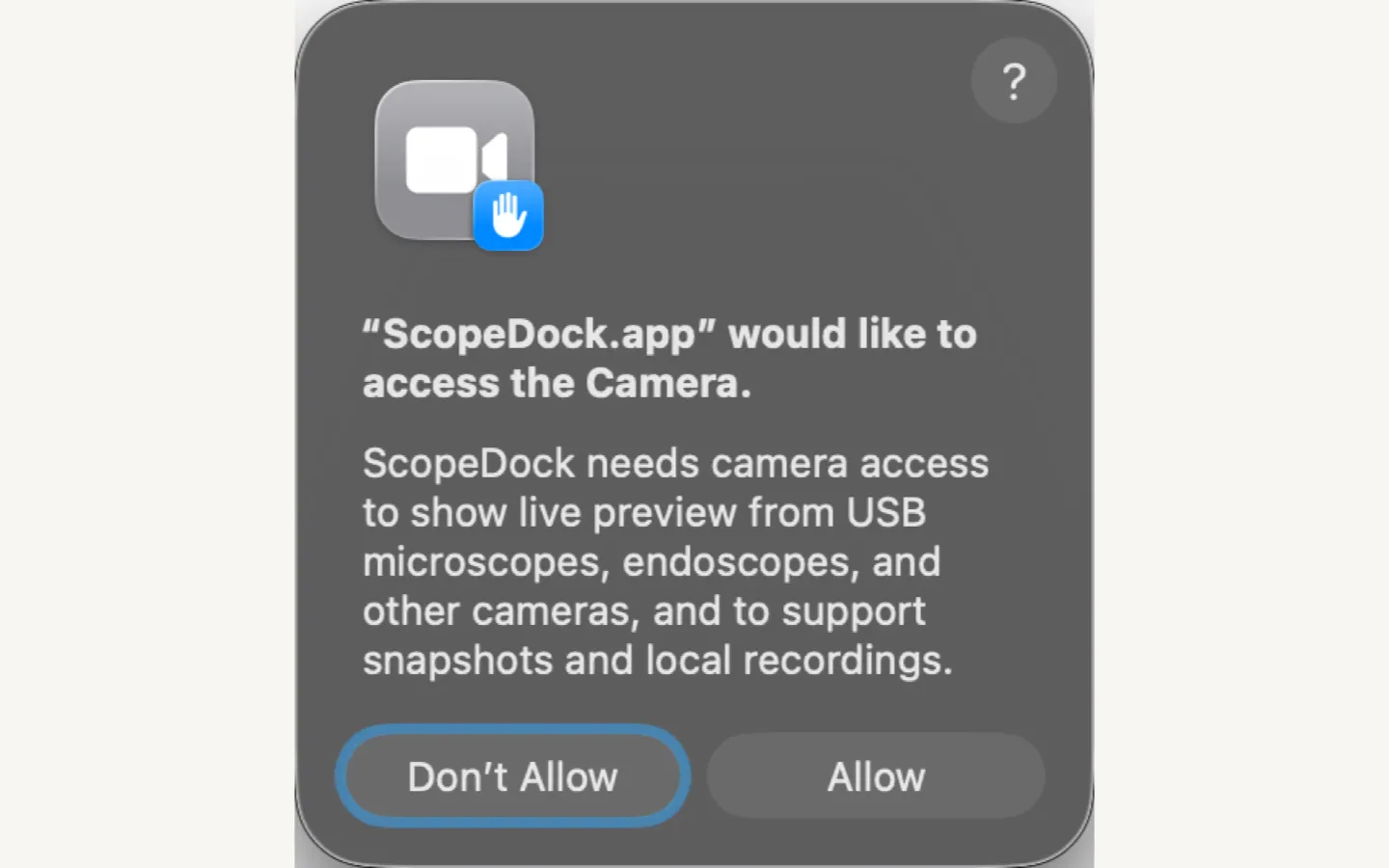
ScopeDock keeps camera preview, snapshots, and short recordings in a focused Mac workspace.
If you need macOS camera support for a USB microscope, endoscope, otoscope-style camera, or UVC inspection camera, the first answer is practical: confirm camera permission, confirm the source type, and confirm whether macOS exposes the device as a standard camera. ScopeDock can work with compatible local camera paths, but it should not be treated as a universal driver for every vendor-specific device.
This guide is about setup and compatibility boundaries. It is not medical advice, and ScopeDock should not be used as a medical diagnostic tool.
Need the next check without sharing camera details? Use the Mac Camera Permission Quick Check to separate a USB UVC permission issue from an RTSP or ONVIF source-path issue. It accepts only fixed choices and does not diagnose hardware compatibility.
Before assuming the product is broken, identify whether the device is one of these paths:
Those paths do not fail in the same way, so support guidance should not treat them as one generic “camera problem.”
For local camera workflows, permission state is often the fastest thing to verify. If macOS has not granted camera access, ScopeDock may look like it cannot see the device even when the physical connection is fine.
Check these items first:
If the device appears in other standard Mac camera apps but not in ScopeDock, treat that as a useful compatibility detail when you send feedback.
USB microscopes and endoscope cameras usually work best on macOS when they expose a standard USB UVC camera path. In that case, macOS can present the device to apps without a custom vendor driver.
Compatibility is less predictable when:
If your workflow is specifically USB microscope or endoscope review, also read USB microscope and endoscope camera software for macOS before downloading.
UVC is a useful compatibility signal because it means the device behaves like a standard USB video camera. But “USB camera” is broader than “USB UVC camera.” Some USB devices need private drivers or only expose video inside a vendor app.
ScopeDock should be evaluated against the source path macOS can actually see:
| Device behavior | What it usually means |
|---|---|
| macOS exposes it as a camera | Start with permission checks and one-source preview. |
| Only the vendor app sees video | ScopeDock compatibility may be limited by a private protocol. |
| The camera appears but preview is blank | Re-check permission, cable, adapter, another app locking the device, and source selection. |
| The device is actually RTSP or ONVIF | Use network-camera troubleshooting instead of USB permission troubleshooting. |
For platform, architecture, and source coverage, use Download and Compatibility before installing.
ScopeDock is a better fit when your camera source is available to macOS as a standard local camera path or reachable network stream, and your goal is local preview, inspection, snapshots, or short recordings.
ScopeDock is not positioned as:
If the device path is unclear, start with Support and the compatibility feedback lane before assuming the product or device is broken.
Support becomes much faster when the report includes enough context to separate permission, UVC compatibility, and product behavior:
Do not send medical media, passwords, private LAN details, full RTSP URLs, or sensitive file paths. Use Contact / Feedback when the documented path still does not match your device.
The most common causes are missing camera permission, another app using the camera, an adapter or cable issue, or a device that does not expose a standard USB UVC camera path. Start with permission and one-source testing, then compare the device against the USB microscope guide.
No. macOS support depends on how the camera presents itself. Endoscope-style devices that appear as standard UVC cameras are easier to evaluate. Devices that only work through a vendor app may use private protocols that ScopeDock cannot treat as a normal camera input.
A UVC camera follows the USB Video Class pattern, which lets macOS expose the device as a camera source without a custom vendor app. It is a useful compatibility signal, but it still does not guarantee every device behavior or capture mode.
No. This page explains camera permission and compatibility troubleshooting for local preview and inspection workflows. ScopeDock is not a medical diagnostic product.
Use Support for troubleshooting lanes, Download and Compatibility for platform and source checks, or Contact / Feedback if you can share device behavior without private or sensitive details.
Choose the product, support, compatibility, or privacy path that matches what you need next.
Compare Apple Silicon and Intel downloads, macOS requirements, and USB, RTSP, or ONVIF source support.
Follow permission, USB camera, RTSP URL, authentication, and timeout checks before sending feedback.
Review the product workflow, real screenshots, local capture behavior, and current product boundaries.
More NgSense release notes, setup guides, and local-first workflow articles.
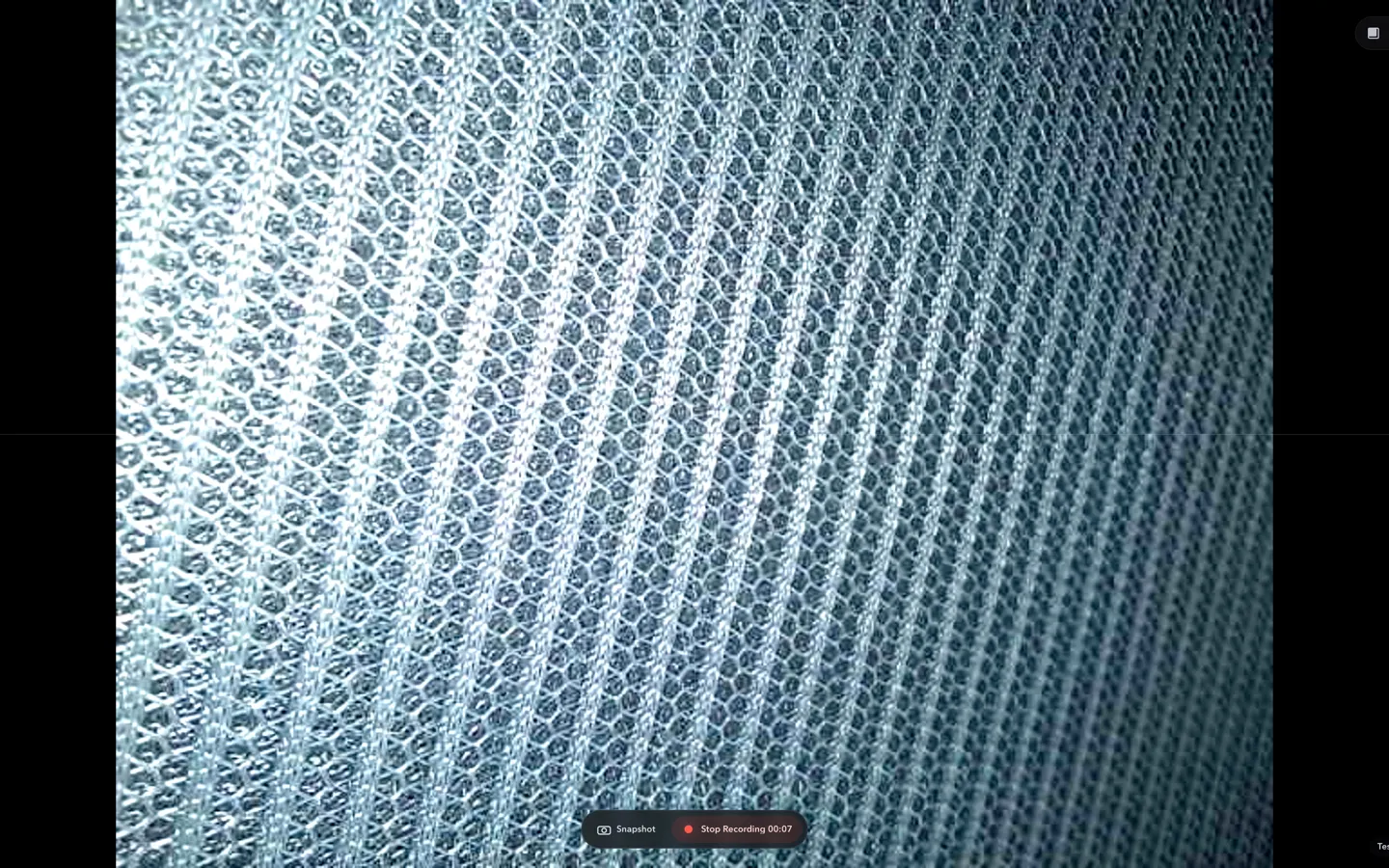
Check whether a USB endoscope exposes standard UVC video to macOS, depends on a vendor-only driver, or is limited to a phone app before choosing Mac camera software.
Read article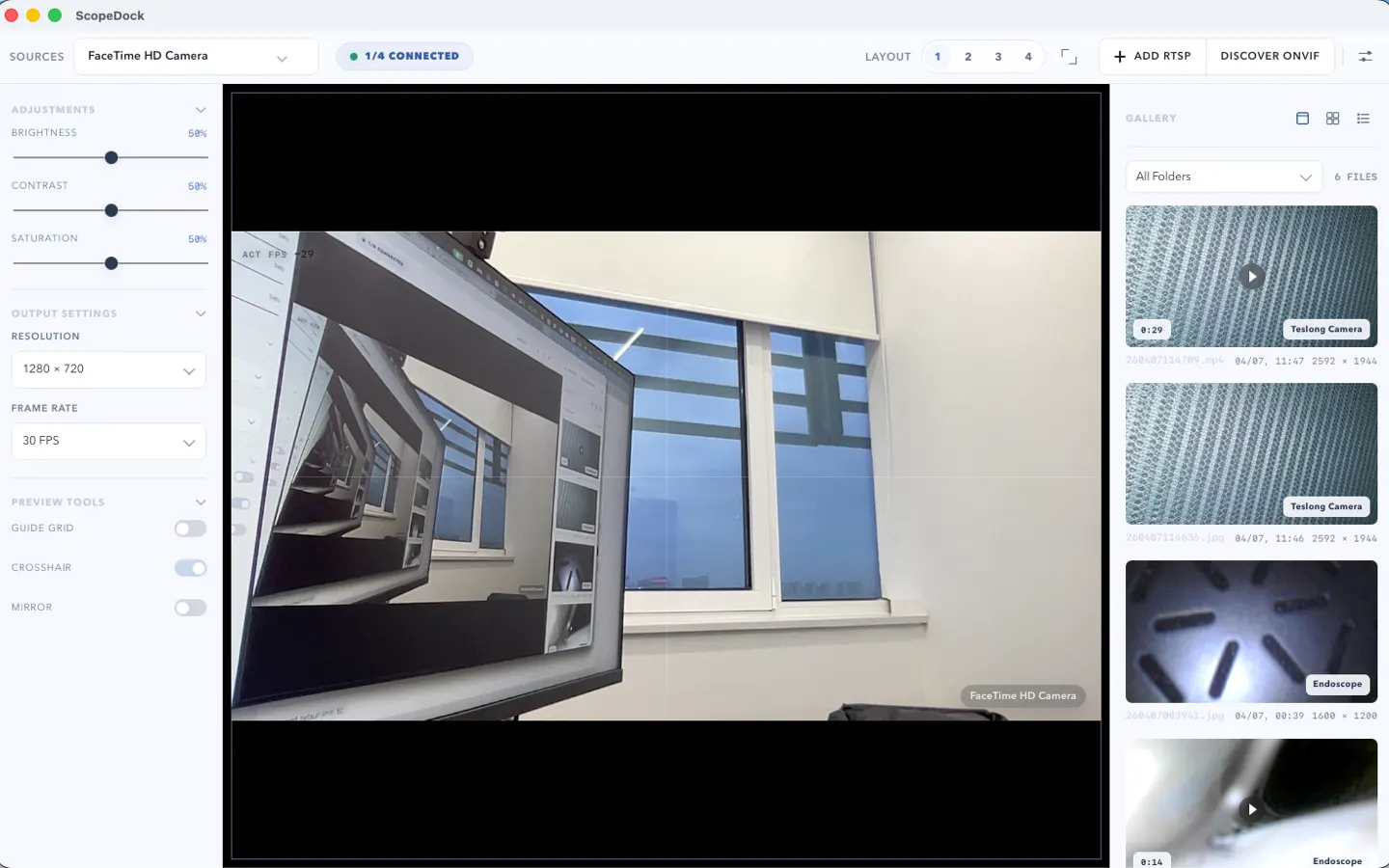
ScopeDock 1.1.1 provides separate direct-download builds for Apple Silicon and Intel Macs while keeping the 1.1 series RTSP preview, snapshot, and recording improvements.
Read article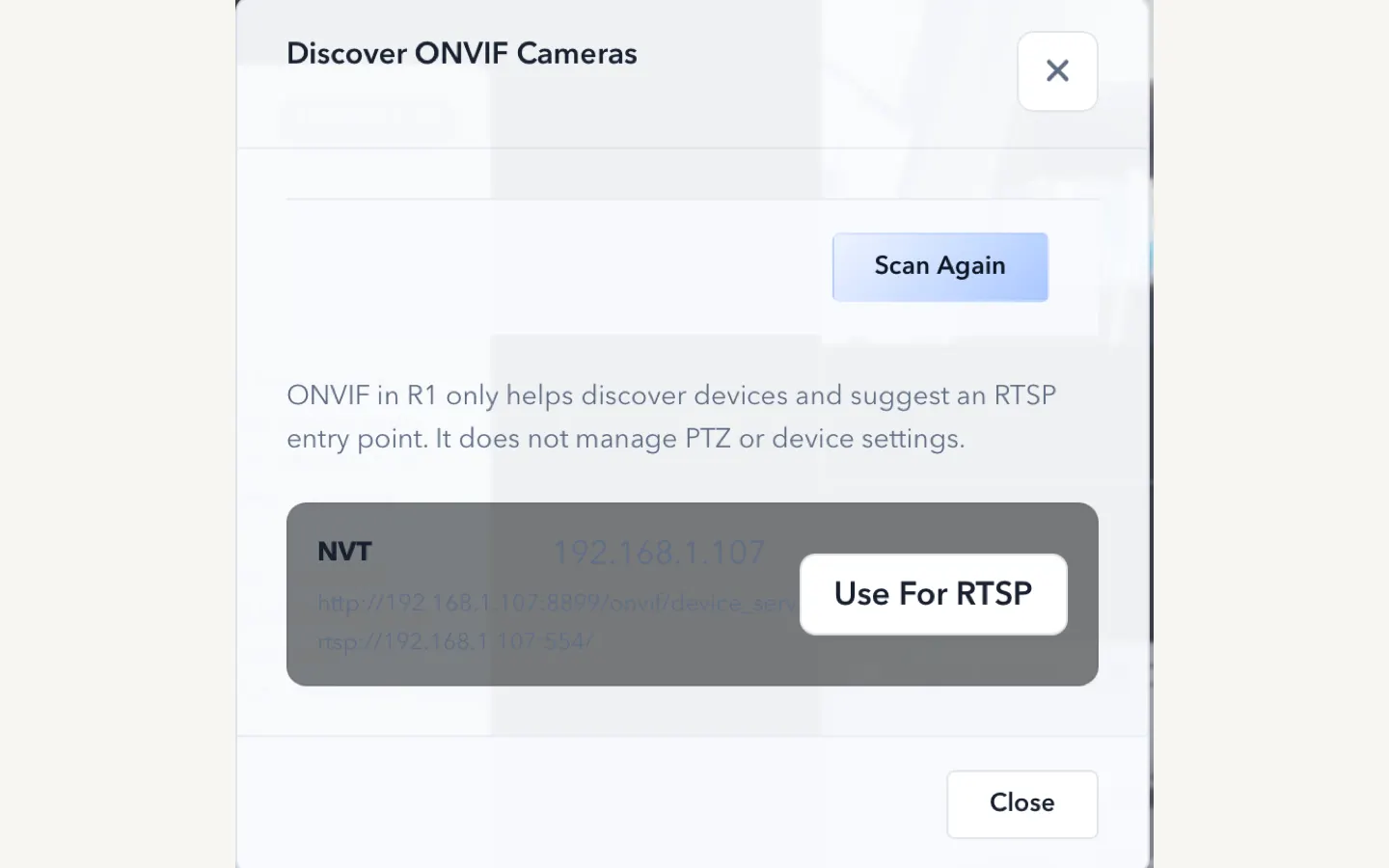
ScopeDock 1.1.0 improves RTSP continuous preview, preview resolution and frame rate choices, recording save reliability, thumbnails, and connection error messages.
Read articleChoose the correct direct download for your Mac, use the Mac App Store, or check compatibility first.