
Set up your first display.
Start with one shop tablet, an existing welcome webpage, and a public local image. Open settings, preview both items, then save and observe the complete loop before leaving the display unattended.
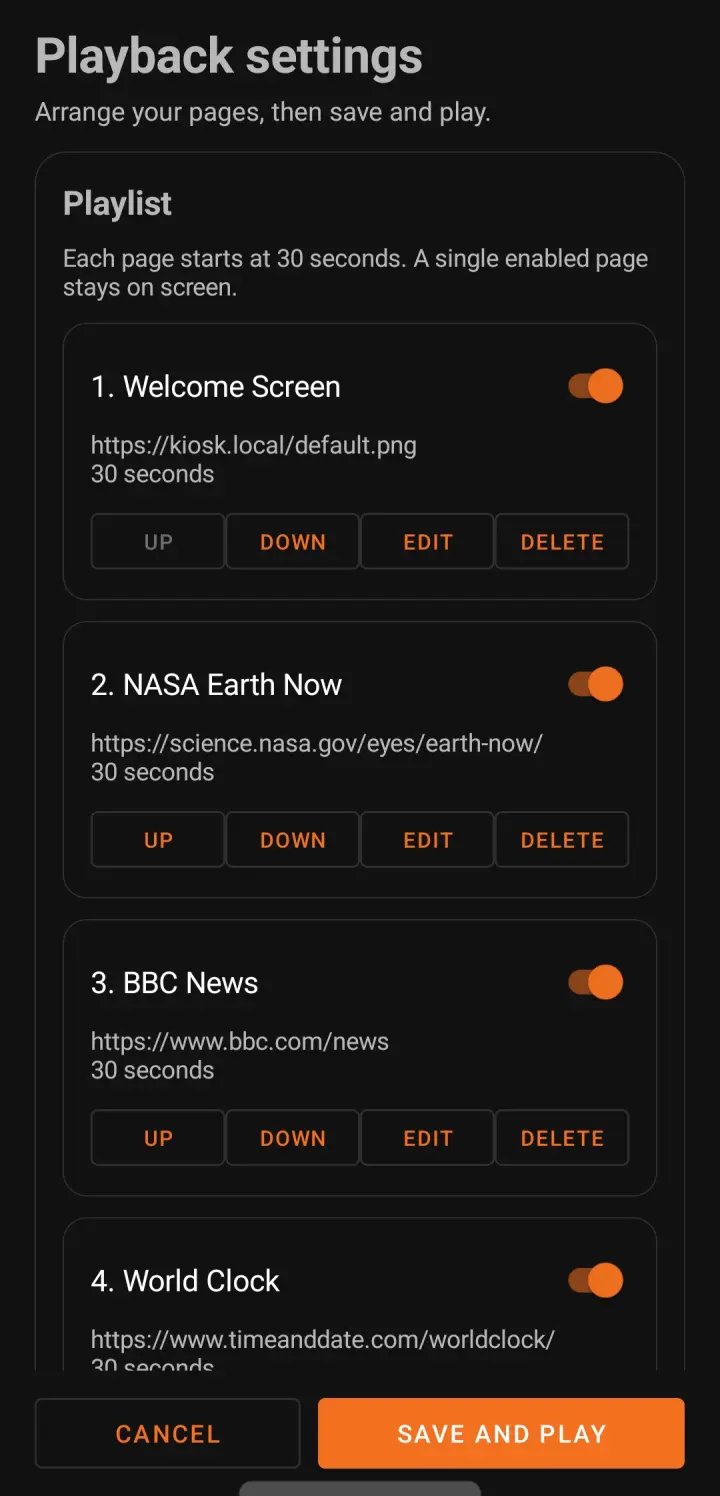
One tablet, one welcome page, one local image
Follow this small-shop setup on the intended Android device. Preview each item before saving; a working sample page is not a guarantee that another website or device will work.
-
Open settings from the playback area
Tap the playback area 10 times within 3 seconds to open the settings password dialog. If a password was previously set, enter that password. On a new installation with no password, leave the field blank and confirm.
Check: Settings opens after password confirmation. If you do not know an existing password, ask the device owner or contact support.
-
Add and preview the welcome webpage
Open your trusted welcome webpage on the tablet first. In settings, add a webpage item with that HTTP or HTTPS address and preview it. You can start with the NgSense sample welcome page linked below. Never put secrets in a URL.
Check: The preview shows whether the page fits this screen and loads on this network before you save the playlist.
-
Import and preview a local image
Add an image item and choose a public-display-safe JPEG or PNG through Android's file picker. Preview the selected image on the tablet.
Check: The local image becomes a second item. Check its content, orientation, and legibility on the actual screen.
-
Arrange, save, and observe a complete loop
Enable the welcome page and image, set each item's duration, put them in the intended order, choose the screen orientation, then save and play. Watch the page, image, and return to the page on the intended network.
Check: Check loading, image display, timing, and transitions before unattended use. One enabled item stays visible; multiple enabled items rotate in order.
Try a sample webpage
Open the NgSense sample display page on the Android device first. If it renders there, add that same address in Web Launcher, preview it, then save and play. The page needs no account, personal details, or external assets.
This is example webpage content, not a screenshot of Web Launcher or a customer installation. A successful sample check does not prove your own website, login, Android WebView, or display hardware will behave the same way.
Device validation status
As of October 15, 2026, the setup path above is grounded in the app’s documented flow and source code. Validation of the formal 1.5.1 package on the intended physical tablet is still pending. Website and browser checks are not a completed tablet installation or playback test. Existing product screenshots remain Android 13 R2 test-build captures, not final 1.5.1 evidence.
Startup and managed kiosk setup
The steps in this section apply to Web Launcher - Kiosk Browser for phones and tablets. For the separate TV edition, use the TV startup instructions below.
- Startup after reboot: choose Web Launcher as the default Home app in Android’s Home/default-app settings. Android can then open the display when it reaches the home screen after reboot or unlock. Installing the app alone does not enable this. Lock-screen behavior, Android version and device policies can affect startup.
- Restrict visitor exits: an administrator must provision Web Launcher as the device’s Device Owner and allow its package,
com.zediot.kiosk, in Android Lock Task mode. On supported managed devices, this restricts ordinary Home and recent-app navigation away from playback. Provisioning requires device administration; ordinary app installation or enabling legacy device administrator access is not equivalent to Device Owner provisioning. - Protect administrator access: set a settings password before public use. It protects the settings and Exit app path. A password or default Home selection alone is not full device lockdown.
- Validate the installation: test a reboot and unlock, visitor navigation attempts, password-protected settings and authorized exit on the actual device. Device and Android compatibility vary. Android screen pinning is a separate feature that users can exit; it is not the same as managed Lock Task mode.
See Android’s Lock Task mode documentation for device-management requirements. The app does not claim protection from every physical or administrator action.
TV startup and returning to the system desktop
The optional startup wizard is included in Web Launcher TV 1.1.0, submitted to Google Play for review. Approval and public availability are not yet confirmed. These instructions apply to the separate TV edition, package com.zediot.kiosk.tv.
- Open Web Launcher TV from the TV apps screen. Press Up to show playback controls, then open Display settings. Enter the saved settings password if one is configured.
- Open Display device setup and use Next step to reach Step 2 · Startup. Choose Configure startup / default Home.
- In Android’s system Home selection screen, select Web Launcher TV as the default. Reopen the wizard to verify Default Home startup is Ready. Opening the chooser alone does not confirm that the selection succeeded.
- Save a playlist and test a reboot. On supported devices the app opens when Android reaches Home after boot or unlock. A secure lock screen can still require the device’s normal unlock procedure.
Device limits: some Android TV and Google TV firmware blocks third-party default Home apps or omits the chooser. Installation does not enable startup automatically, and the app cannot override manufacturer restrictions. Confirm this behavior on your actual TV or box, including after system updates. Startup works without Device Owner and leaves your existing accounts and device data intact. It does not provide managed anti-exit locking. The new setup wizard is available in English and Simplified Chinese; other interface languages use English for these steps.
Leave playback and return to the original desktop: open Display settings → Return to TV home. The app opens an installed alternative system launcher and leaves the startup selection in place. The system launcher is not removed or disabled. Pressing Home or rebooting can therefore open Web Launcher TV again. In separately authorized managed mode, an administrator must first complete the app’s unlock/exit flow; external management policy may restrict exit.
Disable startup: in Step 2 · Startup, choose Remove the optional Home entry. Select the original system launcher if Android prompts you. Test Home and reboot again to confirm the change on that device.
Default Home startup, full-screen playback and return to the original desktop have been checked with the TV app on an Android 13 test tablet. These checks do not certify physical Android TV models or Google TV firmware. See the TV product overview for mixed-media playback and phone-browser setup.
Explore what Web Launcher can do
Explore ideas and features on our dedicated product page, then use the setup guides above to configure your display.
Fix the issue you can see
Web content, local media decoding, and Android device policy are separate parts of the setup.
- 01
Blank, slow, or failed page
Test the same page on the same network. Check Android WebView availability, login requirements, and whether the site permits embedded browser use. A site working on a desktop does not guarantee identical Android behavior.
- 02
An imported image or video will not play
Try a JPEG, PNG, or WebP image or an MP4 encoded for the target Android device. Check file access, storage space, and the item's preview. Video codecs vary by device; a supported extension alone is not a playback guarantee.
- 03
The layout does not fit
Try portrait or landscape, then check whether the webpage itself is responsive. Screen orientation cannot repair a fixed-width site layout.
- 04
I need to change settings
Tap the playback area 10 times within 3 seconds, then enter the existing settings password if one is configured. A new installation with no password accepts a blank field and confirmation. If the existing password is unknown, ask the device owner or contact support. The settings password does not replace Android screen pinning or managed-device policies.
- 05
I need startup and managed kiosk controls
For the phone/tablet edition, choose the app as default Home for startup at the Android home screen. Device Owner provisioning, Lock Task allowlisting and a settings password are needed to restrict visitor exits. See the startup and managed kiosk setup section on this page. Local media can play offline; arbitrary webpages are not cached for offline use.
- 06
A signed-in page appears on a shared display
WebViews share the app session. Use a display-safe account and trusted destinations, avoid personal information, and review the website's own cookies and network behavior.
Web display questions
Can I add image or video files directly to the playlist?
Yes. The current Google Play release can import JPEG, PNG, and WebP images or compatible MP4 videos through Android’s file picker, then rotate them with HTTP or HTTPS webpages in one playlist. Imported media is copied into the app’s private library. Video decoding depends on the device, and webpages still need their own network access; test the exact files and sites on the intended display.
Do I need a separate digital-signage CMS?
No. For a simple display, add existing webpage addresses or import local images and compatible MP4 videos directly on the device. The app manages the on-device order and duration; it does not provide remote content management or cloud playlist deployment.
Will the same page work in portrait and landscape?
Web Launcher can follow the system orientation or lock playback to portrait or landscape. Webpages must still be responsive, and imported images or video may show empty bands when fitted to a different screen shape. Preview each item on the actual display before leaving it unattended.
What happens when the next webpage is slow or unavailable?
The next page is prepared while the current page remains visible. If the next page is not ready, Web Launcher keeps a usable current page on screen and retries a failed item later. Third-party websites can still show their own asynchronous loading states, so test important pages on the target device.
Where can I install Web Launcher?
Web Launcher is available on Google Play. Check the listing on your Android device for regional price and compatibility.
Still need help with your screen?
Tell us the app version, Android version, and general symptom. Remove private URLs, file paths, passwords, account details, and identifying content from your message or screenshot.