
LoveMarkDown · One complete handoff
Share Markdown Without Missing Images: A LoveMarkDown Handoff Checklist
Send an editable Markdown guide with its local images in one file. Follow a practical export-and-reopen checklist, and learn what LoveMarkDown's MDZip listing means.
On this page
The guide looks right on your Mac. You send the Markdown file, and your colleague replies: “Where are the screenshots?”
For an editable handoff, the useful deliverable is not just the .md file.
It is the document and the local images its instructions depend on.
LoveMarkDown can package supported local resources with the Markdown in one
.mdz attachment, while keeping the source editable.
This guide walks through a setup-manual handoff, from checking the source to giving the recipient a usable copy. For a format explanation instead, see what an MDZ file contains.
1. Start with the copy you actually want to send
Suppose your working folder contains a setup guide, connection diagram and settings screenshot:
setup-guide/
  setup.md
  images/
    connections.png
    settings.png
Open setup.md in LoveMarkDown. Check the images in Visual or locked Preview,
and make sure the links point to the intended local files:

Use a clean delivery copy when the working folder contains private notes or unrelated attachments. In particular, converting an existing ZIP-based archive to MDZip can retain non-manifest members; do not assume that only the images visible on screen will be included. Review the package contents before sending customer or internal material.
Remote image URLs need a separate decision. Packaging does not automatically download them. If an image must work offline, obtain an authorized local copy, update its link and confirm it displays before exporting.
2. Choose the option intended for other MDZip apps
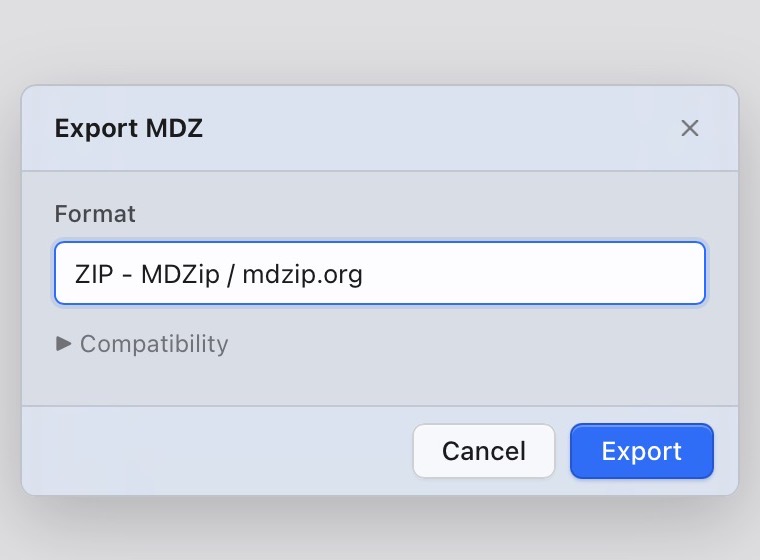
Use File > Export > Export MDZ and choose ZIP - MDZip / mdzip.org. If you expand Compatibility, select MDZip / mdzip.org. Leave password protection off for standard MDZip output, then export your delivery copy.
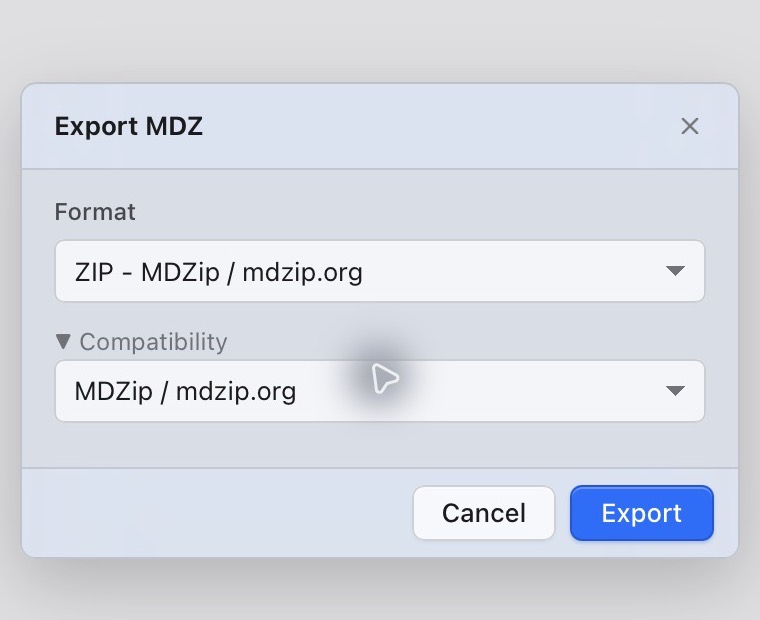
The exact choice matters because LoveMarkDown also supports other formats
that use .mdz. A filename ending in .mdz does not, by itself, establish
MDZip compatibility. Password-protected ZIP and 7z are separate compatibility
options, not encrypted standard MDZip. Agree on the receiving tool before
choosing one of those options.
If packaging reports a missing or inaccessible resource, resolve that problem instead of forwarding an incomplete copy. For the first handoff, prefer a single guide with a few local images over a large collection of documents.
3. Reopen the attachment, not just the original
Open the newly exported .mdz through File > Open, drag and drop, or Finder.
Check that the tab and path identify the exported file. Looking again at the
original setup.md is not a check of the attachment you are about to send.
Use this short acceptance checklist:
- The expected document opens, rather than another note from the folder.
- The connection diagram and settings screenshot both appear.
- The document still makes sense when you scroll from beginning to end.
- Any chapter links you expect the recipient to use reach the right content.
- The copy contains no unrelated or confidential files.
For a handoff that must work without a connection, reopen the exported copy offline and check the required images again. Test it in the recipient’s MDZip app when possible; different apps may render Markdown extensions differently. Packaging the assets is not a promise of identical typography or diagram support in every reader.
4. Give the recipient one sentence of context
Here is a message you can adapt:
Attached is the setup guide as an MDZip document, with its local screenshots included. Open it in LoveMarkDown or a compatible MDZip app. I have also attached a PDF if you only need to read the instructions.
That last sentence is optional, but useful. An editable source package and a finished reading copy serve different jobs. Use MDZ when the next person needs to revise the Markdown; provide PDF when they mainly need to read or print. LoveMarkDown also offers Word and HTML export for other delivery workflows.
A single-document MDZip package can be edited and saved in LoveMarkDown. Multi-document MDZip projects open read-only. If the recipient is expected to edit, make sure you have sent the right kind of package rather than promising project editing.
LoveMarkDown is now listed by the MDZip project
On November 16, 2026, the MDZip project announced LoveMarkDown as the first app from another developer on its Works With list. The official listing identifies the macOS app as free, with support for opening, creating and saving MDZip documents, and opening projects read-only.
The listing is explicitly self-assessed: LoveMarkDown 1.3.2, specification 1.2, November 2026. Its public support statement and validation details describe what was checked and the limits of those checks. It is not independent certification or a claim that LoveMarkDown was the first Markdown editor ever to open a file called MDZ.
For your handoff, the practical takeaway is the same one the listing gives: choose ZIP - MDZip / mdzip.org for exchange with other MDZip apps, then check the resulting copy. This article documents the existing 1.3.2 release; it does not announce a new application version.
Ready to send a complete guide?
Start with one saved Markdown file and two local screenshots. Export the MDZip copy, reopen it and run the five-point check above. You will have an editable attachment whose included images travel with the writing, rather than another message asking the recipient to reconstruct your folders.
Download LoveMarkDown for Mac or check the MDZ support notes. For release-specific changes, read the 1.3.2 update; for other output formats, see the Word, PDF and HTML export workflow.