
FocusHop · Creative workflow
Move Between Canvas, References, and Preview on Mac
Keep your canvas in view while checking reference material and a saved export. Follow one two-display creative loop with FocusHop, with optional Direct window movement when a comparison needs it.
On this page
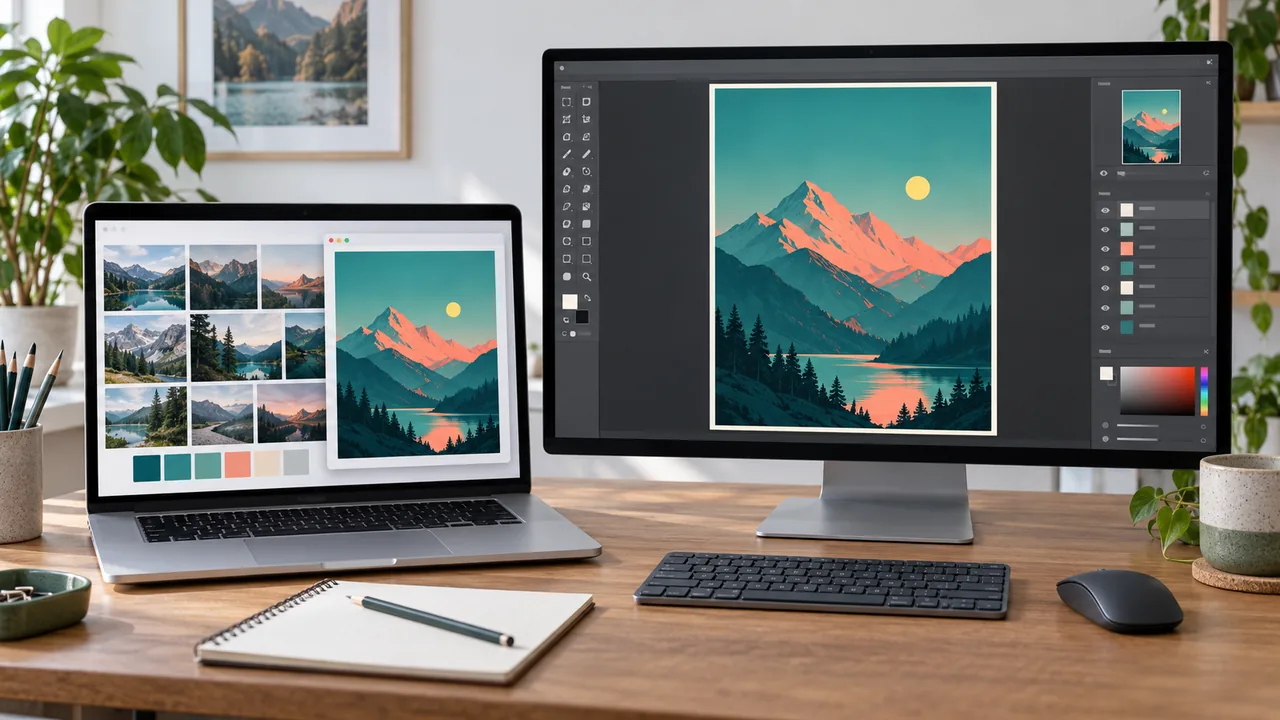
You are adjusting a poster on the external display. The reference browser is on the laptop, and a saved export is open in Preview. Each small revision sends you between three tasks: compare the reference, edit the canvas, inspect the output. More screen space helps, but reaching the right app can still interrupt the comparison.
FocusHop handles the navigation part: jump the pointer to a display, activate a running app, and optionally move a supported ordinary window in Direct. This guide follows one creative loop, not a saved workspace recipe or a compatibility certification for a particular editor.
Three tasks do not require three screens
Keep the working canvas on the external display. Use the laptop for the reference browser and bring Preview forward there when you need the exported image. The preview can overlap the reference temporarily; switch between them instead of rearranging everything after each edit.
In this example, the project is a simple landscape poster. Check one decision at a time, such as the crop or spacing, before returning to the canvas. The pictures illustrate that task with generic screen content rather than showing a real editor session.
Run one reference-to-output loop
1. Identify the canvas and reference displays
Press Control + Command + Space to show Screen Overlay. Match the numbers to the displays on your own desk, especially after reconnecting a dock. Do not assume that the external monitor is always Screen 2.
Use Control + Command + number to reach the reference display. A locator pulse helps you see where the pointer landed. If you just lost the pointer and do not need a jump, use Control + Command + Return instead; the Find Cursor guide shows the difference.
Check the result: the pointer is on the intended display. A pointer jump does not activate the reference app or move its window.
2. Bring the reference forward, then return to the canvas
With Safari already running, use the default App Finder shortcut Control + Option + Command + S. If several running apps match S, repeat the letter or use Up and Down to cycle the candidates. Check that the intended reference page is active before scrolling or typing.
After comparing the crop or composition, activate your editor with its own app-name initial. Use the name shown on your Mac; an app initial selects a running app, not a particular document, tab, layer, or tool.
Check the result: the correct artwork and canvas are active before the next edit. FocusHop does not choose a brush, select a layer, or place a drawing stroke for you. A pointer at a focused control or window center is not proof that the canvas is ready to draw.
3. Inspect a saved export in Preview
Export a new sample from the editor, then open the saved file in Preview. With Preview running, use Control + Option + Command + P to bring it forward. Cycle candidates if another P app matches, then confirm the file you opened.
Look at the exported crop, margins, and edges that matter for this revision. A saved export is not a live preview. After changing the artwork, export again and open or select the correct output; FocusHop does not export files, refresh Preview, or synchronize documents.
Check the result: you are reviewing the latest output, not yesterday’s export or a different document window. This navigation workflow does not calibrate displays, match their zoom levels, or provide color proofing.
4. Return to the editor with the comparison still in mind
Activate the editor with App Finder again. If you only need the pointer back on the canvas display, use the two-key display shortcut instead. Confirm the intended file, canvas, and selected tool before editing.
The loop is reference -> canvas -> saved export -> canvas. Keep the reference page and exported filename recognizable so app activation is not followed by another search for the right content.
Optional: move an ordinary preview window for a closer comparison
Sometimes it is easier to compare the export beside the canvas rather than alternate between displays. In Direct, activate the intended Preview window, grant Accessibility when prompted, then use Control + Option + Command + number for the destination display.
Confirm the active window before pressing the command. The extra Option key distinguishes this window command from Control + Command + number, which only moves the pointer.
After moving the preview, arrange the comparison manually if needed. A supported half-screen layout can help when the windows allow that size, but FocusHop does not automatically arrange the whole workspace or preserve a named creative layout. The picture below shows an example manual arrangement, not the guaranteed result of one shortcut.
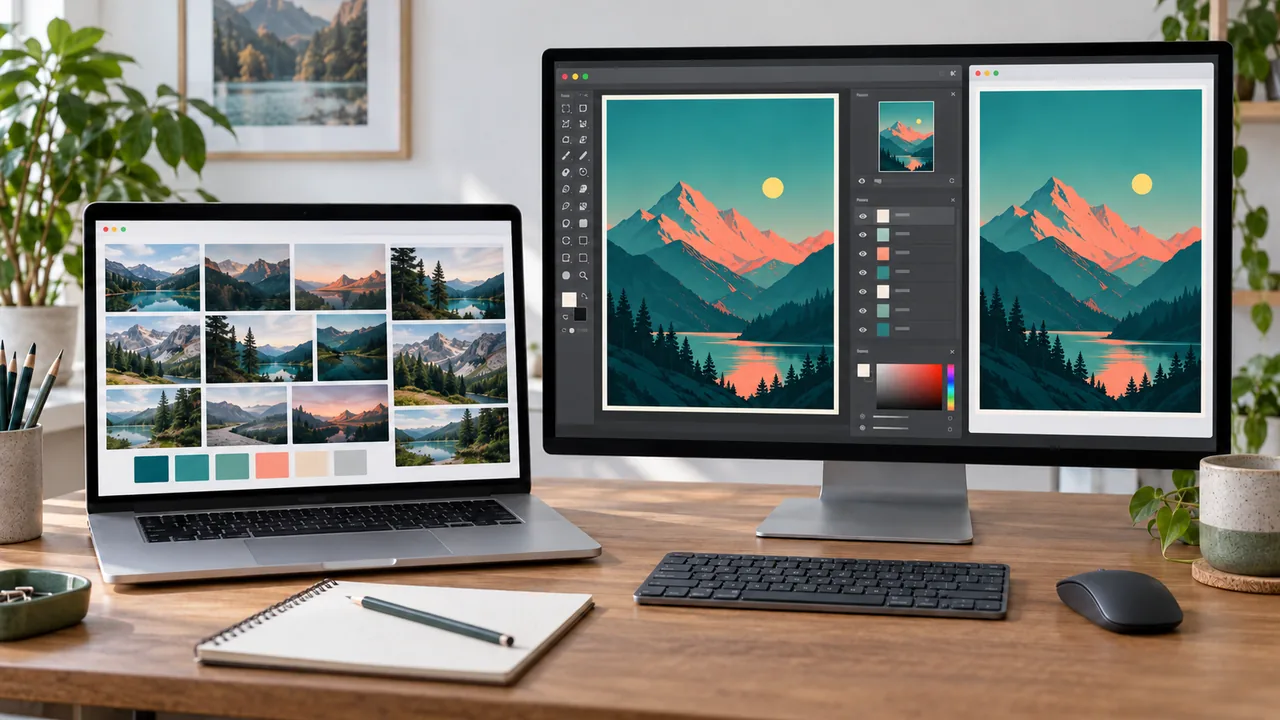
Check the result: the intended ordinary window is on the chosen display and the pointer is visible. Direct tries the focused control or an editable field when available, then falls back to the window center. Check the actual control before typing; the fallback does not guarantee input focus in an editor’s canvas.
App Store includes pointer jumps and App Finder, but does not directly move other apps’ windows or request Accessibility. Its native-window-shortcut guide is a separate setup path. See the channel and setup guide before choosing that step.
Keep editor panels and playback controls in their own workflow
A creative app’s canvas, floating palette, timeline, video output, and full-screen preview may not behave like ordinary app windows. Do not assume that a screen move can detach a panel or move an editor’s internal playback view.
For video or motion work, the same navigation pattern can connect a reference browser, the editor, and a separately opened rendered clip. FocusHop does not move a playhead, synchronize playback, render a sequence, or manage the editor’s internal panes. Use the editor’s own controls for those tasks.
When the comparison breaks down
| What happened | What to check next |
|---|---|
| App Finder brings forward the wrong app | Cycle the matching initial, then confirm the actual window and document. |
| Typing or drawing reaches the wrong control | Select the intended canvas or control yourself. Pointer placement is not a tool or layer selection. |
| Preview still shows an older design | Export again and check the saved file and version. App activation does not refresh an export. |
| A window will not move or fit a half-screen layout | Confirm Direct, Accessibility, the active ordinary window, full-screen state, and the app’s minimum window size. Use the editor’s own controls for internal panels. |
| A display number changes after docking | Reopen Screen Overlay and use the current label. |
| The pointer is hard to spot after switching | Trigger Find Cursor without another jump, then check the target before continuing. |
Practice with public reference images, a disposable artwork sample, and Preview before using a private client project in a demonstration. FocusHop Support covers shortcut conflicts and setup checks.
Start with the two displays you already use
Both editions support macOS 14 or later. Free includes the installed channel’s features for up to two managed displays, so this three-task loop does not require a Pro subscription. Pro raises the limit to eight; Direct window control is a channel capability, not a Pro-only upgrade.
Choose your FocusHop installation, explore other multi-display use cases, or return to the FocusHop overview. Start with pointer navigation and app activation; add window movement only when the comparison needs it.
Next with FocusHop
- Choose a FocusHop edition
Compare App Store installation with the optional Accessibility-powered Direct window controls.
- Explore FocusHop
See the workflow illustrations, Free and Pro display limits, and current Mac requirements.
- Set up shortcuts and displays
Find help for screen numbering, App Finder, permissions, native window shortcuts, and shortcut conflicts.
Keep exploring
More FocusHop guides and update history.
Can't Find Your Cursor Across Multiple Mac Displays?
Stop sweeping the mouse across your desk to find the pointer. Reveal it where it is, or jump to a chosen display and follow the locator pulse with FocusHop.
Read article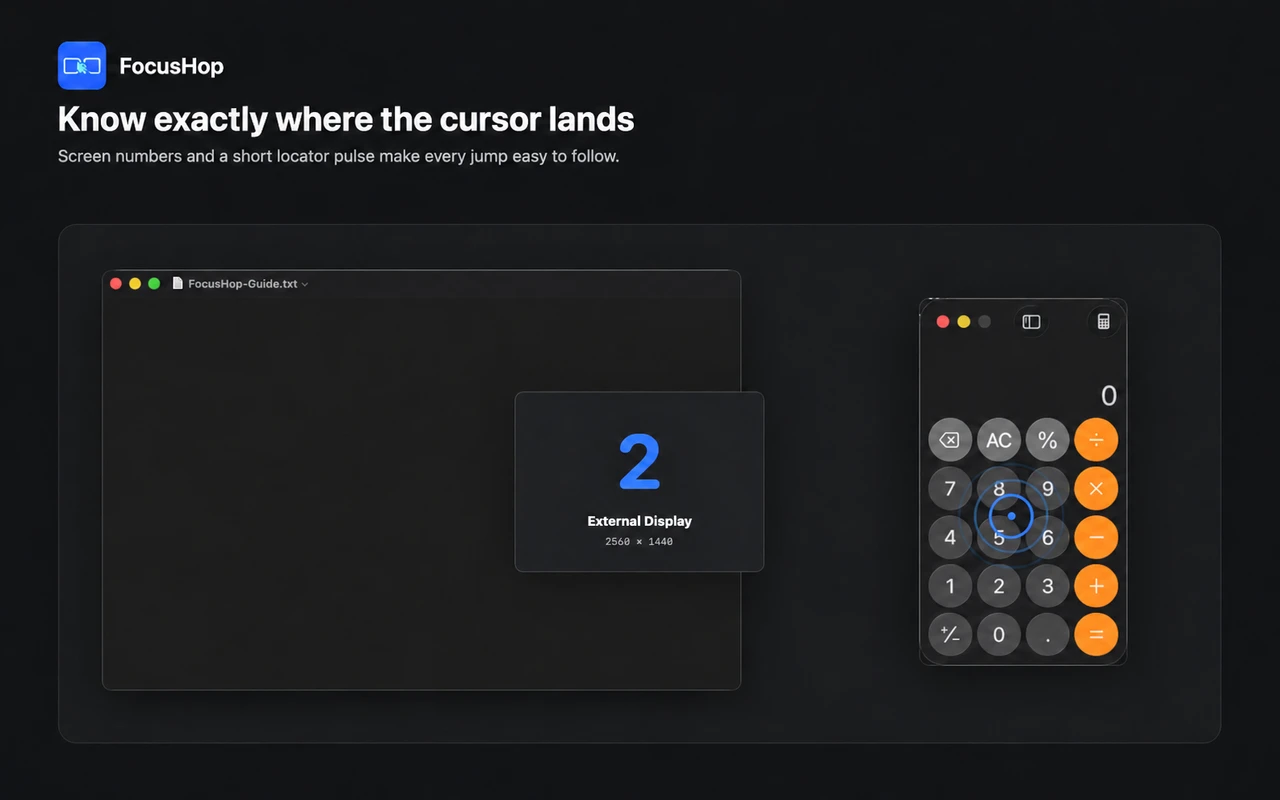
A Multi-Monitor Mac Workflow for Developers
Keep one debugging loop moving between your editor, browser, and terminal. Use FocusHop to jump the pointer, find the right app, and move a supported window only when needed.
Read article FocusHop: Jump Across Displays, Find Apps, and Move Windows
Learn a simple FocusHop 1.1.0 workflow: jump across displays, find apps, compare App Store and Direct, and link an existing Apple Pro plan before switching.
Read article