
FocusHop · FocusHop workflow guide
FocusHop: Jump Across Displays, Find Apps, and Move Windows
Learn a simple FocusHop 1.1.0 workflow: jump across displays, find apps, compare App Store and Direct, and link an existing Apple Pro plan before switching.
On this page
Adding a display gives you more room, but it also gives your pointer farther to travel. You move from your laptop to a browser on the external screen, look for the right app, then lose the pointer somewhere along the way.
FocusHop is a macOS menu-bar utility that turns those repeated actions into a short sequence: jump to a display, find the app, and move the window only when you need to. Both editions require macOS 14 or later and support Apple silicon and Intel Macs.
This guide covers the FocusHop 1.1.0 workflow. It is a usage guide, not an announcement of a new binary release today.
Start with one two-display task
Imagine writing on your MacBook while using an external display for reference material and Calculator. Start with a familiar system app already running; there is no need to use private documents to try the workflow.
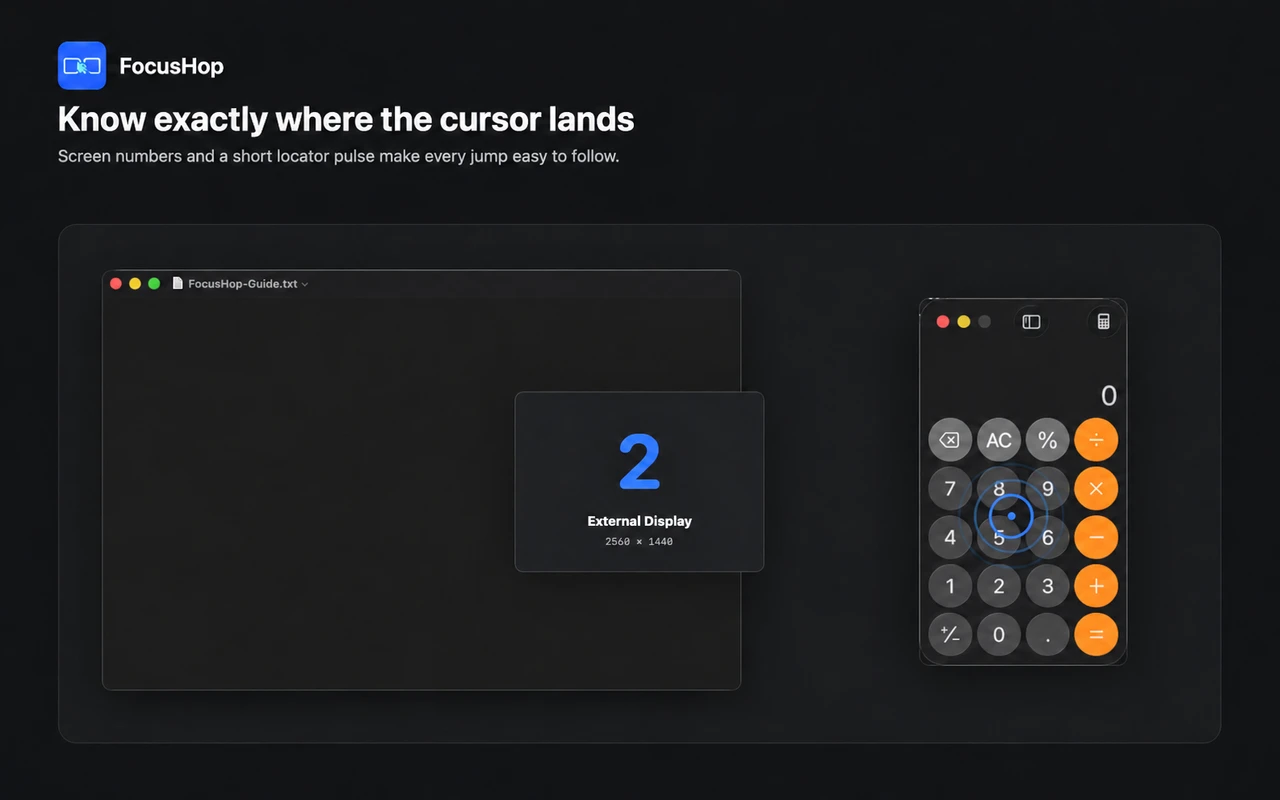
1. Show the display numbers
Press Control + Command + Space to show Screen Overlay. Check the number on the display you want to reach, especially after connecting, disconnecting, or rearranging monitors.
FocusHop follows the displays currently reported by macOS. A number is not a permanent label for a disconnected monitor.
2. Jump the pointer, not the window
Press Control + Command + number to jump to that display. Use Control + Command + arrow key when it is easier to think in terms of left, right, above, or below.
A lightweight Find Cursor pulse shows where the pointer landed. You can also press Control + Command + Return to reveal the pointer without another jump.
This moves the pointer. It does not move an app window. Shortcuts are configurable; if another app or macOS owns a combination, review the conflict warning in Settings.
3. Find the app you need
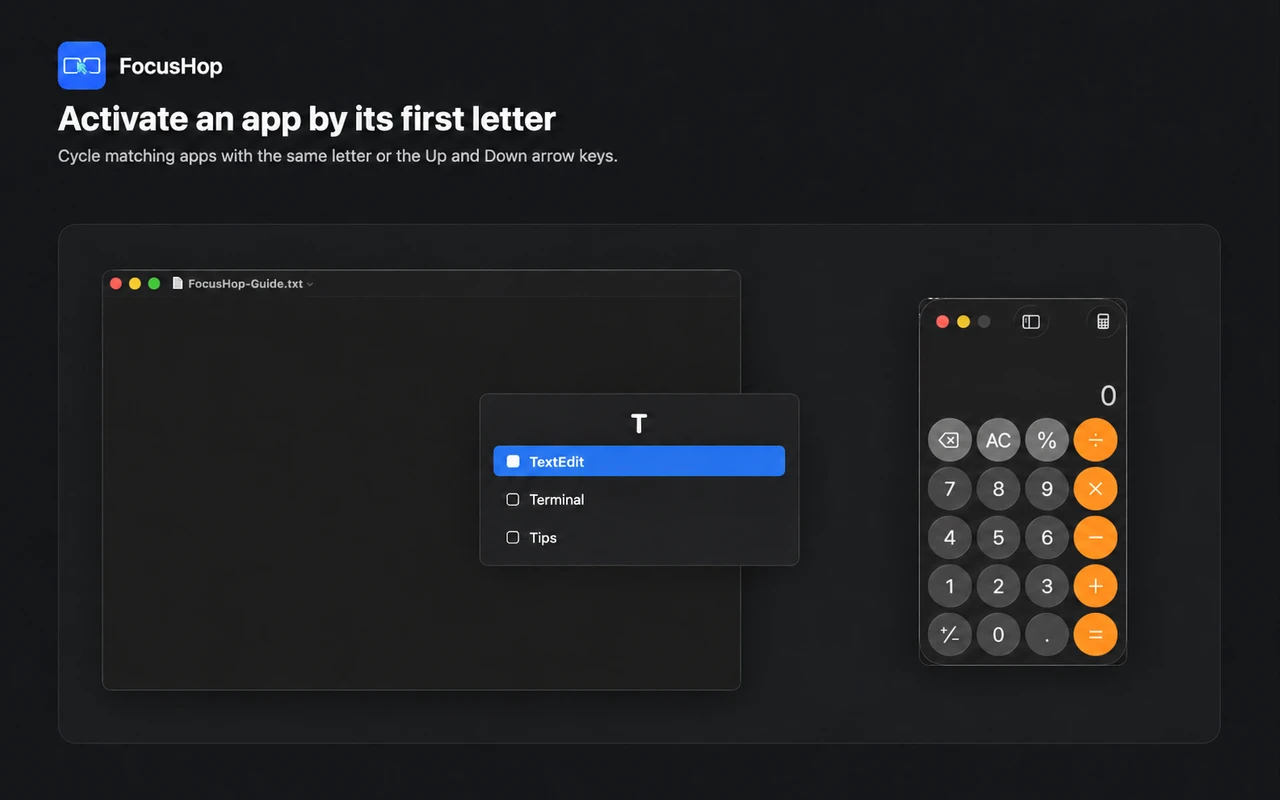
Press Control + Option + Command + initial to find a running app. For example, use C for Calculator. Chinese app names can match their pinyin initial.
If several apps share an initial, repeat the letter or use Up and Down to cycle through the candidates. The highlight identifies the current choice while the list stays in place.
App Finder activates an app; it is not a search of every document window inside that app, and it does not promise to move the app to the pointer’s display. Direct can try to restore a minimized window with Accessibility permission. In the App Store edition, restore it using macOS if app activation does not reopen the window.
4. Move the active window when needed
If you also want the active window on the other display, Direct can move supported windows after you grant Accessibility permission. Its default display command is Control + Option + Command + number.
After a move, FocusHop tries to place the pointer at the window’s focused control or an editable input field. If it cannot locate one reliably, it falls back to the window center and shows a Find Cursor pulse. The result depends on the target app’s Accessibility information: it is not a guarantee of input-field placement, and FocusHop does not click or submit content for you.
Choose App Store or Direct by your window workflow
These are two installation channels for one product, not separate Free and Pro apps.
| What you need | App Store edition | Direct edition |
|---|---|---|
| Pointer jumps, Screen Overlay, Find Cursor | Included | Included |
| App Finder, pinyin initials, same-initial cycling | Included | Included |
| Move and arrange other apps’ windows | Guide for configuring native macOS App Shortcuts; no direct control | Direct control of supported windows after permission |
| Pointer placement at a focused control after a window move | Limited by the sandboxed workflow | Tries focused controls or editable fields, then window center |
| Accessibility permission | Not requested | Needed for direct window control and enhanced focus operations |
| Updates | App Store | Direct in-app updates |
If your main problem is moving the pointer between displays, the App Store edition is a good place to start. Choose Direct when you also want direct window movement, half-screen layouts, or the focus-placement step after a move.
Direct’s defaults also include Control + Option + arrow key for half-screen layouts, Option + W to maximize, and Control + W to minimize. You can change the shortcuts in Settings. A Pro upgrade does not remove the App Store edition’s sandbox restrictions.
Already using App Store? Try Direct without buying Pro again
Free users can download Direct and try its complete channel feature set with up to two managed displays. No Pro purchase is needed to try direct window controls.
If you already subscribe to Apple Pro, link that plan before switching:
- Keep the App Store edition installed and open Settings > Plan. Confirm that Apple Pro is active; use Restore Purchases first if needed.
- Under Use Pro in FocusHop Direct, enter an email address and select Link Apple Pro. Open the one-time email link and complete the binding. The email can differ from your Apple ID, but use that same linked email in Direct.
- After the binding succeeds, open the FocusHop Direct download page and follow its installation instructions.
- Quit the running App Store edition before starting Direct, so two copies do not compete for global shortcuts.
- In Direct’s Plan tab, sign in with the linked email and check that Pro and the eight-display allowance appear.
- When you first use direct window control, follow the permission prompt to System Settings > Privacy & Security > Accessibility and allow the installed FocusHop app.
If Direct still shows Free, check the binding status and email, then refresh the entitlement. Do not start another subscription to restore an existing purchase. Contact FocusHop Support if it still does not recover; do not send passwords or sign-in links.
An Apple-billed plan remains managed, renewed, and cancelled through Apple. Linking lets Direct recognize that entitlement; it does not move the billing agreement to another payment platform.
Start free; upgrade only for more displays
Both editions are free to download. Free is permanently available for up to two managed displays, includes all features available in the installed channel, and does not require a Pro subscription.
Optional Pro raises the limit to eight managed displays. The reference price is US$4.99 per year, with a one-month trial for eligible subscribers. Confirm regional pricing, taxes, trial eligibility, and renewal terms on the purchase screen. Pro automatically renews unless cancelled; the trial is not permanently free Pro.
A laptop and one external display can stay on Free. Consider Pro when you need FocusHop to manage a third display or more, rather than paying to unlock basic navigation or App Finder.
App Store users subscribe through Plan > Subscribe to Pro, billed by Apple. Direct users sign in under Plan and select Continue to Checkout for the Dodo Payments checkout. Existing Apple subscribers should use the linking steps above instead of paying again.
Try the sequence on your desk
Open a familiar system app and try Screen Overlay > pointer jump > App Finder > Find Cursor. Add Direct window movement only if your work calls for it. You do not have to memorize every shortcut to remove the most repetitive trip across your desktop.
Explore FocusHop and choose your installation channel, or follow the setup guide before your first jump.
For a task-specific example, follow the editor-browser-terminal developer workflow or the illustrated multi-display Find Cursor guide. You can also choose a use case for your desk.
For creative work, follow the illustrated canvas, references, and saved-preview loop, including the limits of ordinary-window movement and editor panels.
Next with FocusHop
- Choose a FocusHop edition
Compare App Store installation with the optional Accessibility-powered Direct window controls.
- Explore FocusHop
See the workflow illustrations, Free and Pro display limits, and current Mac requirements.
- Set up shortcuts and displays
Find help for screen numbering, App Finder, permissions, native window shortcuts, and shortcut conflicts.
Keep exploring
More FocusHop guides and update history.
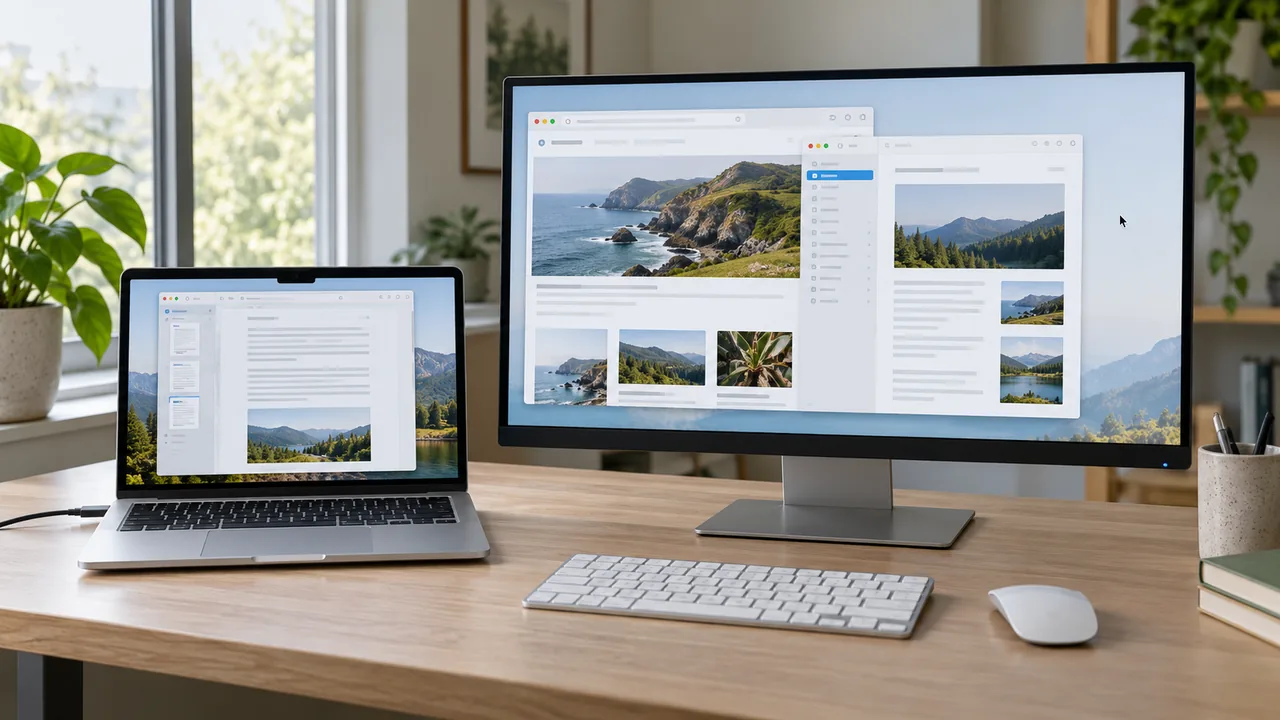
Can't Find Your Cursor Across Multiple Mac Displays?
Stop sweeping the mouse across your desk to find the pointer. Reveal it where it is, or jump to a chosen display and follow the locator pulse with FocusHop.
Read article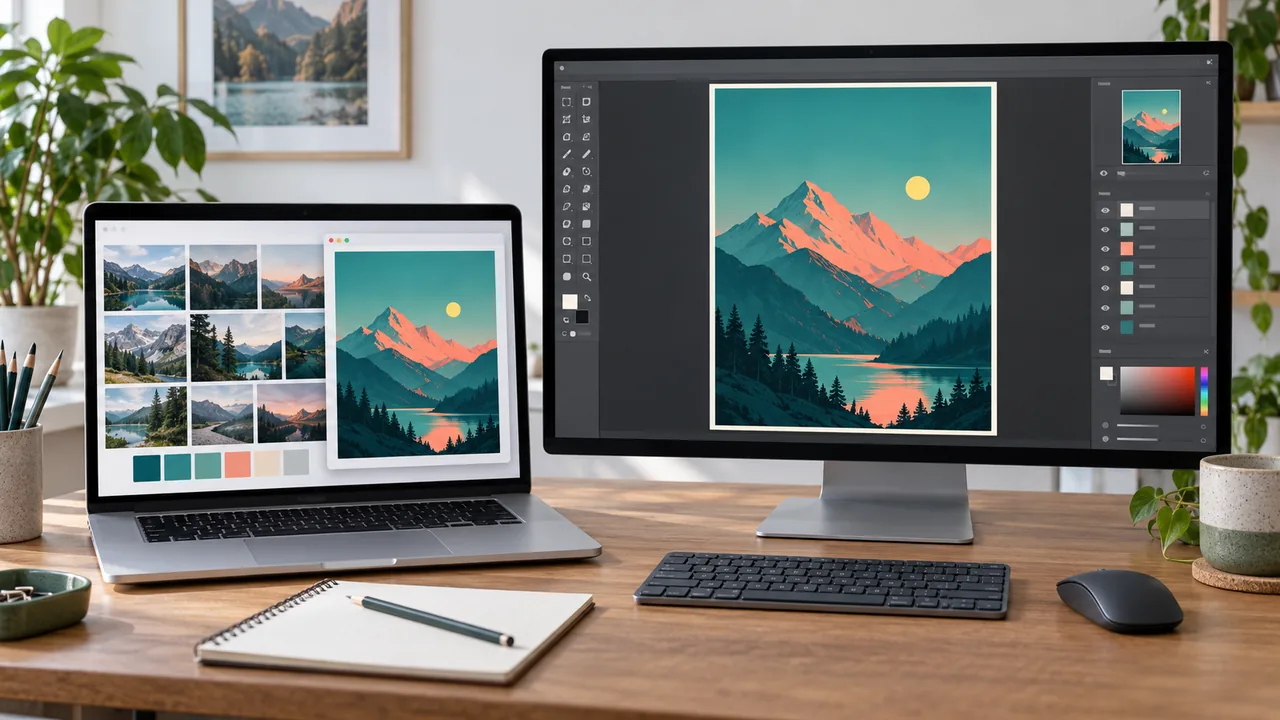
Move Between Canvas, References, and Preview on Mac
Keep your canvas in view while checking reference material and a saved export. Follow one two-display creative loop with FocusHop, with optional Direct window movement when a comparison needs it.
Read article A Multi-Monitor Mac Workflow for Developers
Keep one debugging loop moving between your editor, browser, and terminal. Use FocusHop to jump the pointer, find the right app, and move a supported window only when needed.
Read article