
Who Is FocusHop For?
For Mac users who repeatedly move between displays to act, not just to watch. Start with the task that interrupts your work.
More screen space does not automatically make the next action easier to reach. Your reference is on another display, the app you need is behind a window, or the pointer is hard to spot. FocusHop separates those problems: jump the pointer, activate a running app, then move a supported window if necessary.
These are example working patterns, not customer testimonials or measured productivity results. FocusHop works across displays recognized by the same Mac; it is not a cross-computer KVM or a display driver.
Can’t find the pointer? Start here
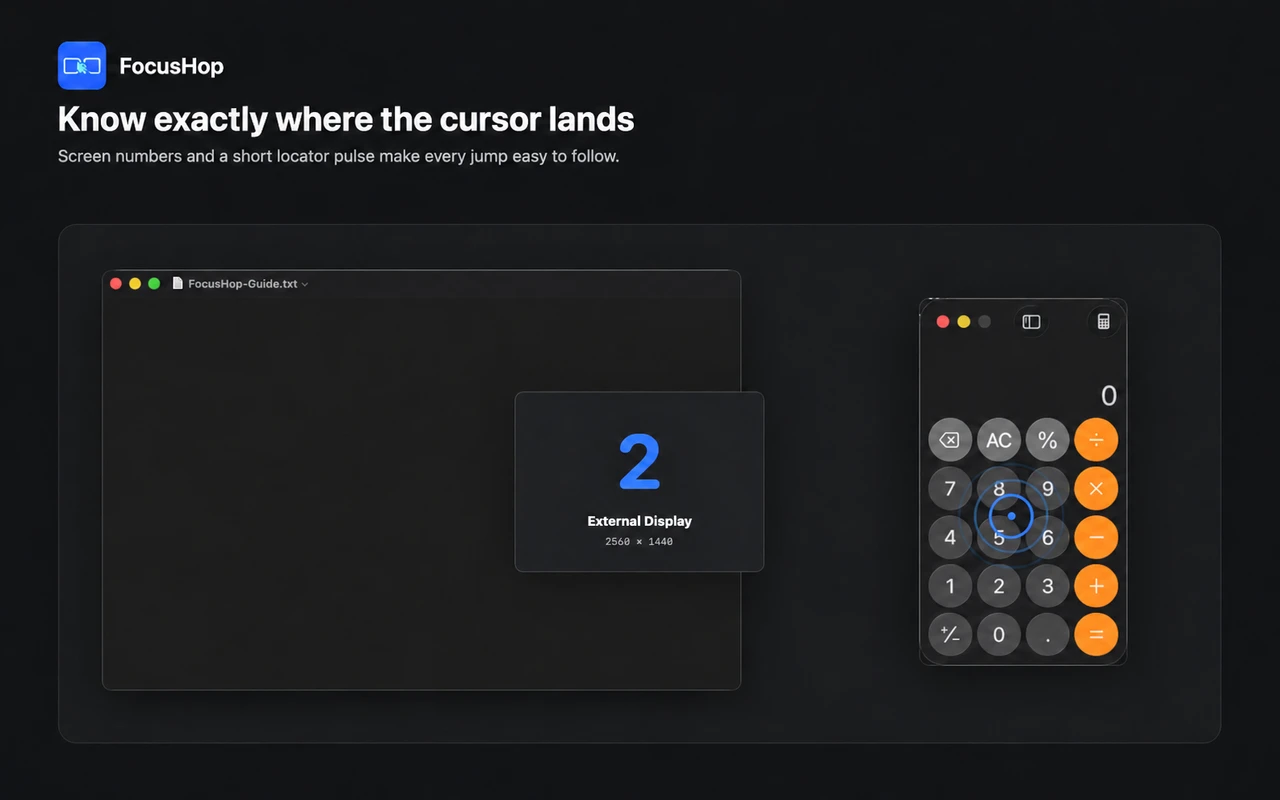
You do not need to change your whole workspace to recover a lost pointer. Reveal it in place, or jump to a chosen display and follow the landing cue. The multi-display Find Cursor guide shows both actions with an illustrative two-screen desk, plus checks for reconnecting monitors and shortcut conflicts.
Developers: move between editor, browser, and terminal
You edit on one display, inspect the result in a browser on another, then return to Terminal. Repeated pointer travel and app hunting interrupt that small debugging loop.
Use screen numbers to reach the reference display, App Finder to activate the tool, and Find Cursor to check the pointer. Direct can also move a supported active window after Accessibility permission. A pointer jump alone does not move a window or guarantee keyboard focus in the destination app.
Result to check: the intended app is in front, the pointer is visible, and you can continue in the intended window. Read the developer workflow for a safe practice task and recovery steps.
Designers and creators: keep canvas and references within reach
A canvas, reference browser, asset window, and preview may occupy different displays. The repeated interruption is reaching and activating the right tool without losing the pointer.
Jump between displays and find a running app by its initial. Direct can move or half-tile a supported ordinary window; this does not promise control of an editor’s internal timeline, canvas, floating panels, or every full-screen preview.
Result to check: the reference or supported window is where you expect, without assuming that FocusHop has rearranged the whole creative workspace. Follow the illustrated canvas, references, and preview workflow for one complete creative loop and an optional ordinary-window comparison.
Researchers and writers: read on one screen, write on another
Authors, translators, analysts, and researchers may keep a source document or browser on one display while writing on another. Returning to the writing app should not require another search through overlapping windows.
Use App Finder to bring the writing app forward. With permission, Direct can try the focused control or an editable field and fall back to the window center. Pointer placement is not a promise of a text caret, a click, or automatic typing into the right document.
Result to check: confirm the correct document and insertion point before entering text. Follow the App Finder and focus explanation.
Does your desk fit?
The strongest fit is frequent action across displays, not a particular job title or the largest monitor count. Finance, operations, teaching, and customer-support desks may use the same patterns. If the other screens are mostly passive dashboards, you may need pointer switching less often.
- Both editions support pointer jumps, Screen Overlay, Find Cursor, and App Finder on macOS 14 or later.
- App Store does not request Accessibility or directly control other apps’ windows. Its setup guide explains native macOS window shortcuts.
- Direct needs Accessibility for direct window control and enhanced focus operations. Input-field placement and minimized-window restoration depend on the target app.
- Free includes the installed channel’s features for up to two managed displays. Pro raises the limit to eight; it does not turn App Store into Direct.
See the channel comparison and setup guide or FocusHop Support before changing permissions.
Try one task on your own desk.
Start with a pointer jump and a familiar running app. Add Direct window controls only when you need them and grant the required permission.