
Web Launcher · School noticeboard workflow guide
A School Noticeboard on Android: One Screen or a Signage CMS?
Plan a routine school noticeboard around content approval, local ownership, notice retirement and screen checks. Decide when a publishing or management system is needed.
On this page
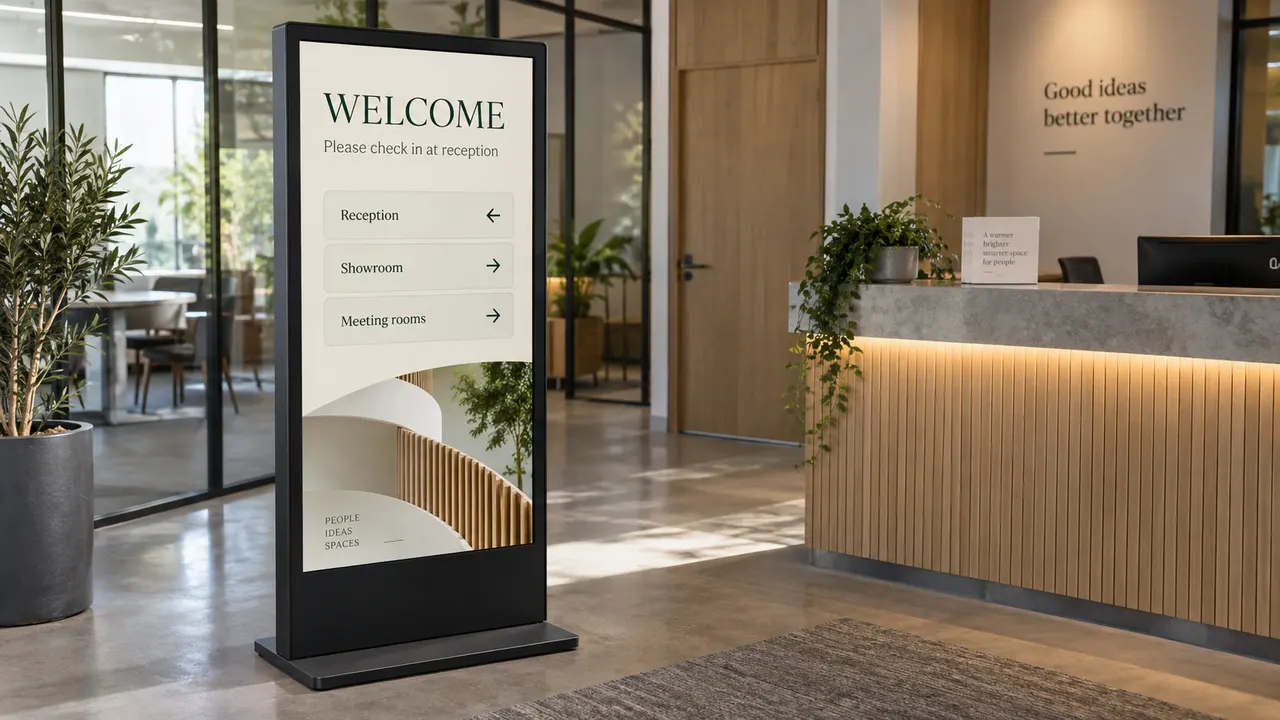
A reception screen showing visitor directions is a different job from sending approved announcements to every building. Before choosing a player, decide who prepares the content, who approves it, and who checks the screen when something changes.
Web Launcher can display an existing webpage or local images and compatible MP4 video in an on-device playlist on a compatible Android display. That can suit a routine noticeboard with a local owner. It does not provide a school-wide publishing, approval or device-management system.
1. Choose the workflow before counting screens
Use these questions to separate a simple noticeboard from a managed signage requirement:
| Requirement | A locally maintained screen may fit | Evaluate a CMS or management system when… |
|---|---|---|
| Updating content | One person can update the source page or visit the device to replace local media. | Staff must publish to selected buildings without visiting each screen. |
| Approving notices | Content is approved before it reaches the display. | You need contributor roles, review stages and a record of who published what. |
| Timing | Someone can enable and retire routine notices manually. | Notices must start or stop at set times, or different screens need different schedules. |
| Checking operation | A named person can inspect the actual screen. | You need remote device status, failure alerts or evidence of what each screen played. |
A single screen may still need a CMS if nobody can maintain it locally or publication needs controlled approvals. Several independently maintained noticeboards do not automatically need central publishing. Choose around the work and responsibilities, not a fixed screen-count threshold.
An existing school webpage may already manage content approval and updates. Showing that URL does not make Web Launcher a CMS: the website still owns the content, and someone must check the display. If several screens show the same URL, a website edit is not proof that every device received or displayed it.
2. Prepare one public-facing noticeboard
For an initial reception board, use content that is useful without interaction:
- A welcome and directions page: where visitors should report and how to find the reception desk.
- One dated event or opening-hours notice, approved for the people who can see that screen.
These are example content choices, not a tested school installation. Use a webpage or a JPEG/PNG image you are authorized to display. A staff portal, student record, attendance list or personal calendar is not a substitute for a public-facing noticeboard. Have the school approve any names, photographs or other identifying content before display.
If staff create notices in slides, obtain an approved display URL or image copies. Do not make a private presentation publicly accessible just to get it onto a screen. A Google Slides editing link is not a verified playback link; test the actual display URL, permissions and behavior before adding it.
Write a short handover note:
| Field | Example to adapt |
|---|---|
| Content owner / approver | Reception prepares the notice; the nominated school staff member approves it. |
| Content source | Approved welcome-page URL and the current event image. |
| Retirement instruction | Remove the event notice after the event; name the person and check time. |
| Screen check / fallback | Reception checks it before visitors arrive; use the existing staffed reception or printed directions if unavailable. |
Keep passwords, access tokens and private addresses out of the handover copy shared beyond the people who need them.
3. Test one screen with one item
On the intended Android device and school network:
- Open the approved page and confirm it shows the notice, rather than a sign-in, filtering or error page. For local content, preview the exact image file.
- Follow the first-screen setup to add the page or import the image. Preview before saving.
- Check from the visitor viewing position. Directions, dates and contact instructions should be readable without scrolling, tapping or zooming.
- Save and play. With one enabled item, the content stays visible. If you add a second notice, watch a complete loop and confirm neither notice disappears before it can be read.
- Ask the person responsible for the screen to find the update instructions and demonstrate that they can check the displayed result.
Do not work around school network restrictions or an unknown settings password. Ask the device or network owner to provide an approved path. A page working on a staff laptop does not establish Android WebView compatibility.
4. Check changes and retire old notices
Before visitors arrive, compare the displayed date, event location and opening hours with the approved source. Check again after an important edit. The page-update guide explains why a visible webpage or a completed playlist loop does not prove the information is current.
Local imports are separate copies. Editing the original slide or image does not update the imported file. Import and preview the replacement, disable the old item, save, then observe the result. The menu and promotions guide covers that replacement sequence; the same file-copy distinction applies to a dated notice.
Retirement dates in the handover note are staff instructions, not automatic expiry rules. If nobody can reliably remove a notice on time, change the workflow before relying on the screen. Local media support also does not make a webpage work offline. Agree a practical fallback and check recovery on the actual device and network.
5. Stop the pilot when the requirement changes
Before expanding to more buildings, list the capabilities you actually need: targeted distribution, content approval, scheduled start and end times, remote health checks, playback records and device administration. Ask a prospective CMS provider to demonstrate each required capability; a product labelled “CMS” does not establish that it provides them all. Device management may be a separate service.
Keep emergency communications on the school’s established arrangements. This routine noticeboard workflow does not provide an emergency override, guaranteed delivery or acknowledgement from every screen.
Start with one approved source, one named owner and one physical screen check. Continue with an on-device player while that remains workable. Move to a managed workflow when the required publishing and operational controls exceed it. For display setup and loading problems, use Web Launcher support.
More guides: Web Launcher guides · Web Launcher overview.
Next with Web Launcher
- See the Web Launcher workflow
Check real tablet screenshots, supported sources, and the limits of an on-device playlist before installing.
- Set up and check your first screen
Add a trusted webpage or local file, then test the full playlist on your Android device.
Keep exploring
More Web Launcher guides and update history.
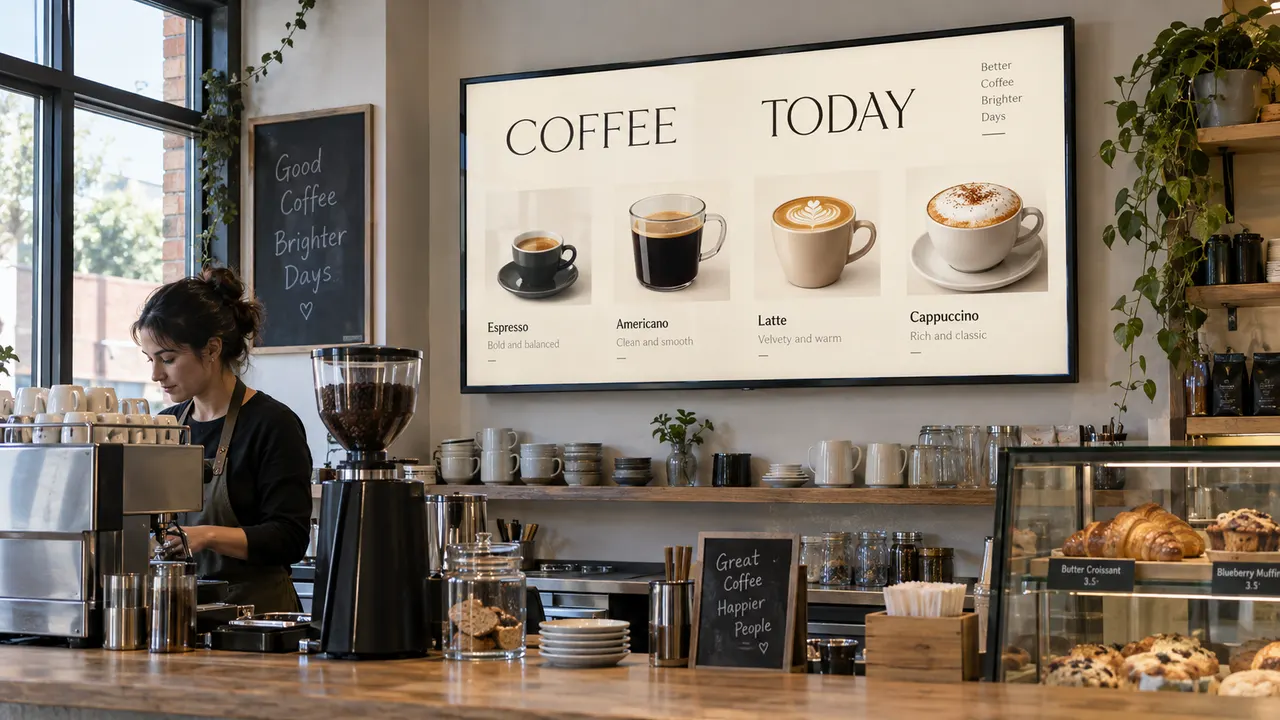
A Shop Menu and Local Promotions on One Android Screen
Plan a menu webpage and local promotions on one Android display. Decide when the menu can be hidden, replace imported offers, and check prices and playback before opening.
Read article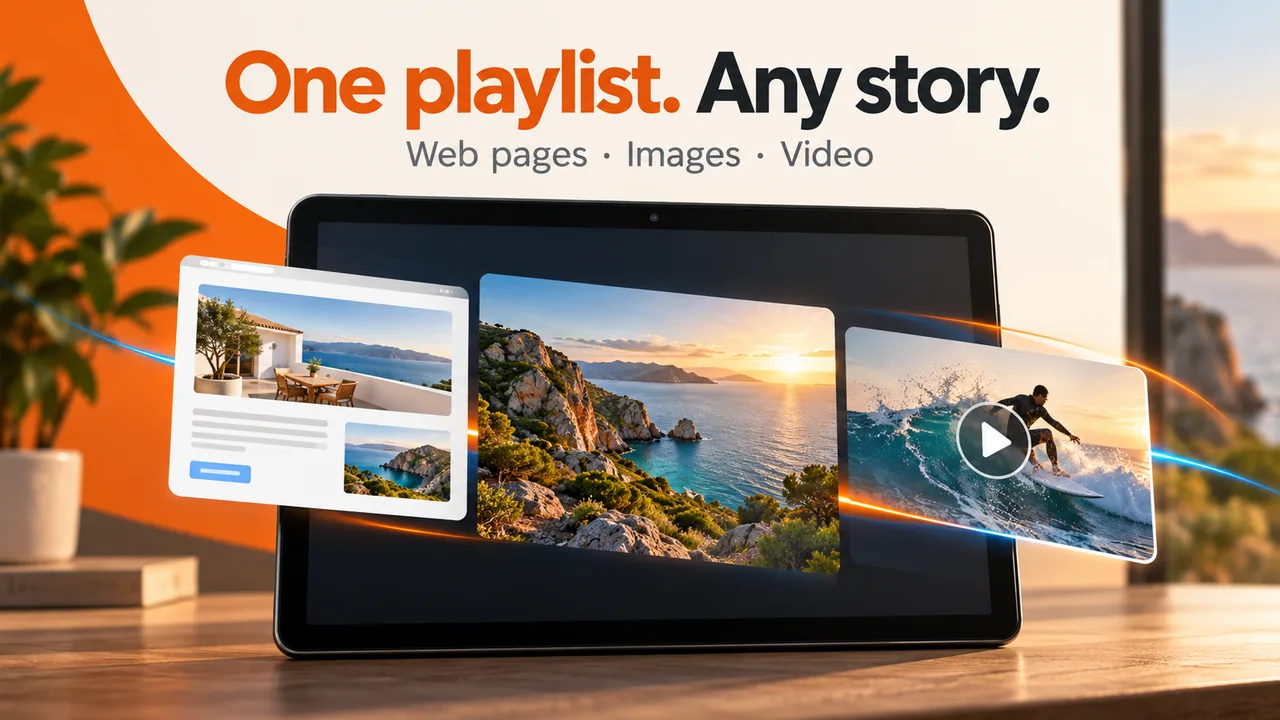
Web Launcher 1.5.1: Webpages and Local Media on Android
The current Google Play version is 1.5.1. See how its on-device playlist handles webpages, local images and compatible MP4 video, and what to check before unattended use.
Read article Show a Webpage on an Android Display with Web Launcher
Start with one trusted webpage, preview it on your Android display, then arrange a playlist. Check layout, network and shared-screen privacy before unattended use.
Read article