
Web Launcher · Shop menu workflow guide
A Shop Menu and Local Promotions on One Android Screen
Plan a menu webpage and local promotions on one Android display. Decide when the menu can be hidden, replace imported offers, and check prices and playback before opening.
On this page
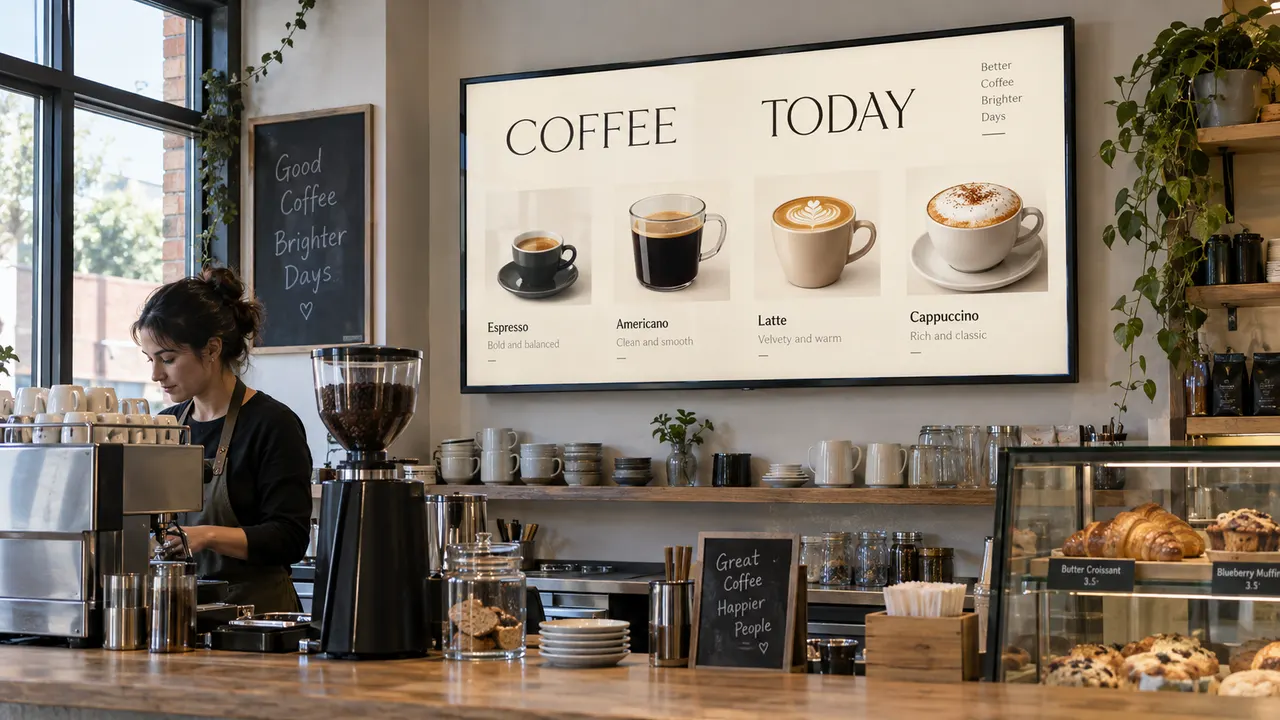
Keep the menu on the website you already maintain, and use local images for short promotions. Web Launcher can display both in one playlist on a compatible Android screen. The useful part is deciding what belongs in each item—and making sure yesterday’s offer does not appear beside today’s prices.
This workflow is for one screen that someone can maintain on the device. It assumes you already have an approved menu webpage and promotional artwork. It does not create a menu, connect to a till, or send changes to a fleet of screens.
1. Decide whether the menu can leave the screen
If customers need the full menu continuously, keep one menu page enabled. A single enabled item stays visible. A full-screen promotion would hide the menu while it plays; a playlist does not keep a separate menu panel visible beside it.
Use a mixed loop when a short interruption is acceptable—for example, on an entrance screen where customers can also read the menu elsewhere. Start with the menu and one promotional image. Add video only if it serves a purpose and plays correctly on the intended device.
2. Give each item a source and an owner
Use this small content list before opening the player:
| Item | Where it is maintained | Before it goes on screen |
|---|---|---|
| Menu webpage | Your existing website or menu system | Check item names, prices, availability and opening hours against the current approved menu. |
| Promotional image | Your original artwork, then an imported copy in Web Launcher | Check the offer, dates and any price repeated in the artwork. Record when someone must remove it. |
| Optional short video | Your original clip, then an imported copy | Check the exact file on this device, including the end of the clip and its return to the menu. |
Avoid copying the entire price list into several posters unless someone will maintain every copy. A webpage change will not update a price printed inside a local image or video.
3. Build a two-item loop first
Open the menu URL on the Android device and the network you will actually use. Check it from the customer viewing distance: prices should be readable without zooming, scrolling or tapping through a cookie dialog. Use a page intended for display, not a staff administration screen.
Follow the webpage setup guide to add that address in Web Launcher. Import one JPEG, PNG or WebP promotion through Android’s file picker, then preview both items. Use the local-media checks if an item fails.
Enable the menu and the image, put them in order, set their durations, save and play. For a short menu, 45 seconds for the page and 10 seconds for the image is an example to try, not an app preset or a reading-time guarantee. If customers cannot finish reading, give the menu longer or keep it visible continuously.
Watch menu → image → menu. Check the orientation, every price and the return to the page. Keep important text away from cropped edges. A landscape setting cannot make a long, fixed-width webpage fit the screen.
4. Replace a promotion in the playlist, not just in a folder
Imported media is copied into the app’s private library. Editing or deleting the original artwork does not update that imported copy.
When an offer changes:
- Prepare the replacement artwork and check its prices and dates against the approved offer.
- Open the on-device playlist settings. Import and preview the new file, with a name you can distinguish from the old version.
- Disable the old item, enable the replacement and put it in the intended position. Save the playlist.
- Observe a complete loop. Confirm the new offer appears and the old one no longer plays.
Treat an expiry date as a reminder for the person maintaining the screen, not as an automatic playback rule. This workflow does not provide scheduled breakfast/lunch changes or automatic removal of expired offers. Arrange a manual change, or use a system with the scheduling you need.
5. Do a short opening check
Before customers rely on the display, check:
- Current menu: compare the screen with the approved menu. Include unavailable items and any prices repeated in promotional media.
- Current promotion: confirm the date and watch the full loop for an old duplicate.
- Readable content: stand where customers will stand; inspect small print and screen edges as well as the headline.
- Working page: confirm the actual menu appears, rather than a login, error or loading screen. A shorter playlist duration is not a webpage refresh setting; use the page-update checks.
Local files do not make the menu webpage available offline. Test network interruptions separately before relying on the setup; do not assume the player will automatically replace an unavailable webpage with a current offline menu. Keep an approved alternative available if the screen is essential.
Start with one menu and one image. Add more items only when the full loop remains easy to read and someone owns the updates. For setup problems, see Web Launcher support. For multiple shops, remote publishing or timed menus, assess those requirements separately from this on-device workflow.
More guides: Web Launcher guides · Web Launcher overview.
Next with Web Launcher
- See the Web Launcher workflow
Check real tablet screenshots, supported sources, and the limits of an on-device playlist before installing.
- Set up and check your first screen
Add a trusted webpage or local file, then test the full playlist on your Android device.
Keep exploring
More Web Launcher guides and update history.
A School Noticeboard on Android: One Screen or a Signage CMS?
Plan a routine school noticeboard around content approval, local ownership, notice retirement and screen checks. Decide when a publishing or management system is needed.
Read article
Web Launcher 1.5.1: Webpages and Local Media on Android
The current Google Play version is 1.5.1. See how its on-device playlist handles webpages, local images and compatible MP4 video, and what to check before unattended use.
Read article Show a Webpage on an Android Display with Web Launcher
Start with one trusted webpage, preview it on your Android display, then arrange a playlist. Check layout, network and shared-screen privacy before unattended use.
Read article