
Web Launcher · Android web display guide
Show a Webpage on an Android Display with Web Launcher
Start with one trusted webpage, preview it on your Android display, then arrange a playlist. Check layout, network and shared-screen privacy before unattended use.
On this page
To put an existing webpage on an Android tablet or display, start with one trusted HTTP or HTTPS page in Web Launcher, preview it on the actual device, then save and play. Add a timed playlist only after that first page fits the screen and loads correctly on the intended network.
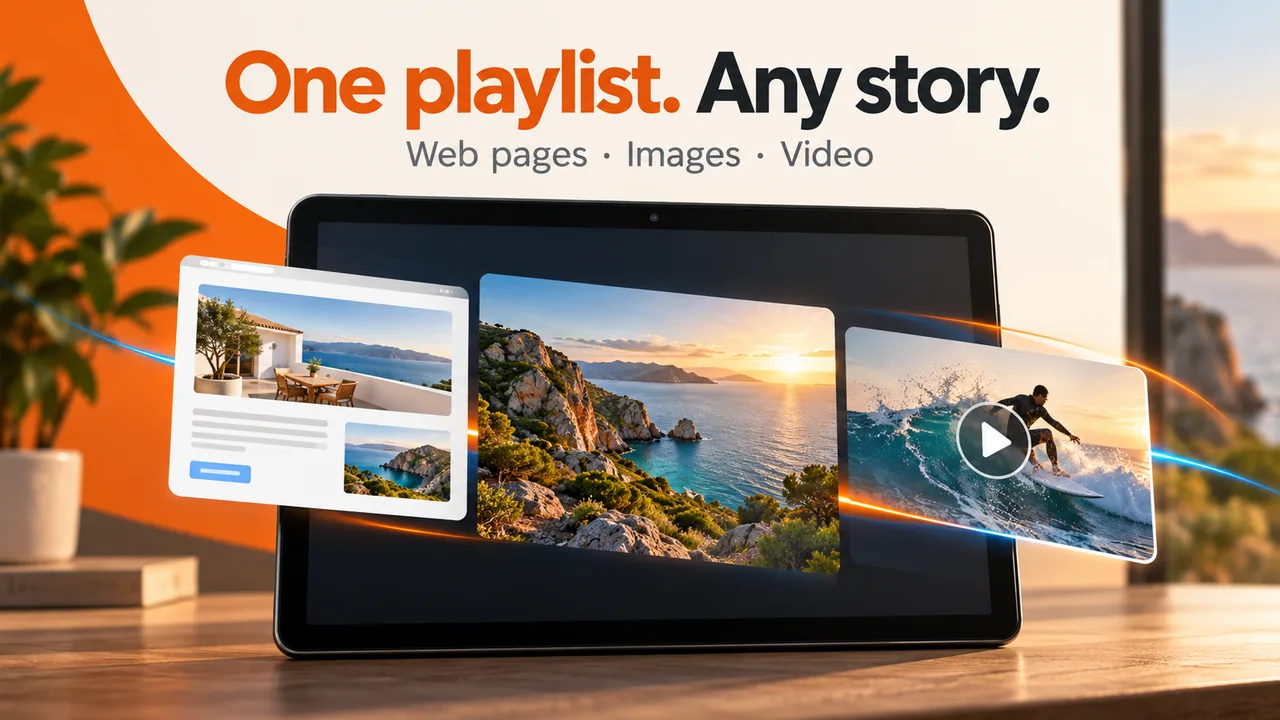
This guide covers the webpage workflow. The current Google Play release also supports local images and compatible MP4 videos in the same playlist; see Web Launcher support for that path. Web Launcher belongs to NgSense; its Google Play listing is published by GrusIoT. Check that listing for the version, price and devices offered to your account.
1. Prepare one display-safe webpage
Choose content you own or are allowed to show, such as a welcome page, web menu or information board. Open it on the Android device first. A page that works on a desktop may behave differently in Android WebView, especially with sign-in, embedded media or a fixed-width layout.
Check the screen orientation, Wi-Fi access and readability from the intended viewing distance. Do not put passwords or access tokens in a playlist address, and avoid personal account pages on a shared screen.
Check the result: the page loads on the target network without exposing private information, and its important content fits the device.
2. Add and preview the first page
In the on-device settings, add the complete webpage address and a recognizable name. Preview the page before saving. The default duration is 30 seconds; one enabled page stays visible instead of rotating through an empty list.
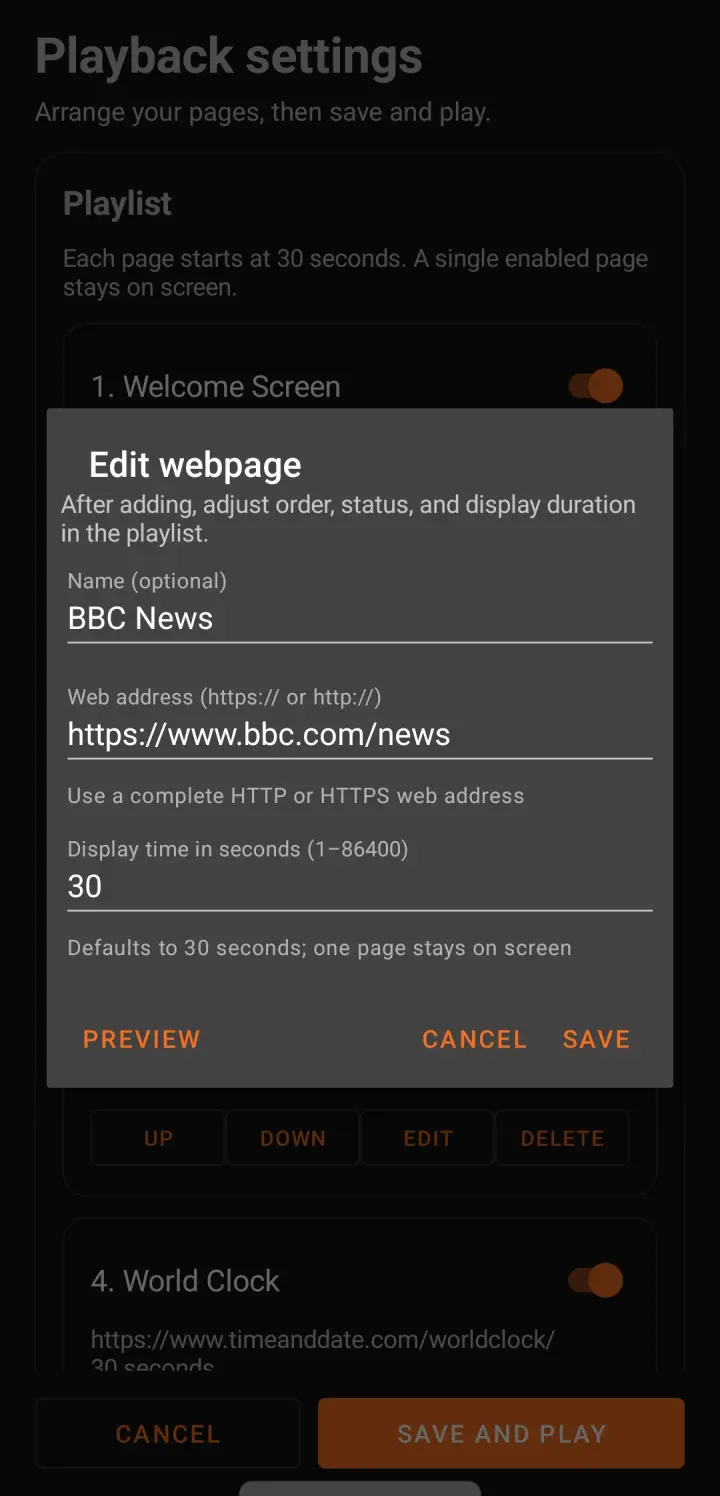
Check the result: the preview shows the intended page, not an unexpected login, error or unrelated destination. If it is blank or slow, use the page-loading checks before adding more items.
3. Arrange, save and observe the loop
Add the other trusted pages you need, set each duration, reorder them, and enable only the items you want on screen. Save the settings and choose system, portrait or landscape orientation. Multiple enabled pages rotate in order.
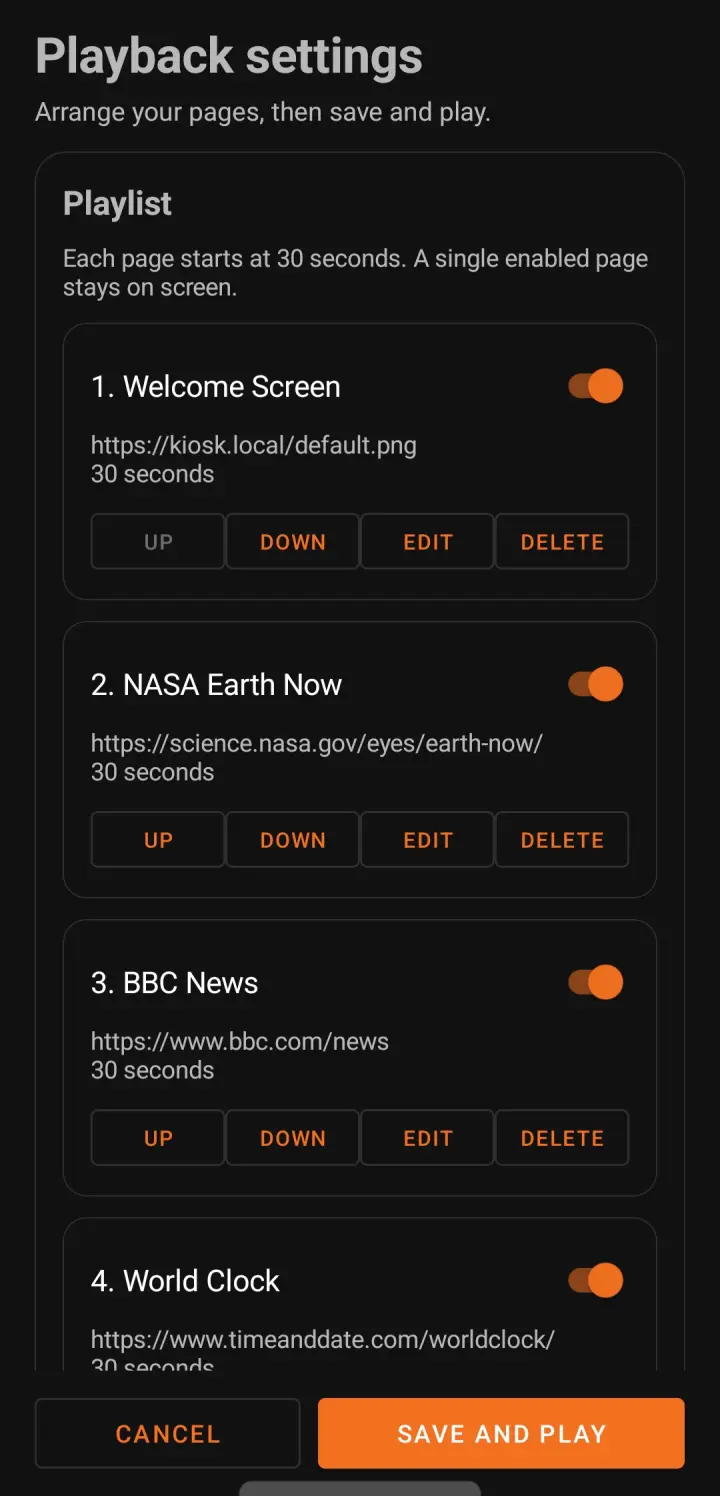
Check the result: observe a complete loop. Confirm the right page order, legible orientation, required login state and actual loading behavior. An orientation setting cannot repair a webpage that is not responsive; see screen-layout help.
4. Check that a dashboard stays current
A dashboard can fill the screen while showing old information. Before using an Android display for a team status board, check both the page and the information it contains.
Three different things can happen:
| Action | What it does | What to check |
|---|---|---|
| The dashboard updates its data | The webpage requests or receives new information using its own update logic. | Does a known value or a data-update timestamp change when the source changes? |
| The whole page reloads | The page loads again. Whether it then shows the latest content depends on the website, its cache and the sign-in session. | Do saved text or layout changes appear, and does the page remain signed in as intended? |
| The playlist moves to another item | Web Launcher changes which webpage or media item is displayed. | Does the intended item appear in the correct order, with current information? |
Web Launcher’s display duration controls the playlist, not the dashboard’s data updates. One enabled webpage stays on screen; setting its duration to 30 seconds does not make it a dashboard refresh timer. With several enabled items, watching the screen return to a page is not enough to prove its data is current.
Check one page before adding a loop
- Identify what “current” means. Use the dashboard’s documented update interval and a data timestamp, or a harmless value whose change you can verify. A ticking clock on the page only proves that the clock is running.
- Observe that value on the Android display. Allow for the source system’s expected delay. Compare it with the same dashboard in an authorized source view; check the time zone, filters and time range before assuming the display is stale.
- Check content changes separately. A dashboard may update its numbers without picking up a newly added panel or edited notice. Follow the source system’s documented reload behavior. Do not treat a shorter playlist duration as a fix.
- Then observe a complete loop. If you add other pages or local media, check the value again when the dashboard returns. Confirm that the right content appears and that a sign-in screen has not replaced it.
If the source view is also out of date, investigate the dashboard or its data source first. If only the Android display differs, check its network access, sign-in state and WebView compatibility using the page-loading checks.
Web Launcher displays the webpage; it does not supply the dashboard’s data feed or a configurable whole-page refresh interval. Imported images and videos do not make a live webpage work offline. Use content approved for a shared screen, and keep passwords and access tokens out of playlist addresses.
Keep app settings and device controls separate
The settings gesture and optional configuration password help protect the playlist, but they do not guarantee an unexitable Android kiosk. Screen pinning, managed-device policies, power recovery and the behavior of a particular device need separate checks.
Webpages still make their own network requests. Imported local media and offline webpages are different: adding an image or MP4 does not make third-party sites available offline. The app does not provide remote content management or guarantee that every site or video codec will work on every Android device.
Get the app or troubleshoot your screen
Use the Web Launcher product page to review the workflow and Google Play for installation. Follow the quick start if you already have it.
If setup still fails, send feedback with the app version, Android version and general symptom. Remove private URLs, credentials, account details and identifying screen content. Review the app’s official privacy policy before displaying authenticated content.
Next with Web Launcher
- See the Web Launcher workflow
Check real tablet screenshots, supported sources, and the limits of an on-device playlist before installing.
- Set up and check your first screen
Add a trusted webpage or local file, then test the full playlist on your Android device.
Keep exploring
More Web Launcher guides and update history.
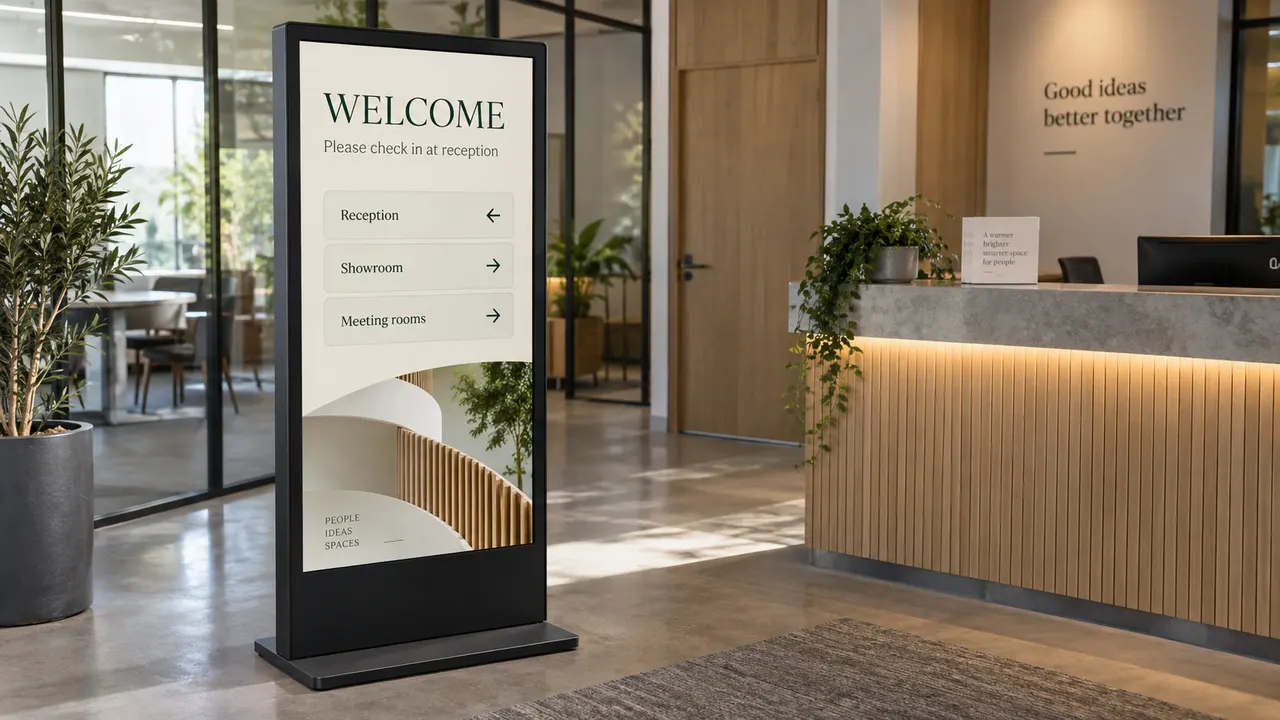
A School Noticeboard on Android: One Screen or a Signage CMS?
Plan a routine school noticeboard around content approval, local ownership, notice retirement and screen checks. Decide when a publishing or management system is needed.
Read article
A Shop Menu and Local Promotions on One Android Screen
Plan a menu webpage and local promotions on one Android display. Decide when the menu can be hidden, replace imported offers, and check prices and playback before opening.
Read article Web Launcher 1.5.1: Webpages and Local Media on Android
The current Google Play version is 1.5.1. See how its on-device playlist handles webpages, local images and compatible MP4 video, and what to check before unattended use.
Read article