
Choose the correct LoveMarkDown download
Compare signed Apple Silicon and Intel Direct installers with the current public Mac App Store release.
A lightweight Markdown editor should let you open the file you already have and start writing. LoveMarkDown does that on Mac without requiring a repository, workspace, vault, project import, or cloud account.
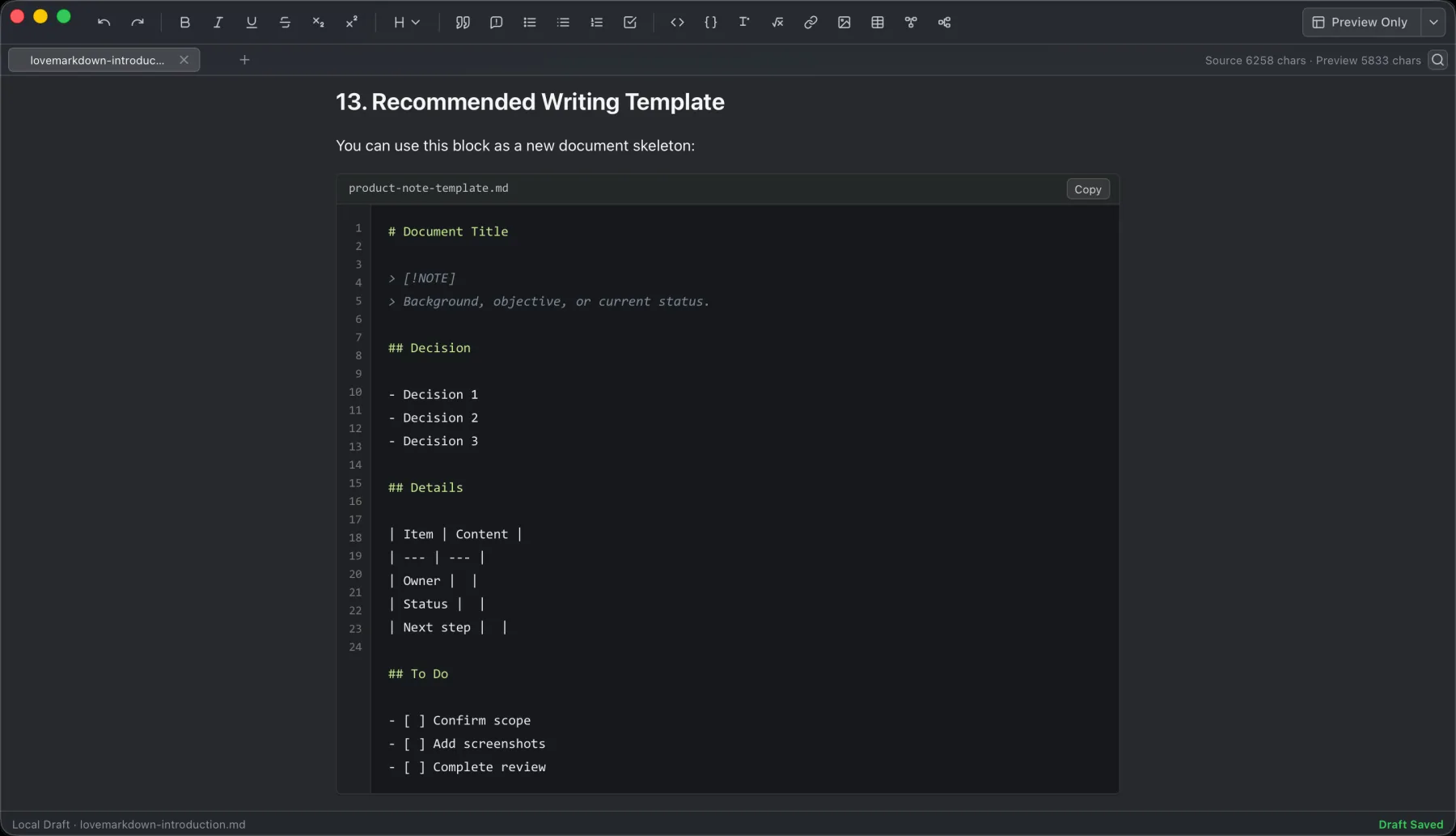
LoveMarkDown combines local Markdown editing with live preview, technical rendering, and portable export.
A lightweight Markdown editor should let you open the file you already have and start writing. LoveMarkDown follows that rule on Mac: it opens local Markdown documents directly and does not require a repository, workspace, vault, project import, or cloud account for the core workflow.
Repository, workspace, and vault models are useful when a large collection needs shared structure, cross-document navigation, version control, or collaboration. They add unnecessary setup when the real task is to read or edit one file. The better model depends on the size and coordination needs of the work, not on which app has the longest feature list.
In a file-first editor, the document is the starting point. You choose a local .md, .markdown, or Markdown-like text file, open it, edit it, and save it back to the same location.
Your folders remain normal folders. Your Markdown file remains a normal file. The editor does not need to create an internal library before it can show you the document.
For quick tasks, that distinction has a direct consequence: there is less setup state to understand, and you can leave the app with the same portable file you started with.
These terms are often grouped together, but they usually represent different organizational needs:
Each model can be valuable. A repository is useful when documentation must change with code. A workspace helps when many files share tools and settings. A vault is useful when links and navigation across a note collection are the main workflow.
The problem starts when that structure becomes a prerequisite for a small job. If you only need to update one README, review a note from a colleague, or export one document to PDF, creating a larger container delays the work without improving the result.
| Question | File-first editor | Workspace, repository, or vault-first tool |
|---|---|---|
| Where do you begin? | Open an existing local file | Open or create a managed collection |
| Setup before editing | Minimal | May require selecting, importing, or configuring a project |
| Best fit | One-off files, focused notes, quick review, portable handoffs | Large collections, linked notes, code projects, shared conventions |
| Organization | Existing folders and file names | App, project, repository, or vault structure |
| Main tradeoff | Fewer collection-level features | More state and concepts before a small task begins |
Choose file-first editing when the file itself is the unit of work. Choose a workspace, repository, or vault-first tool when the relationships among many files are more important than opening one document quickly.
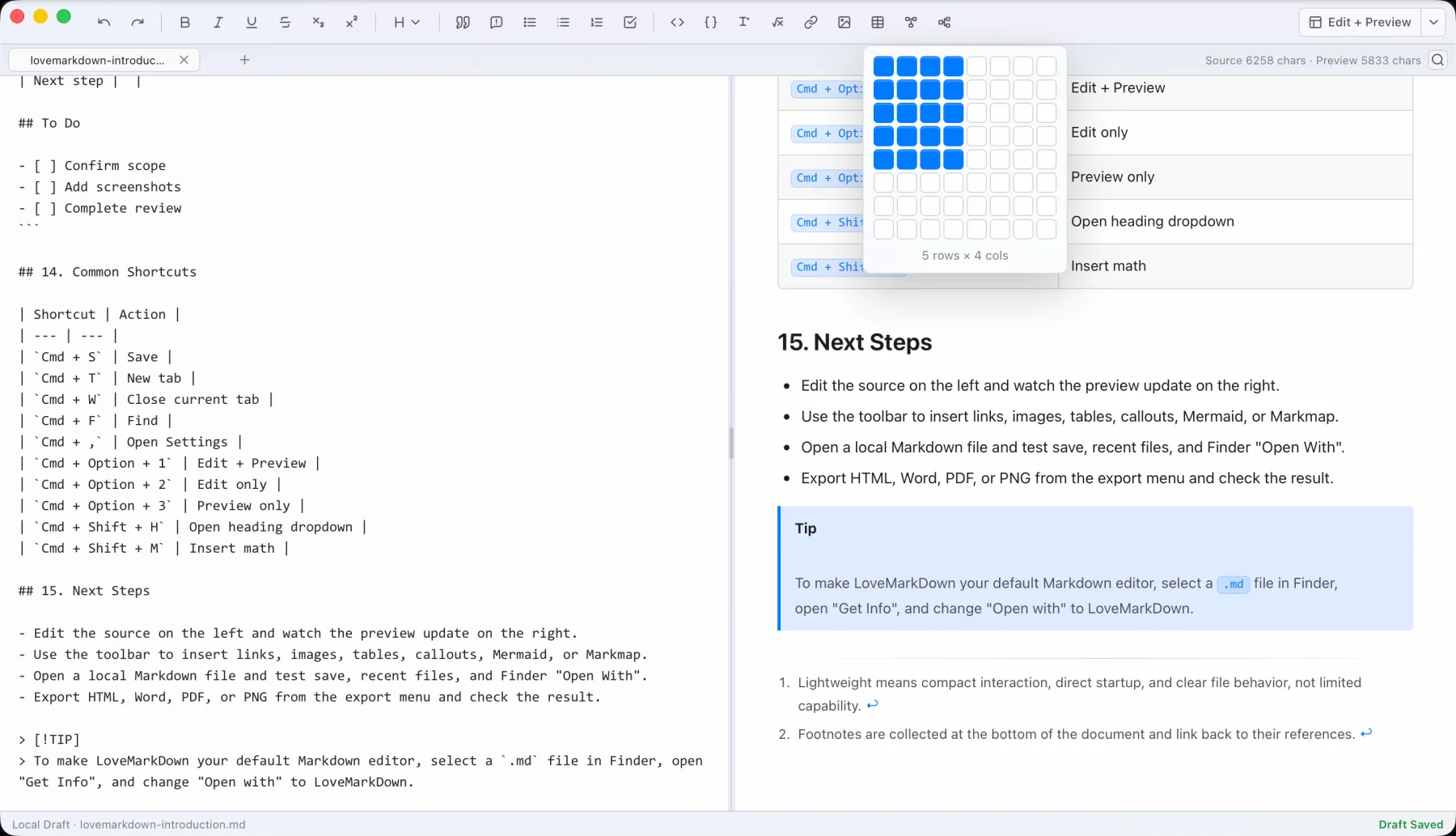
The difference is most visible in small, frequent tasks:
Open the README directly, make the change, check the preview, and save. Git may still track the file in its folder, but the Markdown editor does not require repository binding before it can edit the document.
Open the file from Finder or drag it into the app. There is no need to decide where an app-specific workspace should live before you can read it.
Use live preview to check Mermaid, formulas, tables, code, and nearby images. The technical rendering is attached to the document workflow rather than to a hosted project.
Keep Markdown as the source, then create a Word, PDF, HTML, or PNG copy for the recipient. The export is a handoff format, not a reason to move the source into another content system.
A lightweight product is not defined by having as few features as possible. It is defined by keeping required setup proportional to the task.
LoveMarkDown still supports live preview, relative local images, Mermaid diagrams, math, tables, code blocks, document navigation, appearance modes, and export. Those features help with the document that is open. They do not force the document into a broader publishing or knowledge-management model.
This boundary also keeps the positioning honest. LoveMarkDown is not claiming to replace a team wiki, a cloud collaboration suite, a full code IDE, or a linked-note knowledge base.
Choose a repository-oriented tool when documentation changes need code review, branches, or repository-wide navigation. Choose a workspace or vault-oriented tool when you rely on cross-document links, shared configuration, global search across a large collection, or synchronized team state.
Choose LoveMarkDown when the immediate job is the file: open it, write, preview, save, and export. If collection-level behavior becomes the primary requirement, the lighter file-first model will no longer provide the structure you need.
LoveMarkDown Direct 1.2.5 is available as one signed and Apple-notarized universal download for Apple Silicon and Intel Macs running macOS 12 or later. The Mac App Store also offers public version 1.2.5 with Apple-managed updates.
Read the LoveMarkDown feature guide for the complete writing, preview, image, diagram, math, and export workflow. The LoveMarkDown product page shows the current capabilities, screenshots, platform requirements, and privacy boundaries in one place. For file or export questions, use LoveMarkDown Support; for data handling, read the LoveMarkDown Privacy Policy.
No. Git is not required. LoveMarkDown can open and save a local Markdown file whether or not that file happens to be stored inside a Git repository.
No. You can open a local Markdown file directly from the File menu, Finder, or drag and drop.
No. The file stays in the location you chose. Your existing folders and file names remain the way you organize it.
Yes. The current release supports common Markdown structures plus relative local images, Mermaid diagrams, math, tables, and code blocks.
Use LoveMarkDown Support for opening and saving files, relative images, preview, export, Web-to-Markdown, and feedback. The LoveMarkDown Privacy Policy explains what stays local and when the app uses the network.
Use one when a large collection, cross-document linking, shared project settings, collaboration, or repository-wide navigation is the main requirement. LoveMarkDown is a better fit when direct access to an individual local file matters more.
Choose the product, support, compatibility, or privacy path that matches what you need next.
Compare signed Apple Silicon and Intel Direct installers with the current public Mac App Store release.
See the local file workflow, live preview features, real screenshots, export formats, and platform requirements.
Find help for opening files, relative images, export, Web-to-Markdown, and sending feedback.
More NgSense release notes, setup guides, and local-first workflow articles.
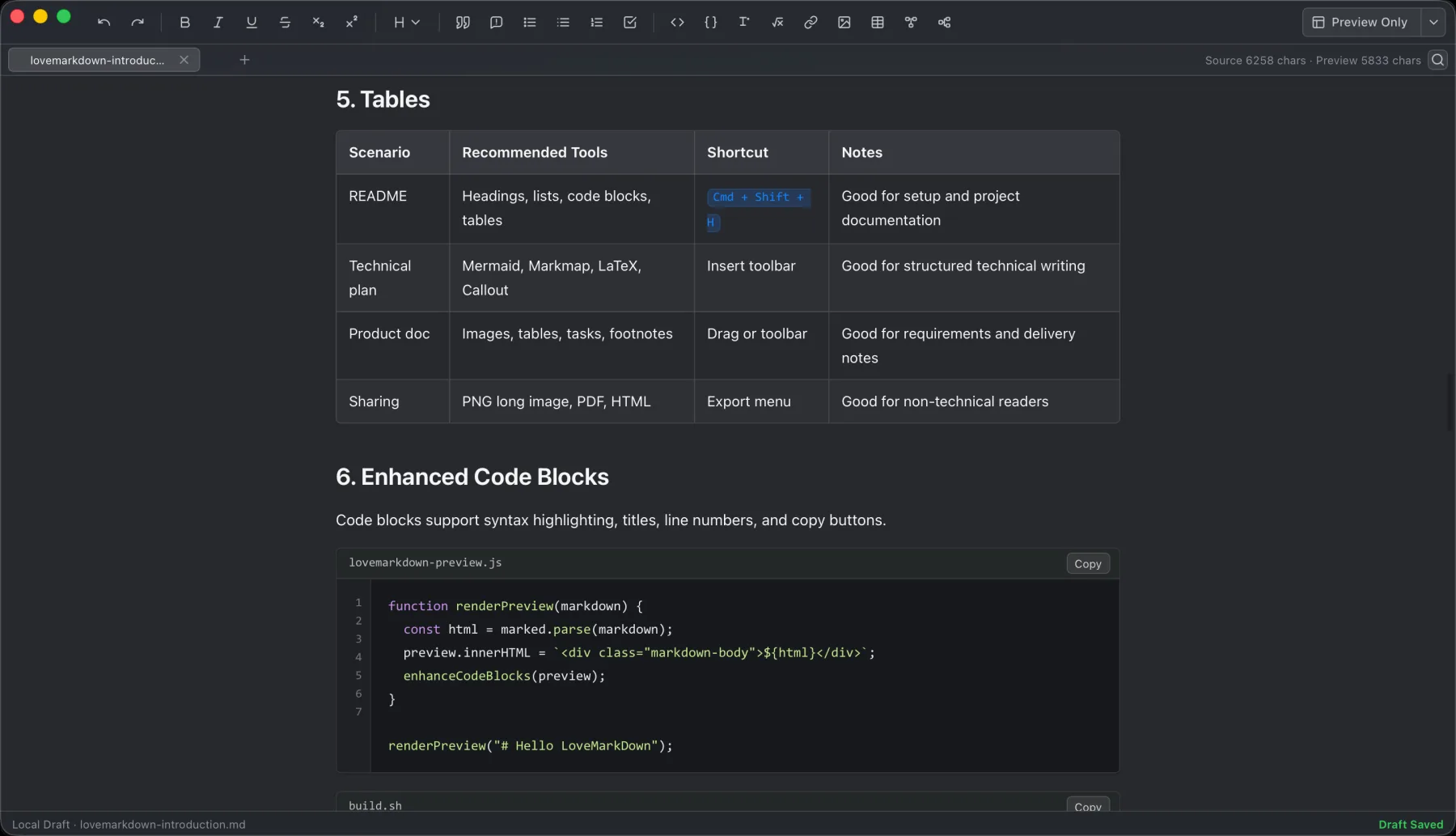
LoveMarkDown 1.2.5 adds a compact path bar, nearby Markdown browsing, and clearer file actions. Choose the universal Direct download or the public Mac App Store release.
Read article To open one Markdown file on Mac, Control-click it in Finder, choose Open With, and select a Markdown editor. You can also choose a default app for supported Markdown extensions.
Read article LoveMarkDown 1.2.2 adds an explicit way to ask macOS to use LoveMarkDown as the default editor for common Markdown file extensions, plus more reliable Finder Open With registration.
Read articleDownload Direct 1.2.5 in one universal package for Apple Silicon and Intel, or choose public App Store 1.2.5 with Apple-managed updates.