
How to Open Markdown Files on Mac with Finder Open With
To open one Markdown file on Mac, Control-click it in Finder, choose Open With, and select a Markdown editor. You can also choose a default app for supported Markdown extensions.
- LoveMarkDown
- September 7, 2026
- open Markdown files Mac
- Markdown Open With
- default Markdown editor
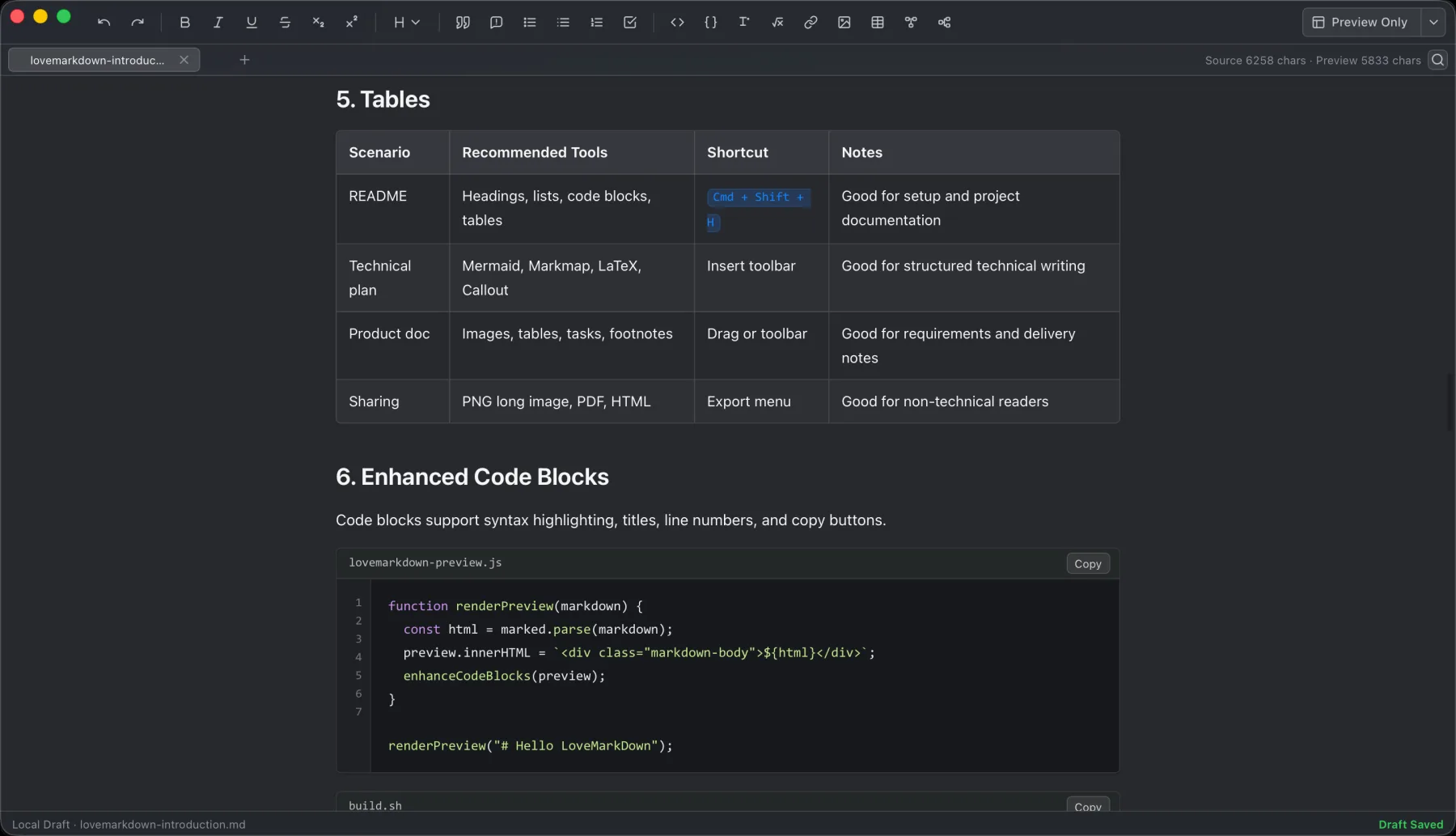
LoveMarkDown combines local Markdown editing with live preview, technical rendering, and portable export.
Jump to a section
To open one .md file on a Mac without changing any default, Control-click the
file in Finder, choose Open With, and select a Markdown editor. To use the
same editor whenever you double-click supported Markdown files, request the
default change from the app or use Finder, then review the confirmation from
macOS.
LoveMarkDown 1.2.2 introduced an explicit in-app request for
.md, .markdown, .mdown, and .mkd. It does not silently change a system
setting: you start the request and macOS asks you to confirm it.
Open one Markdown file without changing the default
- Find the Markdown file in Finder.
- Control-click the file and choose Open With.
- Select LoveMarkDown, or another editor you want to use for this file.
- Edit or preview the document, then use Save to write back to the local file.
This path affects only the file you selected. It is useful when another app should remain the default or when you are checking an unfamiliar document.
Make LoveMarkDown the default editor
For the current Mac App Store 1.2.5 build (the feature debuted in 1.2.2):
- Open LoveMarkDown.
- Start the default-editor request from the App menu or Settings.
- Review the macOS confirmation.
- Confirm only if you want supported Markdown files to open in LoveMarkDown.
- Double-click a file in Finder to verify the result.
The app asks macOS to make the change. If you cancel the system confirmation, your existing default stays in place. The LoveMarkDown 1.2.2 release notes explain this boundary in more detail.
If LoveMarkDown is missing from Open With
Work through these checks in order:
- Open LoveMarkDown once after installation or update.
- Confirm that the file ends in
.md,.markdown,.mdown, or.mkd. - If you use the Mac App Store channel, confirm version 1.2.5 in About LoveMarkDown.
- Try the in-app default-editor request and review the macOS confirmation.
- Return to Finder and check Open With again.
Finder and macOS Launch Services control the final Open With list. This website cannot inspect your Mac, refresh its registration database, or guarantee a file association for an extension outside the documented list.
Know which public channel you have
| Channel | Public version | Default-editor request | Update path |
|---|---|---|---|
| Mac App Store | 1.2.5 | Included; macOS confirmation required | Managed by Apple |
| Direct download | 1.2.5 | Included; macOS confirmation required | Signed NgSense update after user confirmation |
Direct 1.2.5 uses one universal installer for Apple Silicon and Intel, with the same user-controlled default-editor request. Both channels are public; compare their update paths on the LoveMarkDown download page.
What opening a file does and does not do
Opening a selected local Markdown file gives LoveMarkDown access to that file for editing, preview, saving, and export. Ordinary local editing does not automatically upload Markdown content, file names, or full local paths. Web-to-Markdown uses the network only when you enter a URL for conversion.
Frequently asked questions
Can I use LoveMarkDown for one file without changing my default app?
Yes. Use Finder’s Open With command. The choice applies to the file you open and does not require a system-wide default change.
Which Markdown extensions are covered by the 1.2.2 registration work?
The documented extensions are .md, .markdown, .mdown, and .mkd.
Does LoveMarkDown change the default automatically?
No. You start the request, and macOS presents the confirmation. Nothing changes if you do not approve it.
Why is the option missing from my older Direct installation?
Direct 1.2.1 did not include the in-app request introduced in App Store 1.2.2. The current Direct 1.2.5 build includes it; check the version in About LoveMarkDown or use the current download page.
Where can I get more help?
Use LoveMarkDown Support for opening, saving, images, export, Direct updates, and feedback. Avoid sending private document content unless you intentionally choose to share a minimal example.